EasyManua.ls Logo

Kyocera FS-1320MFP - User Manual

Kyocera FS-1320MFP
202 pages
Print Icon
To Next Page IconTo Next Page
Loading...
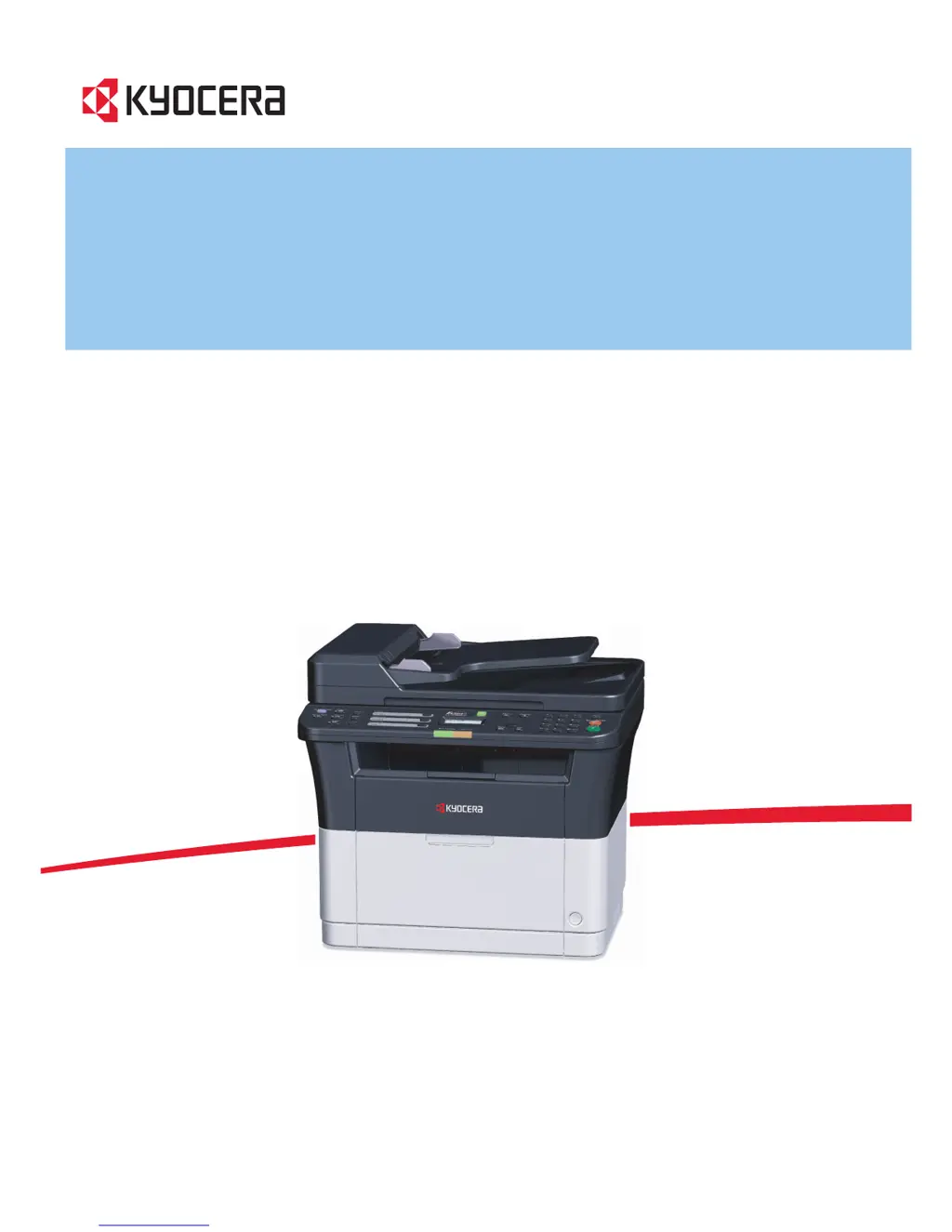
OPERATION GUIDE
FS-1025MFP FS-1320MFP
FS-1120MFP FS-1325MFP
FS-1125MFP

Table of Contents

Other manuals for Kyocera FS-1320MFP

Questions and Answers

  • M
    mgutierrezAug 20, 2025
    How to fix Kyocera All in One Printer that won't print from computer?
    • L
      Lisa MontgomeryAug 20, 2025
      If your Kyocera All in One Printer is not printing from the computer, check the following: * Ensure both ends of the power cord are securely connected. * Verify the machine is powered on. If not, turn it on. * Make sure the correct interface cable is securely connected. * If the machine was powered on before connecting the interface cable, power it off and then on again after connecting the cable. * Confirm that the print job is not paused; if it is, resume printing.
  • J
    jamesnelsonAug 21, 2025
    What to do if Kyocera FS-1320MFP All in One Printer prints status page but not computer data?
    • M
      Michelle SilvaAug 22, 2025
      If your Kyocera All in One Printer prints a status page but not data from the computer: * Ensure both ends of the interface cable are securely connected and consider replacing the interface cable. * Try printing another file or using another print command to check program files and application software. If the problem occurs with a specific file or application, check the printer settings for that application.
  • N
    nmckenzieAug 25, 2025
    How to resolve gray background on Kyocera FS-1320MFP printouts?
    • W
      williamhooverAug 25, 2025
      To address a gray background on printouts from your Kyocera All in One Printer: * Check the toner container and replace it if necessary. * Increase the adjustment value for the Drum charge setting in the Maintenance Menu. * Decrease the adjustment value for the Print density setting in KYOCERA Client Tool.
  • N
    Nathan DavisAug 26, 2025
    How to fix skewed images on Kyocera FS-1320MFP All in One Printer?
    • S
      Shannon ConnerAug 26, 2025
      To resolve images that are skewed when using your Kyocera All in One Printer: * When placing originals on the platen, align them with the original size indicator plates. * Check the position of the paper width guides to ensure the paper is loaded correctly.
  • D
    Damon CampbellAug 27, 2025
    How to fix vertical streaks on Kyocera All in One Printer printouts?
    • M
      Melissa MarquezAug 27, 2025
      To address printouts with vertical streaks on your Kyocera All in One Printer, clean the slit glass cover.
  • C
    charles05Aug 29, 2025
    How to eliminate moire pattern on Kyocera FS-1320MFP copies?
    • A
      Amy WilsonAug 30, 2025
      To resolve copies with a moire pattern from your Kyocera All in One Printer, set the image quality to Photo if the original is a printed photograph.
  • A
    Anthony DominguezAug 31, 2025
    How to improve text clarity on Kyocera FS-1320MFP?
    • J
      Jason RodriguezSep 1, 2025
      If texts are not clearly printed by your Kyocera All in One Printer, select the appropriate image quality for the original.
  • K
    Kelli GreenSep 3, 2025
    What to do if Kyocera FS-1320MFP All in One Printer printouts are wrinkled?
    • B
      Brittany SanchezSep 3, 2025
      To resolve printouts that are wrinkled when using your Kyocera All in One Printer, replace the paper with new paper.
  • A
    angelasummersSep 4, 2025
    What to do if Kyocera FS-1320MFP All in One Printer doesn't make copies when pressing start?
    • M
      Marie FosterSep 4, 2025
      If pressing [Start] on your Kyocera All in One Printer does not produce copies: * Check the message on the machine screen, KYOCERA Client Tool, or the Status Monitor and respond accordingly. * If the machine is in Sleep mode, press any key on the operation panel to recover it.
  • R
    Rebecca EatonSep 7, 2025
    How to fix dropouts or stray dots on Kyocera FS-1320MFP All in One Printer printouts?
    • M
      markdavisSep 7, 2025
      To resolve printouts from your Kyocera All in One Printer that have dropouts or stray dots, increase the adjustment value for the Drum charge setting in the Maintenance Menu.

Summary

Machine Parts

Operation Panel

Explains the function of each button and indicator on the control panel.

Preparation

Connections

Guides on connecting USB, network, and power cables for initial setup.

Installing and Uninstalling Drivers and Utilities

Steps to install/remove software for Windows and Macintosh.

Copying

Basic Operation

Step-by-step guide for performing standard copying tasks.

Printing

Printing from Application Software

Process for printing documents created in PC applications.

Scanning

Push Scan

Simple scanning directly from the machine's control panel.

Quick Scan (Scan to PDF;Scan to Email;Scan to Folder)

Performing scans to common digital destinations.

Default Setting (System Menu)

FAX Operations

Before Using the Fax Machine

Initial setup procedures like setting date, time, and local fax info.

Entering the Destination

Methods for specifying fax recipients, including manual entry and address book.

Sending Faxes

Comprehensive guide to initiating fax transmissions.

Maintenance

Replacing the Toner Container

Step-by-step instructions for replacing the toner.

Troubleshooting

Solving Malfunctions

A guide to identifying and resolving common operational problems.

Error Messages

Explains on-screen error messages and their corresponding remedies.

Clearing Paper Jams

Detailed instructions for locating and removing paper jams.

Kyocera FS-1320MFP Specifications

General IconGeneral
BrandKyocera
ModelFS-1320MFP
CategoryAll in One Printer
LanguageEnglish

Related product manuals