Activity Guide
Tech-Design by Lab-Volt 21
Automation & Robotics Robotics in Manufacturing
Move back the tip to around 25 mm (1 in) right over point B at a high speed. Then, slowly move d.
the tip close to mark B without touching it.
Repeat steps d. and e. in order to point the two other marks (C and D). e.
Return the end effector to the home position.f.
Once the program is complete, save it using the lename “SpotWelding and your last name”.5.
Test and debug your program. 6.
Now edit your program, adding four welding points, one between each of the four current welding 7.
points. Save this program (File>Save As) using a different lename “SpotWelding EDITand your last
name”.
Test and debug your edited program. 8.
Continuous Welding
You will now create a new program that will simulate the continuous welding of a steel plate.
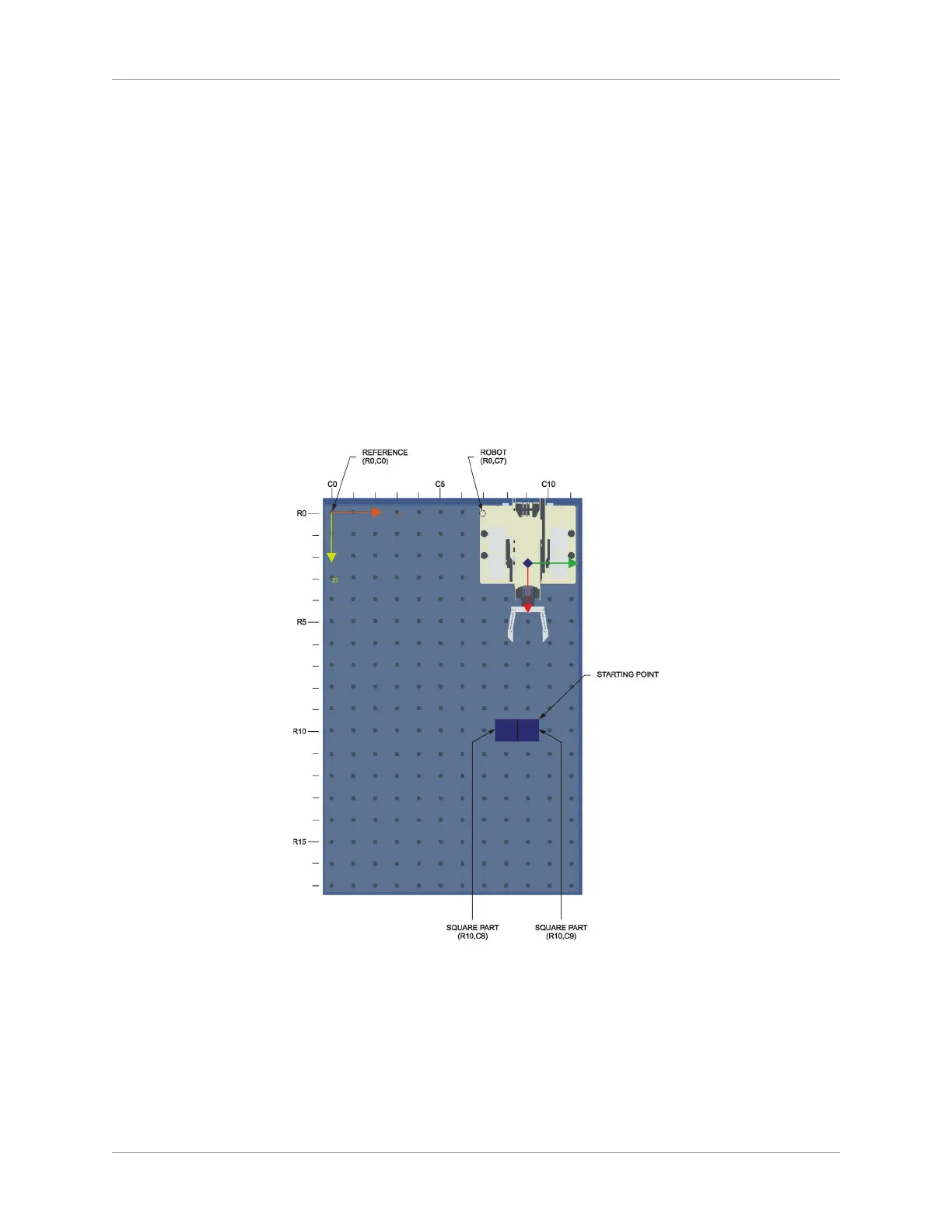
On the work surface, place the robot and the objects as shown:1.
Continuous Welding Set-Up
You will now simulate the welding of continuous lines along a rectangular steel plate. The plate will 2.
be simulated by two square parts placed side-by-side on the work surface. Create a program that
will make the robot perform the following tasks in sequence:
Starting at the home position, close the griper. The extremity of the closed gripper will simulate the 3.
electrode tip.



 To Next Page