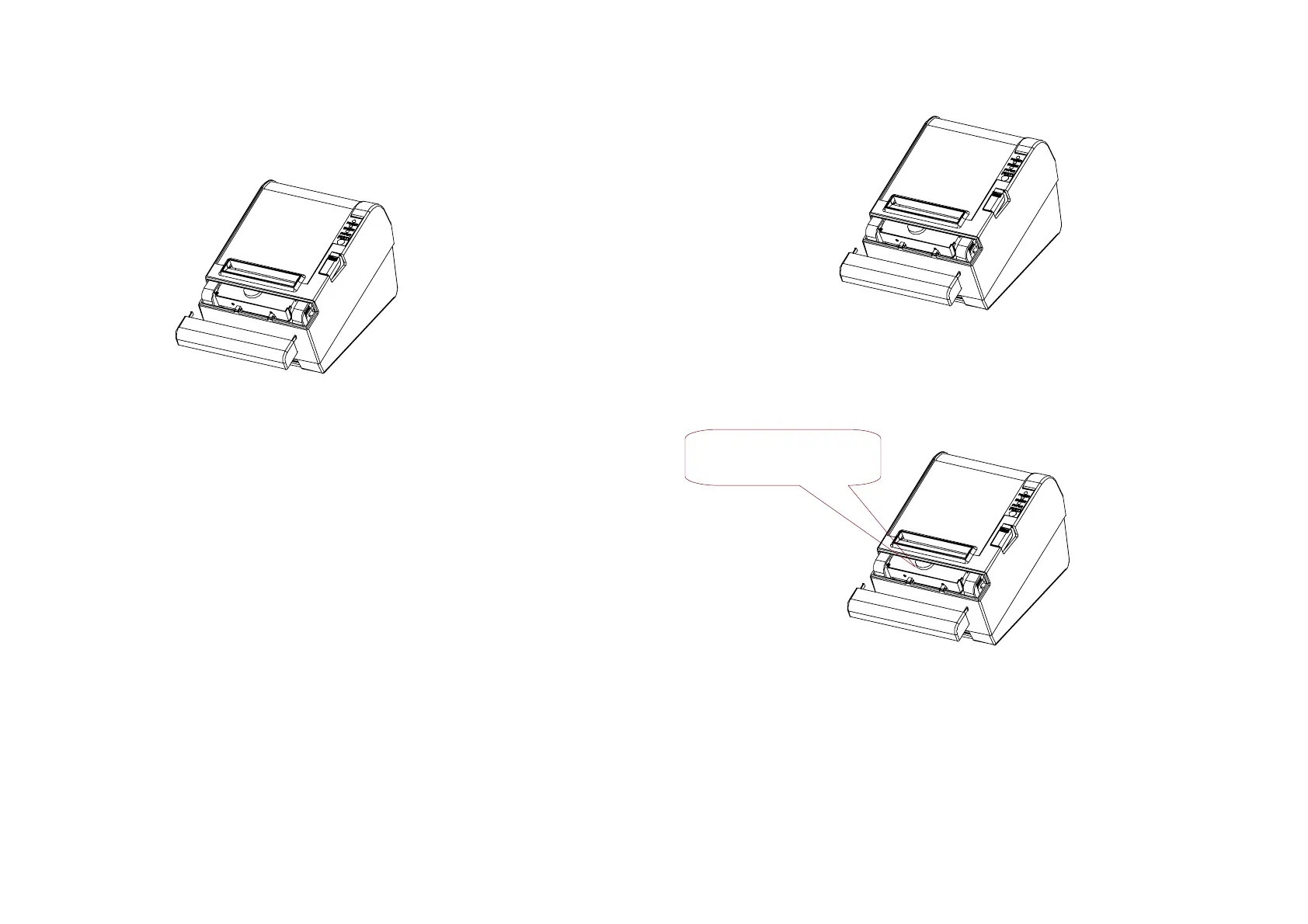
4. Then turn the knob until you see cutter blade back to the lowest
position, as shown in the illustration below. This returns the
cutter blade to the normal position. Also notice that there is a
label near the cutter to assist you.
5. Close the cutter cover.
6. Open the printer cover.
7. Remove the jammed paper.
Auto cutter problems
※
The auto cutter is jammed.
If a foreign object such as a push pin or paper clip drops in
the auto cutter and causes the auto cutter to lock up, the
printer enters an error state and begins the recovery
operation automatically.
If the problem is not serious, the auto cutter returns to its
normal position without any intervention by the user.
If the auto cutter does not return to its normal position by itself,
follow the steps below to correct the problem:
4-4
1. Pull the cutter cover toward you so that you can rotate the
cutter motor knob.
2. Following the instructions on the label, rotate the knob until
the cutter blade draw back to normal position.
3. Close the cutter cover.
NOTE:
In case if you need disable cutter, please setting the DIP switch,
“SW1” 1-5 to be “ON” for disable cutter, and printer can use tear-bar for
paper off.
4-5
If the paper jams, turn
the knob
clockwise until the cutter blade
ack to lowest
osition.


 To Next Page