12
AmpliFi User GuideChapter 2: Devices
ULabs
Mesh Point Settings
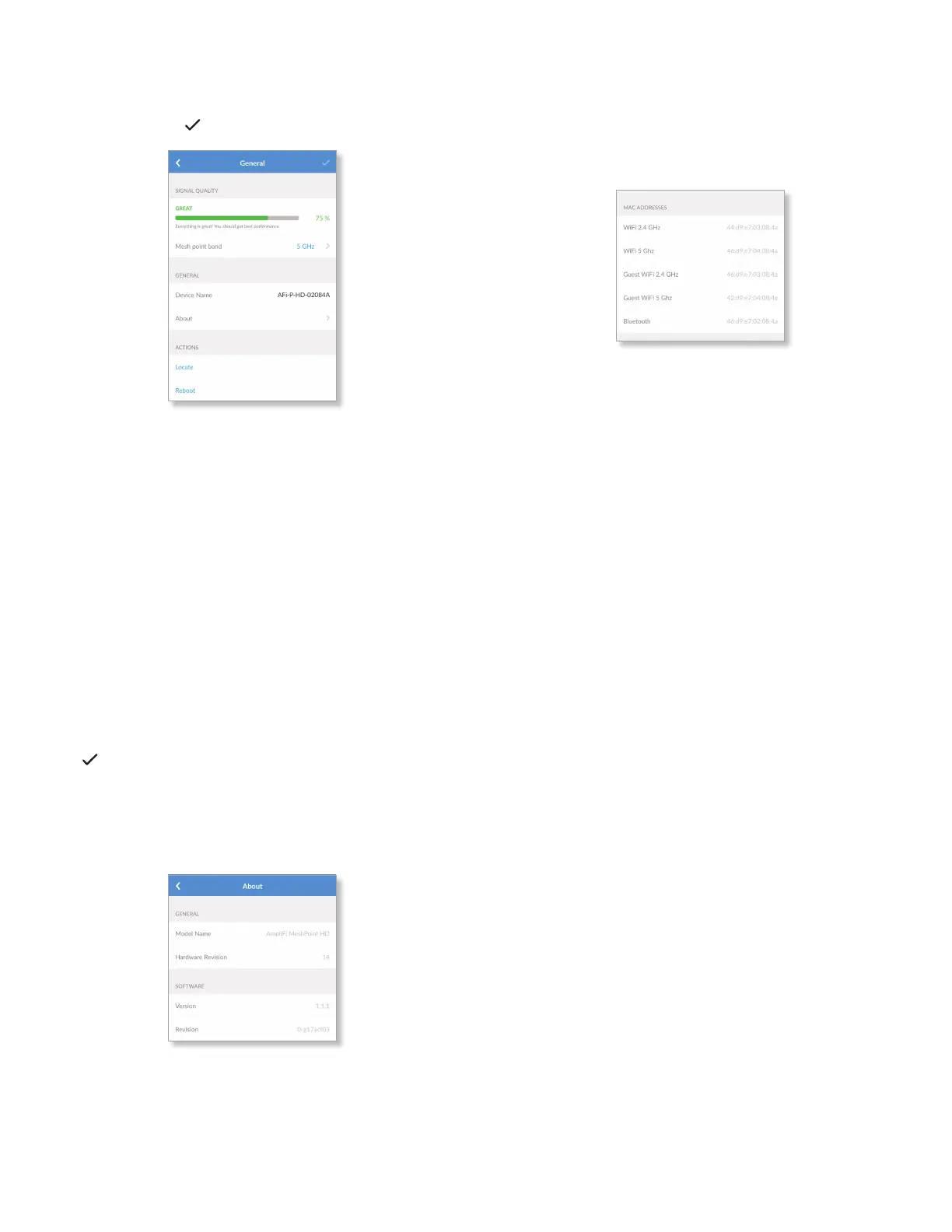
The General screen for the Mesh Point allows you to access
device settings. Tap to save your changes.
Signal Quality
• Signal Strength Displays the percentage of signal
strength.
• Mesh Point Band Displays the radio band used by the
Mesh Point. Select 2.4 GHz or 5 GHz. The default is 5GHz.
General
• Device Name Displays the descriptive name of the Mesh
Point. Tap to change it.
• About Select this option for more information about the
Mesh Point. Go to the About section (below) for details.
Actions
• Locate The Mesh Point emits a sound beacon for several
seconds.
• Reboot Restarts the Mesh Point.
Tap to save your changes.
About
The About screen for the Mesh Point displays the model
name and version numbers of the device and software, as
well as the MAC addresses of the hardware interfaces.
Device
• Model Name Displays the model of the Mesh Point.
• Hardware Revision Displays the revision number of the
Mesh Point hardware.
Software
• Version Displays the version number of the Mesh Point
software.
• Revision Displays the revision number of the Mesh Point
software.
MAC Addresses
• Wi-Fi 2.4 GHz Displays the MAC address of the 2.4 GHz
wireless interface.
• Wi-Fi 5 GHz Displays the MAC address of the 5GHz
wireless interface.
• Guest Wi-Fi 2.4 GHz Displays the MAC address of the
guest 2.4 GHz wireless interface.
• Guest Wi-Fi 5 GHz Displays the MAC address of the guest
5 GHz wireless interface.
• Bluetooth Displays the MAC address of the Bluetooth
interface.


 To Next Page