5
AmpliFi User Guide Chapter 2: Devices
ULabs
Chapter 2: Devices
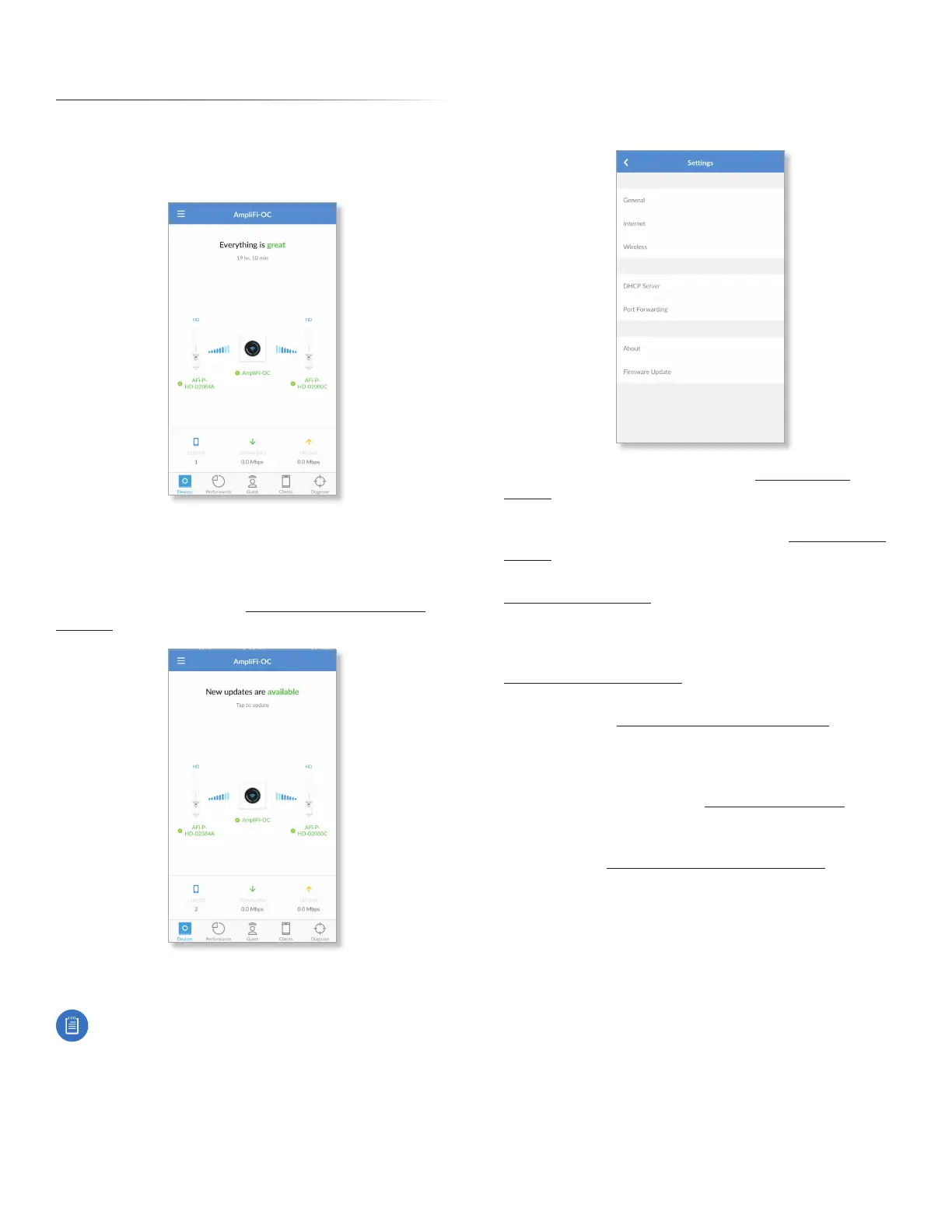
The Devices screen displays the system dashboard. It
provides an overview of the AmpliFi Wi-Fi system including
network status, number of connected clients, and active
download/upload speeds.
Tap the Router to display/edit Router settings. Go to the
Router Settings section in the next column for details.
Tap a Mesh Point to display signal quality, view/edit
the device name, view Mesh Point details, and locate or
reboot the Mesh Point. Go to “Mesh Point Settings” on
page12 for details.
If new firmware updates are available, then we recommend
that you update the AmpliFi devices.
Note: Your Wi-Fi will be temporarily down while you
update the AmpliFi devices. If you have significant
network activity, such as a download or upload in
progress, you can postpone the update until an
appropriate time.
Router Settings
The Settings screen for the Router offers a variety of
configuration options.
General Access device settings. Go to “General” on
page6 for details.
Internet Access Internet connection settings, including
service type: DHCP, Static IP, or PPPoE. Go to “Internet” on
page7 for details.
Wireless Access wireless network settings. Go to
“Wireless” on page8 for details.
DHCP Server Access DHCP (Dynamic Host Configuration
Protocol) settings, which determine how IP (Internet
Protocol) addresses are assigned in your network. Go to
“DHCP Server” on page9 for details.
Port Forwarding You can forward traffic from one port
to another. Go to “Port Forwarding” on page10 for
details.
About The model name and version numbers of the device
and software, as well as the MAC addresses of the hardware
interfaces, are displayed. Go to “About” on page10 for
details.
Firmware Update Check for updates to the device
firmware. Go to “Firmware Update” on page11 for
details.


 To Next Page