7
AmpliFi User Guide Chapter 2: Devices
ULabs
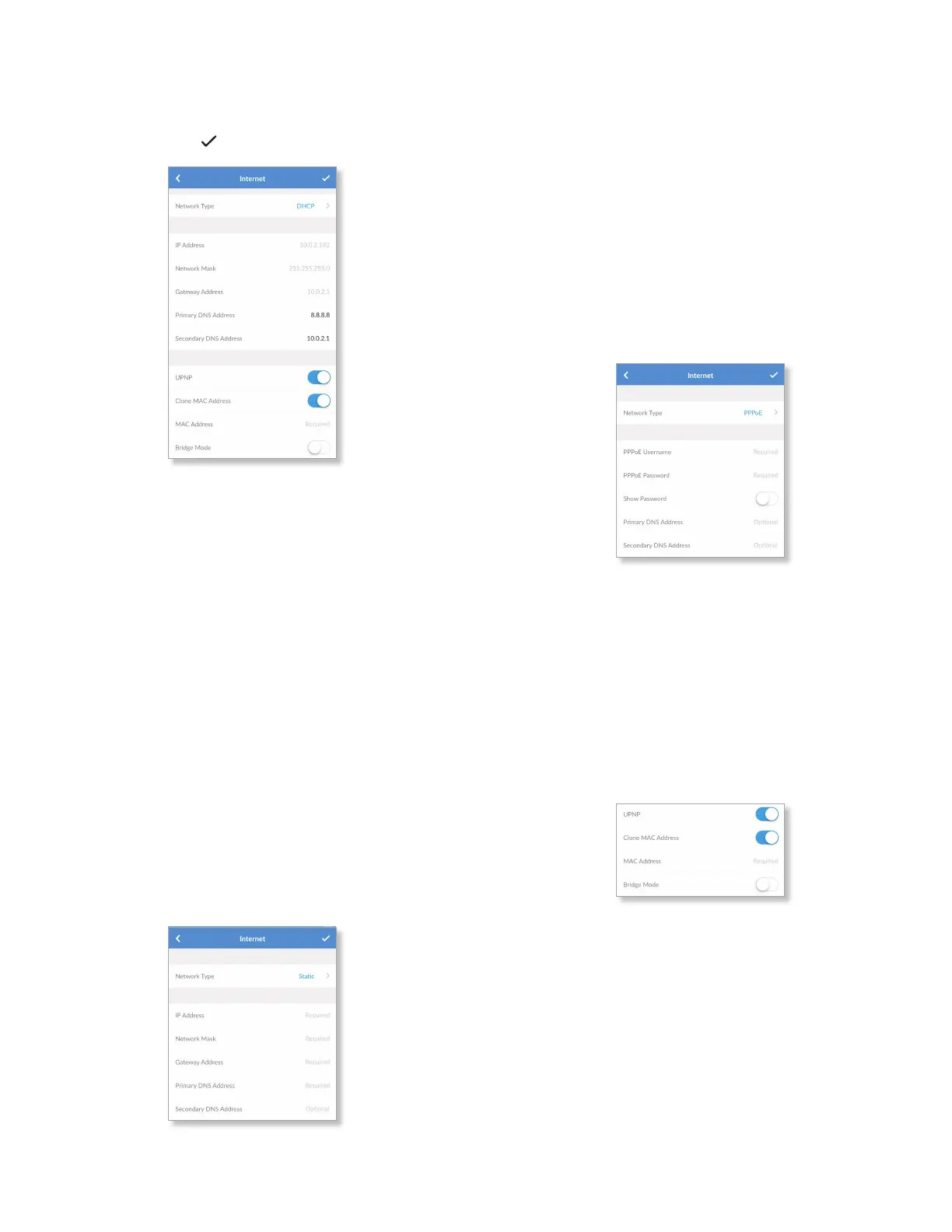
Internet
The Internet screen for the Router allows you to access
Internet connection settings, including service type: DHCP,
Static IP, or PPPoE. Tap to save your changes.
• Network Type Select the type of Internet connection you
use: DHCP, Static, or PPPoE.
DHCP
The use of the Dynamic Host Configuration Protocol (DHCP)
is the default. The Router automatically acquires network
settings from the service provider’s DHCP server.
• IP Address Displays the IP address assigned by your ISP
(Internet Service Provider).
• Network Mask Displays the network or subnet mask of
the Router.
• Gateway Address Displays the IP address of the service
provider’s gateway router.
• Primary DNS Address Displays the IP address of the
service provider’s primary DNS (Domain Name System)
server.
• Secondary DNS Address Displays the IP address of the
service provider’s secondary DNS server.
Static
The service provider assigns fixed network settings to your
service for manual entry.
• IP Address Enter the Internet IP address of the Router.
• Network Mask Enter the network or subnet mask of the
Router.
• Gateway Address Enter the IP address of the service
provider’s gateway router.
• Primary DNS Address Enter the IP address of the service
provider’s primary DNS server.
• Secondary DNS Address Enter the IP address of the
service provider’s secondary DNS server.
PPPoE
Point-to-Point Protocol over Ethernet (PPPoE) is a virtual
private and secure connection between two systems that
enables encapsulated data transport.
• PPPoE Username Enter the username used to connect to
the PPPoE server.
• PPPoE Password Enter the password used to connect to
the PPPoE server.
• Show Password Disabled by default. Select this option to
display the password in plain text.
• Primary DNS Address Enter the IP address of the service
provider’s primary DNS server.
• Secondary DNS Address Enter the IP address of the
service provider’s secondary DNS server.
• UPnP Enabled by default. Universal Plug and Play
automatically configures port forwarding when you have
hardware that supports UPnP.
• Clone MAC Address Disabled by default. Select this
option to clone a computer’s MAC address to the Router.
Enter the MAC address in the field provided.
This may be helpful if your service provider registered
the MAC address of the computer you had previously
connected to the modem. MAC address cloning allows the
Router to be recognized instead.


 To Next Page