8
AmpliFi User GuideChapter 2: Devices
ULabs
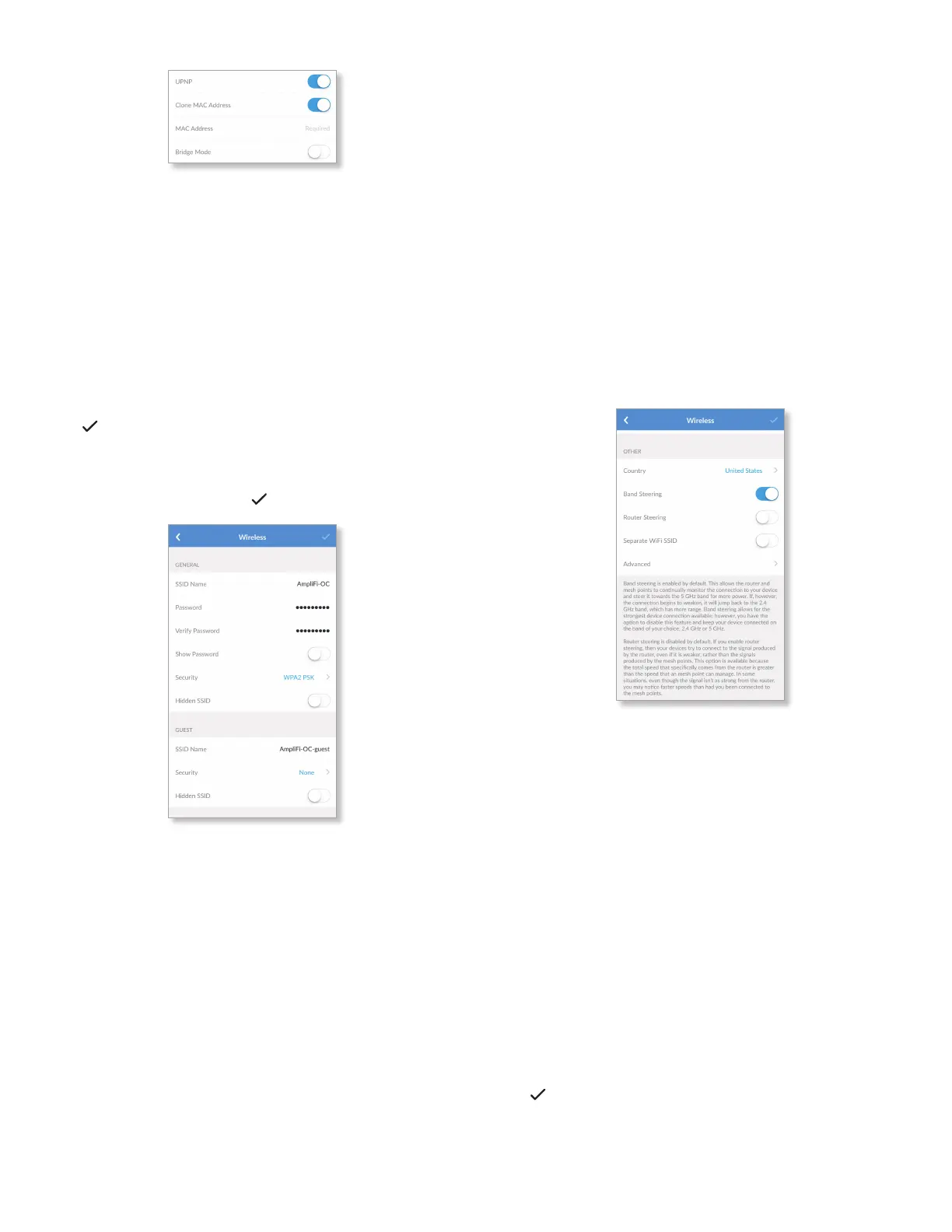
• Bridge Mode Disabled by default. Bridge mode can
help you grow your network and/or separate networks. It
allows you to use multiple Routers on the same network
by placing one of the Routers in bridge mode and
connecting it to a port on the other Router.
Here are a few of the most common applications for
bridge mode:
• Connect two Routers to share network resources.
• Use the Router as an additional access point on an
existing network.
• Use the Router with a fiber service.
Tap to save your changes.
Wireless
The Wireless screen for the Router allows you to access
wireless network settings. Tap to save your changes.
General
• SSID Name The name of the wireless network is
displayed. Tap to change it.
• Password The password to the wireless network is
displayed. Tap to change it.
• Verify Password To change the password, enter the new
password again.
• Show Password Disabled by default. Select this option to
display the password in plain text.
• Security Select the type of wireless security you use:
None, WPA PSK, or WPA2 PSK (recommended). WPA2PSK
is the default.
• Hidden SSID Disabled by default. Select this option if
you don’t want the wireless network name or SSID to be
broadcast.
Guest
• SSID Name The name of the guest wireless network is
displayed. Tap to change it.
• Password The password to the guest wireless network is
displayed. Tap to change it.
• Verify Password To change the guest password, enter
the new password again.
• Show Password Disabled by default. Select this option to
display the guest password in plain text.
• Security Select the type of wireless security you use:
None, WPA PSK, or WPA2 PSK. None is the default.
• Hidden SSID Disabled by default. Select this option if
you don’t want the wireless network name or SSID to be
broadcast.
Other
• Country Select the appropriate country.
• Band Steering Band steering directs your devices to the
5 GHz band for higher performance. If the Router signal
weakens, it redirects to the 2.4 GHz band (which has
more range). Enabled by default, you can disable it and
manually select 2.4 or 5 GHz.
• Router Steering Router steering directs devices to
connect to the Router instead of Mesh Points when
possible (even if the Router signal is weaker). Disabled
by default, this feature may provide faster speeds when
enabled in some instances.
• Separate Wi-Fi SSID Disabled by default. Select this
option to create separate wireless networks for the
2.4GHz and 5 GHz radio bands.
This may be helpful if you want more control over which
radio band a client device uses. For example, if your device
can use the 5 GHz radio band and it is within range, then
the best option is to connect to the 5 GHz network.
Tap
to save your changes.


 To Next Page