53
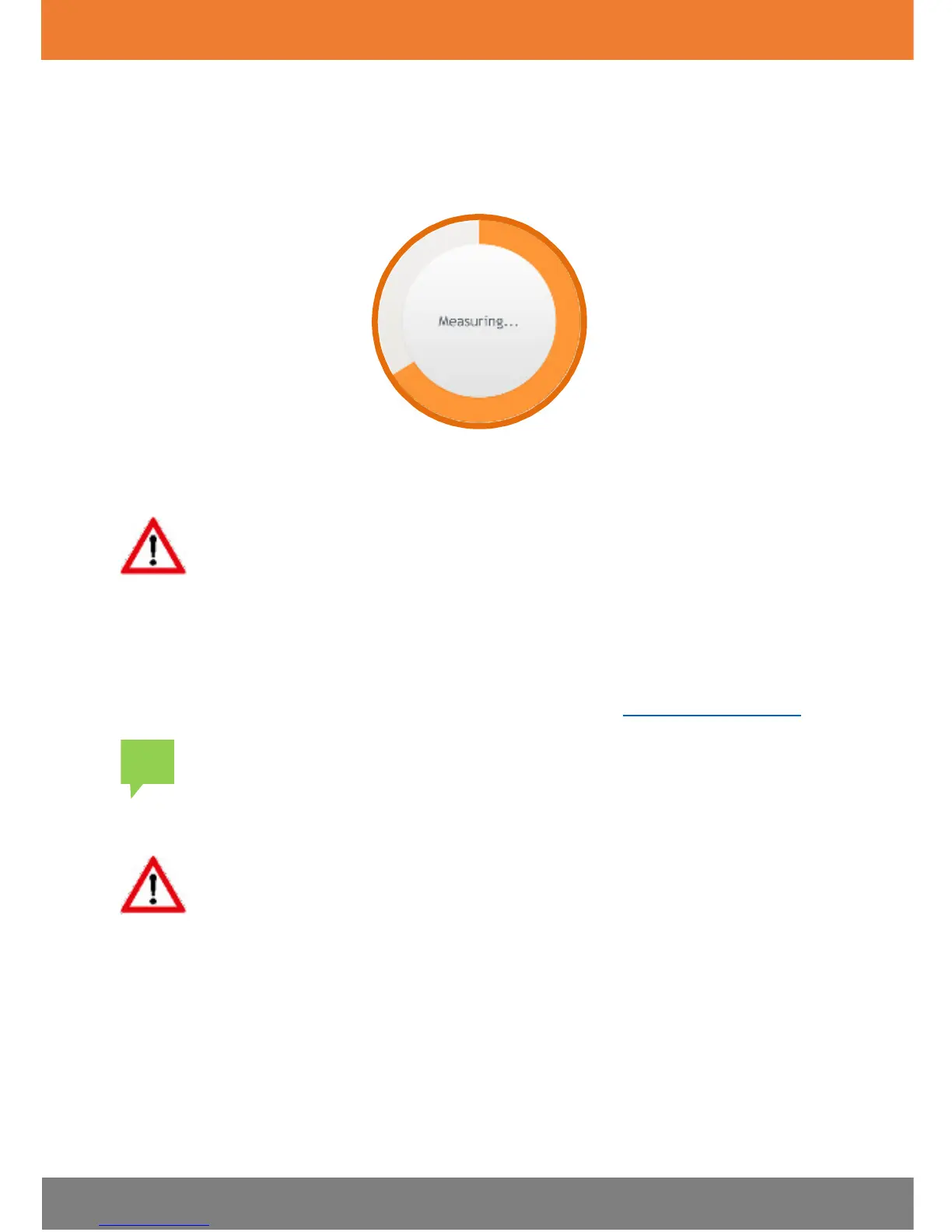
When the meter detects that blood has been applied, the “Measuring...”
message appears in the Dario App. The border of the circle gradually fills
with orange, indicating that the test is in progress.
4. Remove your finger from the strip once the above message appears.
Do not add blood to the test strip once you have removed your
finger because you may receive an inaccurate result.
5. The test result appears on the screen after approximately six (6) seconds.
The glucose test result is automatically saved to memory. If a result does
not display, you can view it in your Logbook in the Dario App. For more
information, refer to the Dario App User Guide at www.mydario.com.
In case an error message appear, you may need to start the
measurement process again. If error recurs, refer to
CHAPTER 6
TROUBLESHOOTING
on page
60
section for further information
the test will stop and the results will not be saved. The following
message will display on the result screen: “The Test Strip Is
Used” and you will have to start the test over with a new test
strip. To avoid an interruption of your glucose test, you may
want to set your smart mobile device to airplane mode prior to
starting your test.


 To Next Page