Multimedia system
Main Screen
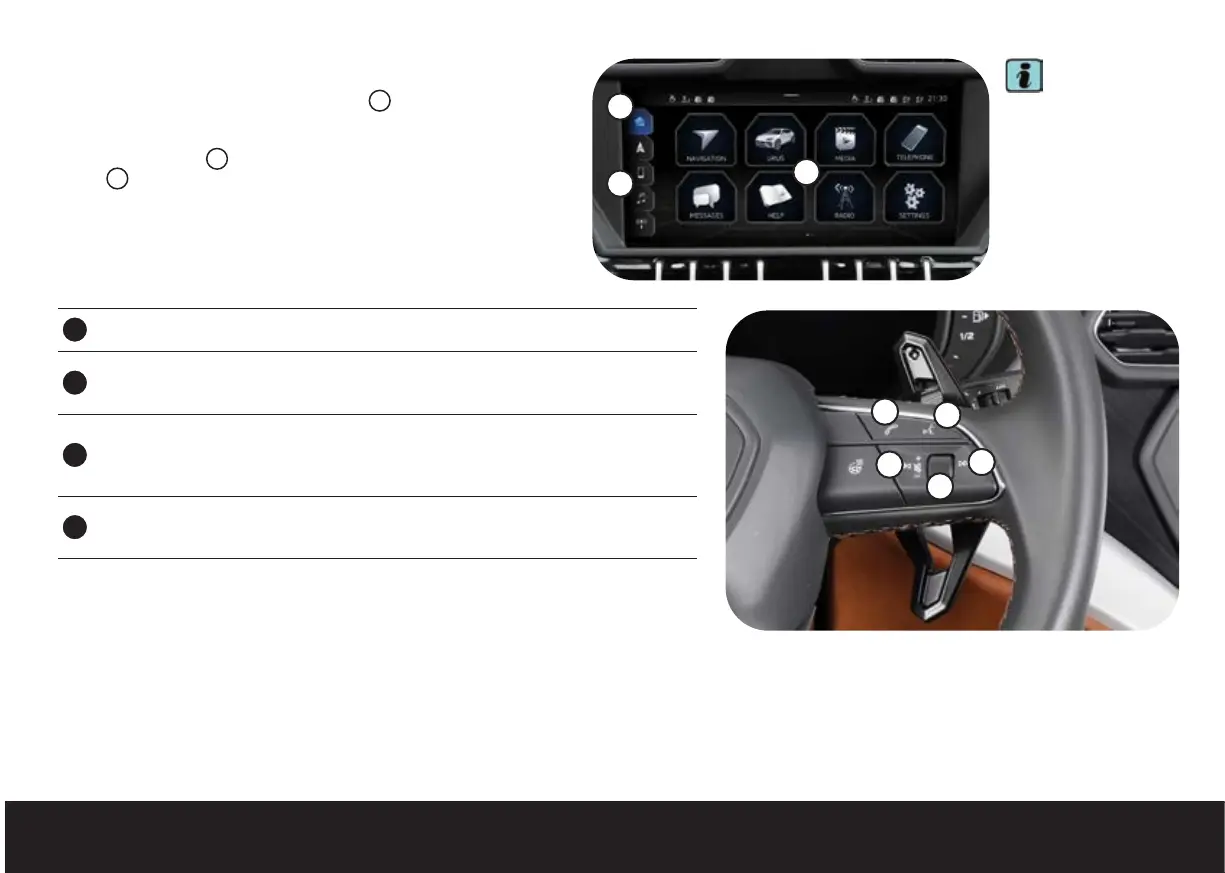
The initial screen contains the main menus
1
from which you can
control the functions offered by the vehicle. The layout of the main
menus can be customised by moving the icons around the main
screen. The side bar
2
can be customised, with the exception of the
HOME
3
button, inserting your favourite menus.
Steering Wheel Buttons
1
This button allows you to answer incoming calls, hang up on the current call and bring
up the recent calls list, if no conversation or incoming call is in progress
2
Voice Commands Button
• Press briefly to activate the speech dialogue system
• Press and hold to deactivate the speech dialogue system
3
Wheel
• Turn upwards to increase the volume of the active audio source and turn
downwards to decrease it
• Press to mute/unmute audio or to pause/unpause content playback
4
Arrow Button
• Press once to select the previous/next track or station
• Press and hold to skip to the required section during playback (seek function)
1
2
3
Voice Commands
To use the voice commands, the instrument cluster and the multimedia system must be switched on; there must also be no phone call in progress and the
parking assist system must not be active.
For the system to work at its best, speak in a clear and comprehensible manner, maintaining a constant tone and avoiding long pauses, ensuring other
passengers do not talk while you are giving commands and that the doors, windows and roof are closed.
1
2
3
4
4
Note
The vehicle is
equipped with different
functions, depending
on its configuration and
market.


 To Next Page