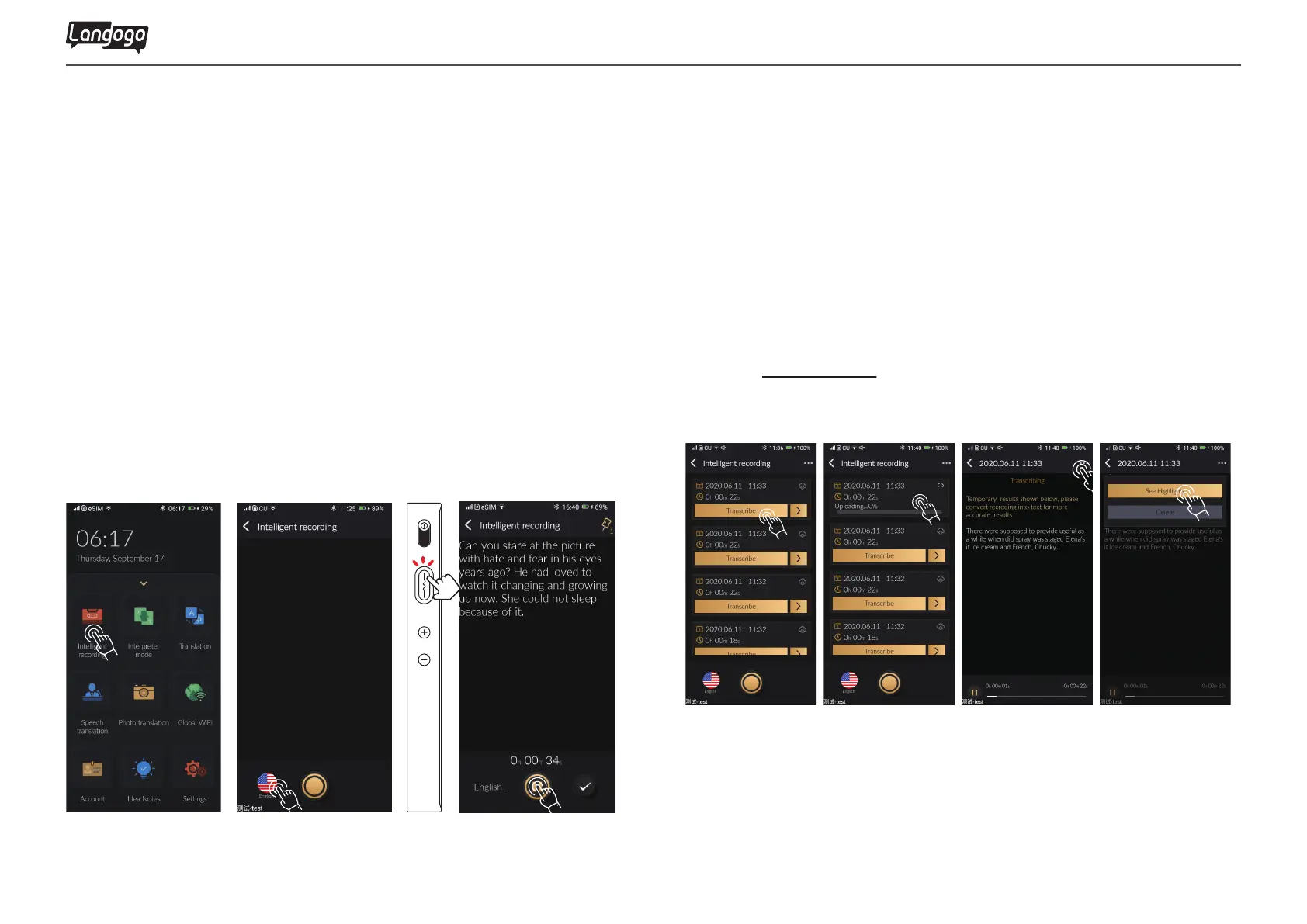
①Enter【Intelligent Recording】 and tap the icon in the lower left
corner to select the language
②Tap the start button to start recording
③During the recording, the device will display real-time tran-
scribed content. Tap the multi-function button on the right to
mark the audio
④When the recording is over, tap the pause and tick button to
save the audio content
Langogo Summit User Manual
Note: The recording function supports quick shortcut key operations. Quickly
double-press the multi-function button on the right to enter the Intelligent
Recording interface
14
4.2 Recording function 4.3 Transcription function
①T a p【 Transcribe】 and wait for transcription.
②The transcription will be finished within 5 minutes. On the
details page, tap the corresponding sentence, and the speech
will start playing
③Tap the three-point icon in the upper right corner and select
【See Highlights】 to find the marked audio text
④Log in www.notta.ai to edit and modify documents, and share
with others


 To Next Page