EasyManua.ls Logo

Lantronix Ethernet - User Manual

Lantronix Ethernet
92 pages
Print Icon
To Next Page IconTo Next Page
Loading...
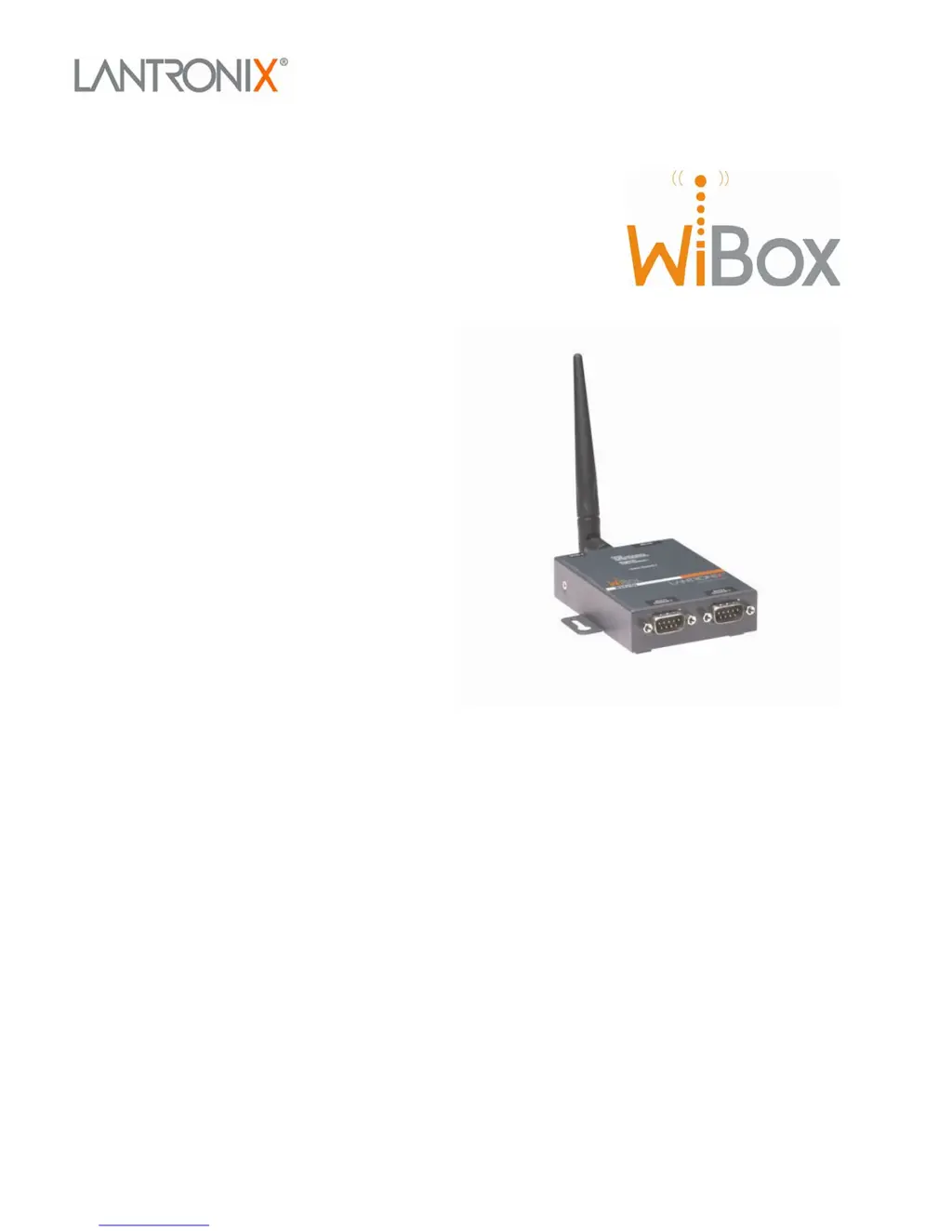
WiBox2100E User Guide
Part Number 900-351
Revision F June 2006

Table of Contents

Questions and Answers

  • E
    espinozashaneAug 14, 2025
    What to do if there is an IP address conflict on Lantronix Network Card?
    • E
      Edward WilsonAug 14, 2025
      If you suspect an IP address conflict, power off the device server. Then, use the following commands in your computer's DOS prompt: 'ARP -D X.X.X.X' (replace X.X.X.X with the device server's IP address) and 'PING X.X.X.X' (again, using the device server's IP address). If you get a response from the ping command, it means there's a duplicate IP address on your network. If you don't get a response, use the serial port to verify that Telnet is not disabled.
  • D
    David KimAug 17, 2025
    How to check network connection on Lantronix Ethernet?
    • M
      Mrs. Samantha WashingtonAug 17, 2025
      To check the network connection of the device server, check if the Link LED is lit. If the Link LED is not lit, it indicates that the device server does not have a network connection.
  • J
    jessicabarnettAug 20, 2025
    Why is Lantronix Ethernet not working: wrong serial settings?
    • M
      Maria WatsonAug 21, 2025
      If your Lantronix Network Card isn't working, it's likely due to incorrect serial settings. Ensure the serial settings for both the serial device and the device server match. The default settings for the device server are: RS-232, 9600 baud, 8 character bits, no parity, 1 stop bit, and no flow control.
  • J
    Jason LynchAug 25, 2025
    What to do if IP address is not on logical subnet for Lantronix Ethernet Network Card?
    • K
      Kristopher LeeAug 25, 2025
      If the IP address you're trying to assign isn't on your logical subnet, confirm that your PC has an IP address and that it is in the same logical subnet you're trying to assign to the device server.
  • J
    juliehendersonAug 27, 2025
    How to check WiBox socket connection on Lantronix Network Card?
    • S
      Sara AndersonAug 27, 2025
      To check the socket connection to or from the WiBox, observe the Status LED. A consistently blinking or completely off Status LED indicates a good socket connection. A solid green Status LED means the socket connection doesn't exist. Use the Connect Mode option C0.
  • S
    Steven BergerAug 31, 2025
    What to do if Lantronix Ethernet Network Card reboots when using Telnet?
    • K
      kyle50Aug 31, 2025
      If the device server reboots when using Telnet, Telnet back to Port 1 and wait for it to fail. Then, Telnet to port 9999 again, ensuring you press Enter within 5 seconds.
  • P
    Patricia SmithSep 3, 2025
    How to enter Setup Mode via Telnet on Lantronix Network Card?
    • C
      Charles FreemanSep 3, 2025
      To enter Setup Mode via Telnet, Telnet to port 9999 again and press Enter as soon as you see the 'Press Enter to go into Setup Mode' message.
  • R
    Ryan RoySep 7, 2025
    What to do if Infrastructure Network Name is different on Lantronix Network Card?
    • M
      Mr. Derek EvansSep 7, 2025
      If the Infrastructure Network Name (SSID) is blank or different from the Ad Hoc name and the WiBox is associated to the Infrastructure Network, set the Infrastructure Network Name (SSID) to the same name as the Ad Hoc name.
  • S
    Samuel MedinaSep 10, 2025
    How to enable Ad Hoc network on Lantronix Ethernet Network Card?
    • R
      Rachel StantonSep 10, 2025
      To enable Ad Hoc network functionality, enable the Ad Hoc network and set the Ad Hoc Network Name (IBSS) to match, noting that these are case-sensitive.

Summary

WiBox2100 E User Guide

Introduction to WiBox

Application Examples

Illustrates typical network scenarios and use cases for the WiBox device.

Technical Specifications

Lists the hardware and performance specifications of the WiBox device.

Quick Start

Installing and Configuring the WiBox

Provides step-by-step instructions for initial setup and configuration.

Using Device Installer Utility

Details how to use the DeviceInstaller utility for configuration and firmware updates.

Web-Manager Configuration

Accessing Web-Manager

Describes how to access the WiBox configuration interface via a web browser.

Network Configuration

Configures IP address, subnet mask, and gateway settings.

Automatic IP Address Configuration

Details automatic IP assignment via BOOTP, DHCP, or Auto-IP.

Static IP Address Configuration

Manually assigns a static IP address, subnet mask, and gateway.

Server Configuration

Sets Telnet password, ARP cache timeout, CPU performance, and MTU size.

Channel Configuration

Defines serial port behavior for network and serial communication.

Connection Settings - TCP

Configures TCP connection parameters like accept incoming and active connect.

Connection Settings - UDP

Configures UDP connection parameters including datagram type and port.

WLAN Configuration

Sets up wireless network profiles, security, and advanced wireless settings.

Telnet or Serial Port Setup Mode Configuration

Accessing Setup Mode

Describes how to establish a Telnet or serial connection to enter Setup Mode.

Setup Mode: Server Configuration

Server Configuration Options

Configures basic network parameters like IP address and gateway.

Network Mode Settings

Sets the WiBox's operating mode (Wired, Wireless, or Bridging).

IP Address Configuration

Details manual IP address assignment and DHCP/BOOTP/AutoIP options.

Set Gateway IP Address

Configures the default gateway address for network access.

Netmask Configuration

Defines the network subnet mask based on host bits.

Setup Mode: Channel Configuration

WLAN Settings

Sets up wireless network profiles, security, and advanced wireless settings.

Setup Mode: Advanced Settings

Expert Settings

Advanced configuration options for expert users, accessed via Telnet/serial.

Security Settings

Manages security configurations for Telnet, TFTP, and other services.

Enable Encryption

Configures AES encryption for secure data communication.

Monitor Mode for Diagnostics

Monitor Mode Commands

Lists available commands for diagnostics and status checks.

Updating Firmware

Reloading Firmware

Methods for updating the unit's internal operational code and web interface.

Using TFTP: Graphical User Interface

Guide for using TFTP client to download firmware graphically.

Using TFTP: Command Line Interface

Instructions for downloading firmware using TFTP via the command line.

Recovering Firmware via Serial Port

Procedure to recover firmware via serial port using DeviceInstaller.

Wireless Bridging

Configuring WiBox in Bridging Mode

Steps to initialize and configure the WiBox for wireless bridging.

Troubleshooting WiBox Errors

Problems and Error Messages

Lists common problems, their reasons, and suggested solutions.

Lantronix Ethernet Specifications

General IconGeneral
BrandLantronix
ModelEthernet
CategoryNetwork Card
LanguageEnglish