Spartan 821/721 Manual Upgrading 721 or 821 Firmware or Options 42
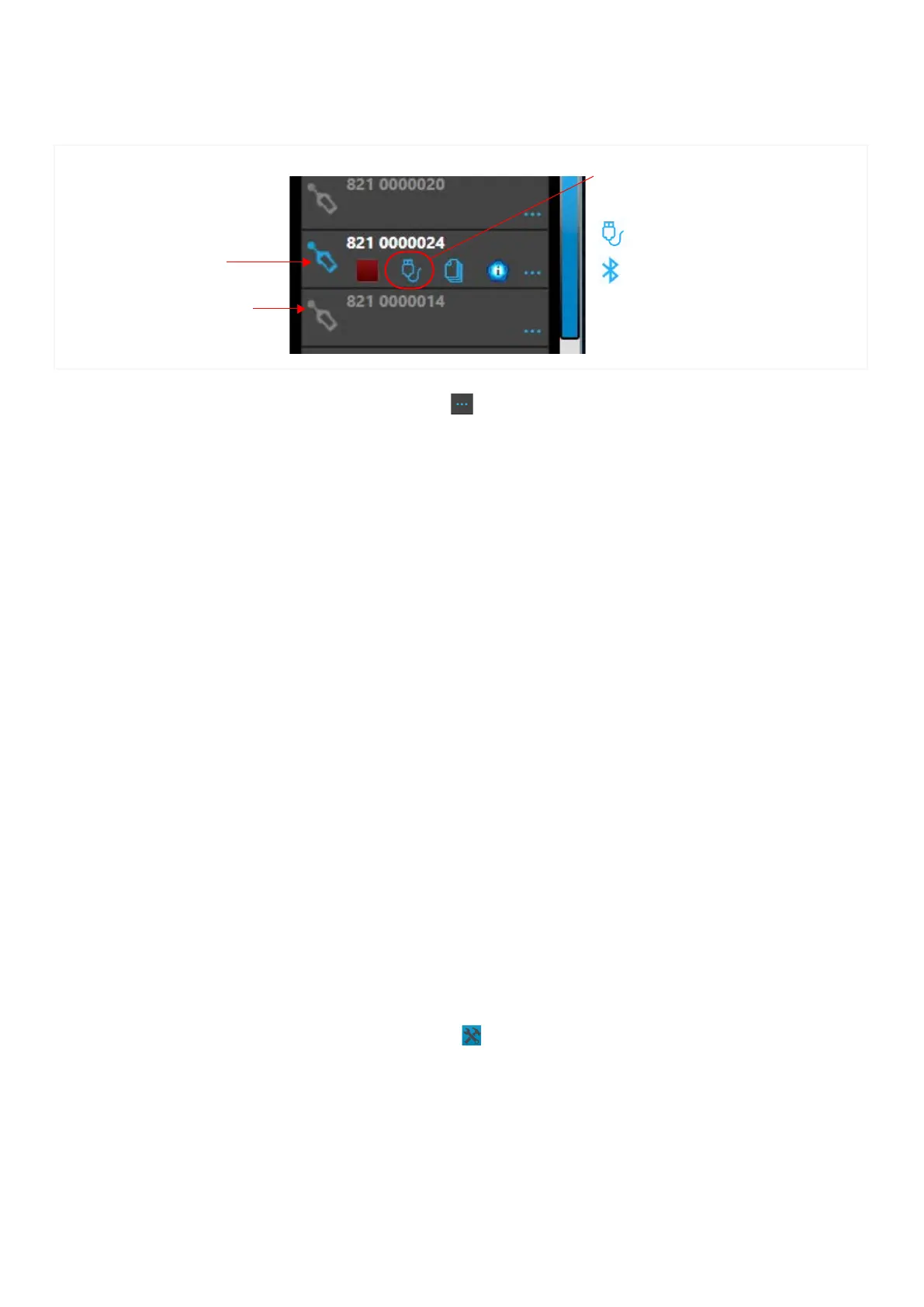
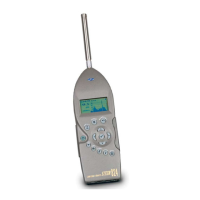
Step 2. In the G4 Meters Panel, your meter (serial number) displays with a blue SLM
icon when the meter is properly connected or a gray SLM icon when not
connected.
FIGURE 6-1 721/821 in the G4 Meters Panel
Step 3. Click the Menu icon in-line with your meter, and select Upgrade Firmware
or Upload Options. This opens the Upgrade Firmware or Upgrade Options
window.
Step 4. In G4, the Update All Selected Meters checkbox is selected. Verify or edit
checkboxes for the selected meters in the Meters Panel.
To update only the currently connected meter, deselect the Upgrade All
Selected Meters checkbox.
Step 5. Click Choose Firmware File or Choose Options File. This opens the File
Explorer to the default firmware/options folder. If you have updated G4
recently, these files will be the most recent firmware.
TAKE NOTE Firmware updates are frequently released. Update G4 regularly to
obtain access to them. Options files are purchased through Larson Davis or via
your LD representative.
Step 6. Select the “.fwx21” file (for firmware) or “.opx21” file (for options) you want to
install. This opens the File Explorer to the default firmware folder.
Step 7. Navigate to the Desktop (or to the location of the 721/821 file you saved), select
the file you want to install, and click Open. The options upgrade will begin
automatically, the firmware upload requires step 8
Step 8. (Upgrading firmware only): Confirm your choice by clicking Upload
Firmware. Immediately following the firmware update, the meter reboots.
When the reboot is complete, G4 displays a confirmation that the firmware
upgrade is complete.
Step 9. To confirm the installation, do the following:
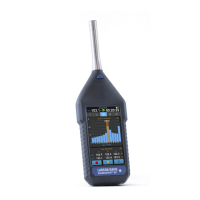
• On 721/821, tap Tools About and view the displayed firmware version and
install date, which should be today’s date. The installed options are also visible.
The connection type displays here.
These connection types are available:
USB
Bluetooth
Connected
Not Connected


 To Next Page