LAUNCH X-431IV English User’s Manual
38
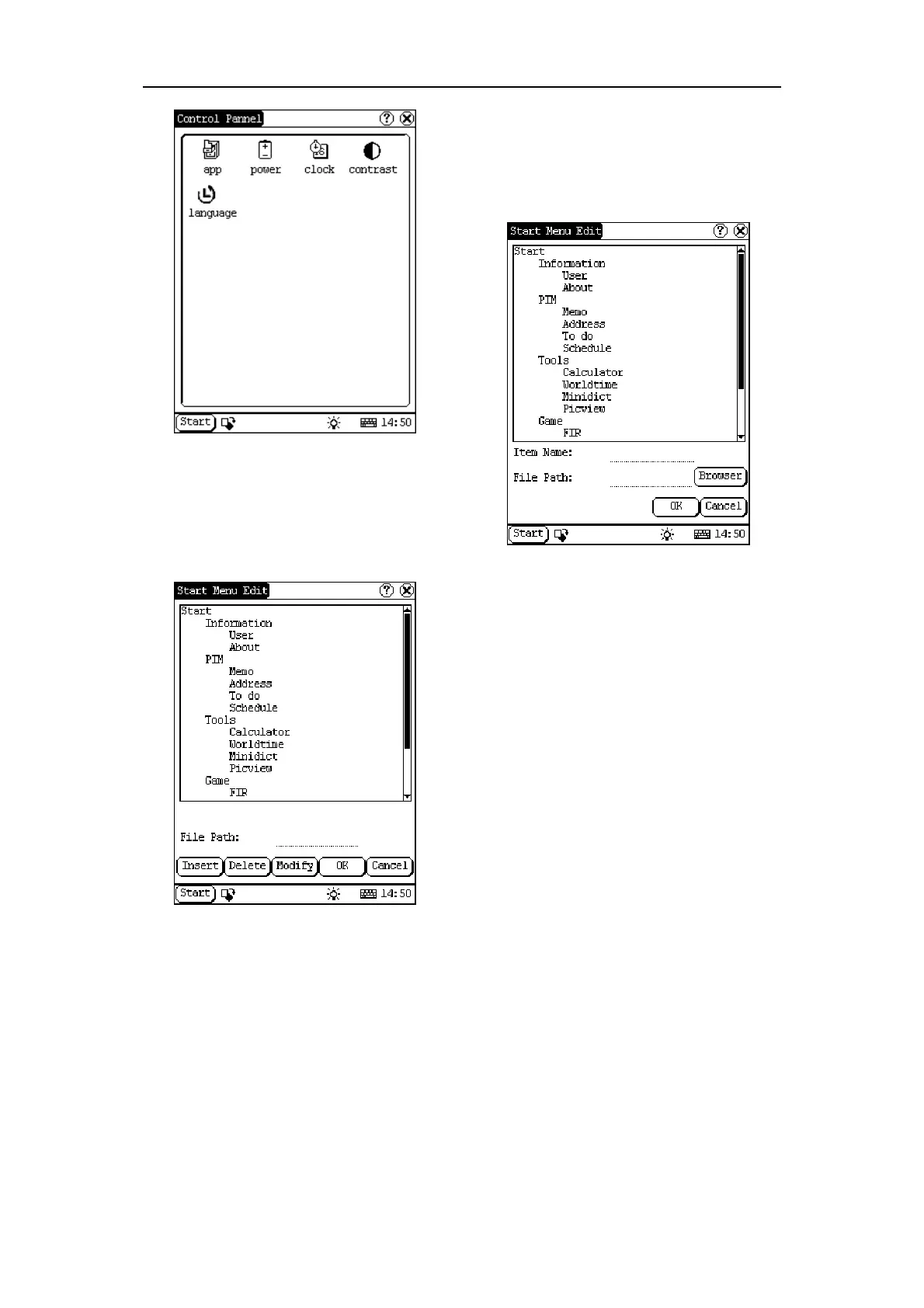
Figure 5-32
5.4.1.1 Application
It displays the application information contained
in the ‘Start’ menu, including the group name,
the submenu, etc.
Figure 5-33
1) In the Control Panel interface, click ‘App’
icon to open the Application Manager
interface.
2) Then you can see the corresponding
information in the list box of the interface.
(See Figure 5-33)
3) Insert a new group:
Click [Insert] button and input the item
name. Then choose “Start” as its parent
and click [OK] button.
Figure 5-34
4) Insert a new submenu:
Click [Insert] button and input the item
name and the file path. Then choose a
group as its parent and click [OK] button.
The path can be inputted directly or found
out in a dialogue box after clicking
[Browser] button. See Figure 5-34 and
Figure 5-35. Click [OK] button after
selecting an item in the list. Then the
selected file will be automatically copied to
the edit box.
The submenu should be linked to a
present group instead of the “Start” item or
another submenu.
5) Delete a group or a submenu:
Select a group or a submenu and then
click [Delete] button. When a group is
deleted, all of its submenus will be
deleted.
6) Modify a group or a submenu:
Click [Modify] button and then select the
group or submenu from the list. Now you
can modify the item name, file path and so
on followed by clicking [OK] button.


 To Next Page