X-431 Torque User Manual
15
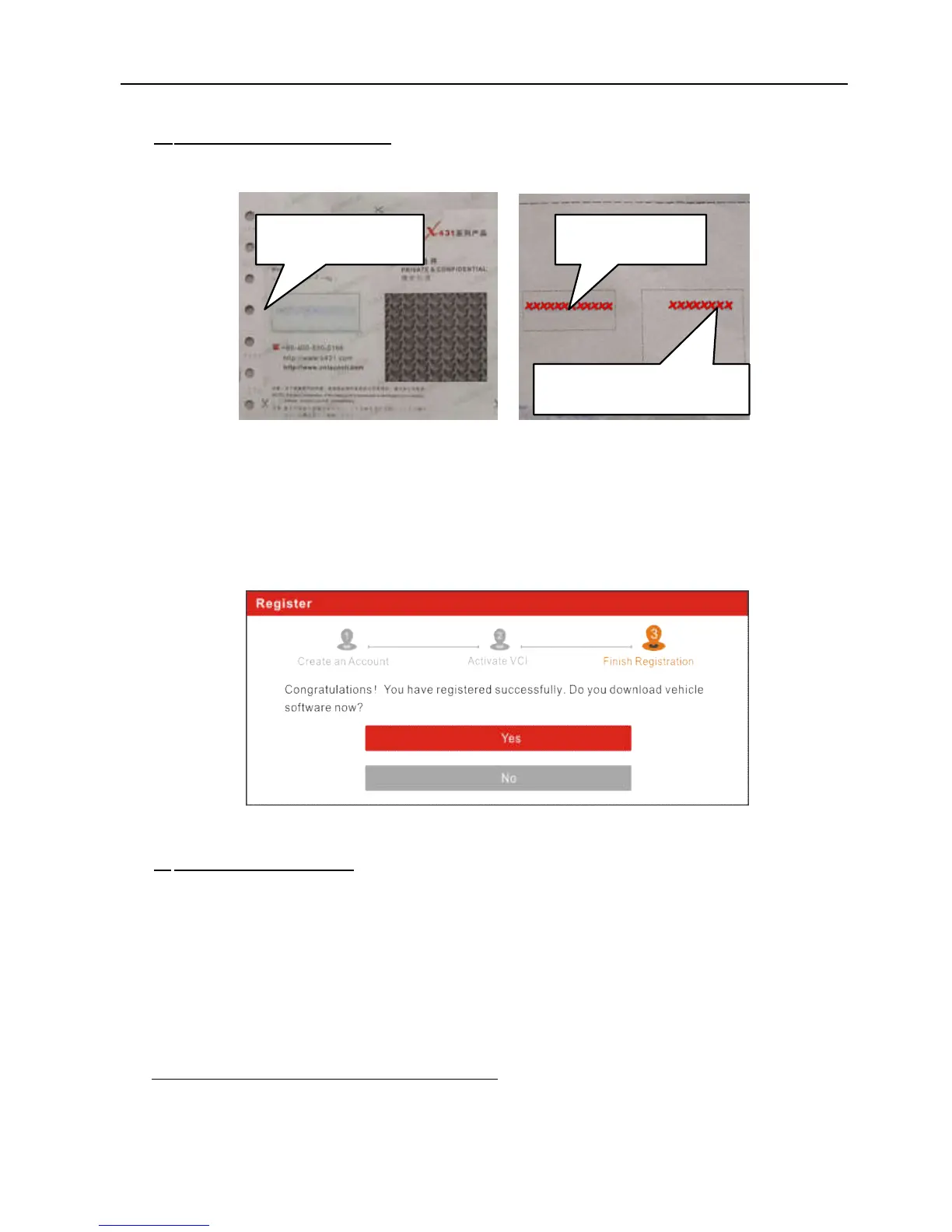
b) Activate VCI Connector: In Fig. 4-4, input the Serial Number and Activation
Code, which can be found in the password envelope.
Fig. 4-5
Note: To exit and activate it later, tap “Skip”. In this case, you can activate your
connector by tapping “Activate VCI” in “Profile”. For details, please refer to
Chapter 9.4.
Tap “Activate” to finish your registration. See Fig. 4-6.
Fig. 4-6
c) Finish Registration: To download the diagnostic software, tap “Yes” to
navigate to the download page. Tap “No” to download and install it later.
On the download page, tap “Update” to start downloading. To pause
downloading, tap “Stop”. To resume it, tap “Continue”. Once download is
complete, the system will install the software package automatically.
Note:
In process of download, please make sure the tablet has a strong Wi-Fi
signal. It may take several minutes to finish it, please be patient to wait.
B. If you have registered to be a member, tap “Existing Customer” in Fig. 4-2, a
screen similar to the following appears:
Product SN
Activation code


 To Next Page