The buttons on a Screen Source Assign module can be used to perform fader strip assignments from a
VisTool runtime GUI.
The assignment always works on the fader in access, and so you may wish to add some ACCESS keys to the
VisTool page (as described later). The configuration requires two stages: first use the ON-AIR Designer to
prepare the system configuration, and then use VisTool Editor to edit the VisTool project.
ON-Air Designer Configuration
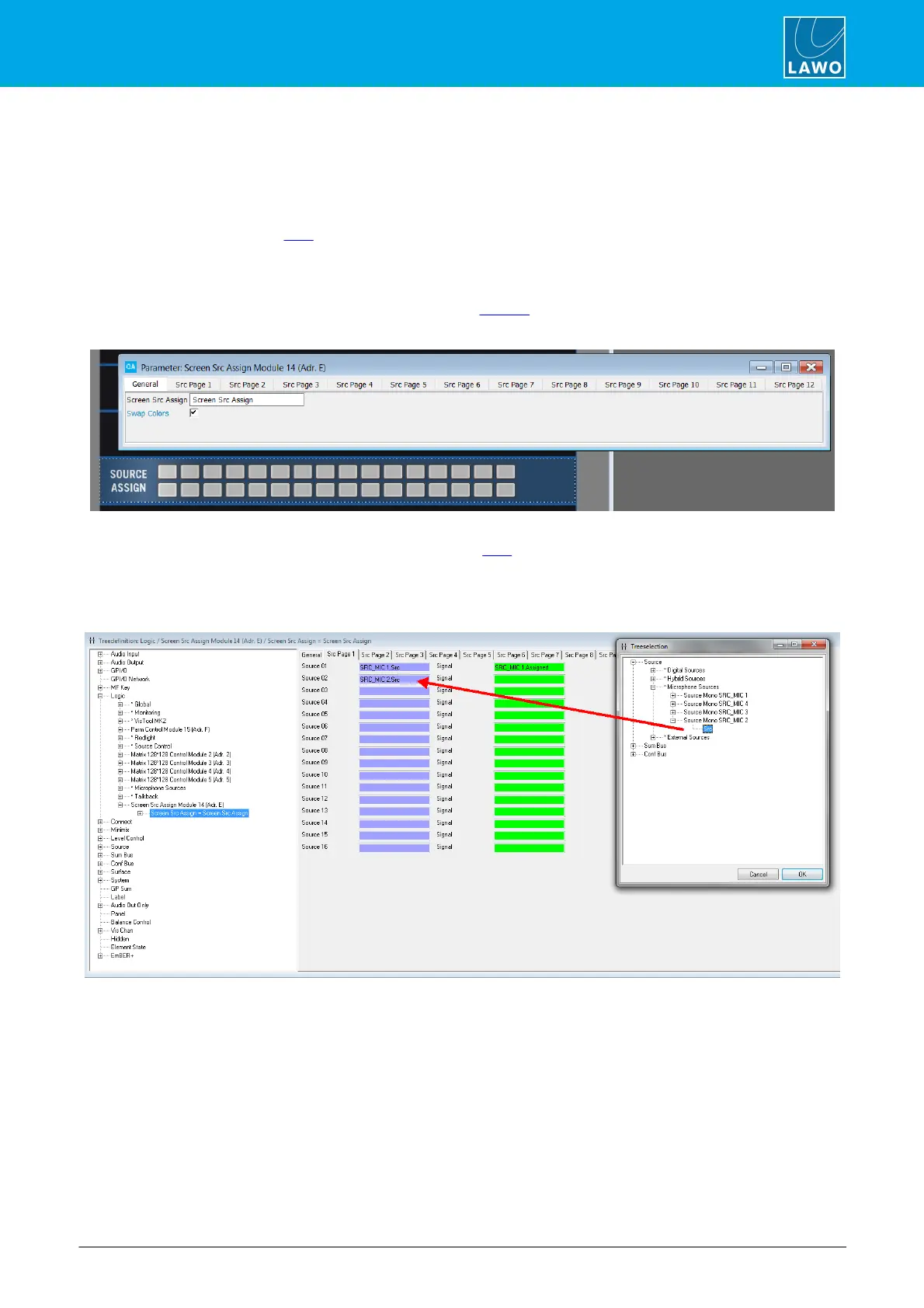
1. Add a Screen Src Control panel to slot 14 of the Screen configuration.
2. Name the panel from its General parameters tab:
If the Swap Colors option is enabled, then the on-screen "Assign Src" button in VisTool will use more colors to
indicate the fader strip assign status. These are described later.
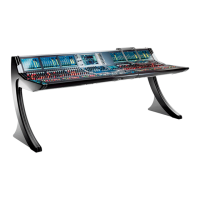
3. Select the Screen Src Control module from the "Logic" branch of the 'Tree Definition' and assign the
sources you wish to make available for VisTool assignment from the Src Page parameter tabs.
You can define up to 192 sources.


 To Next Page