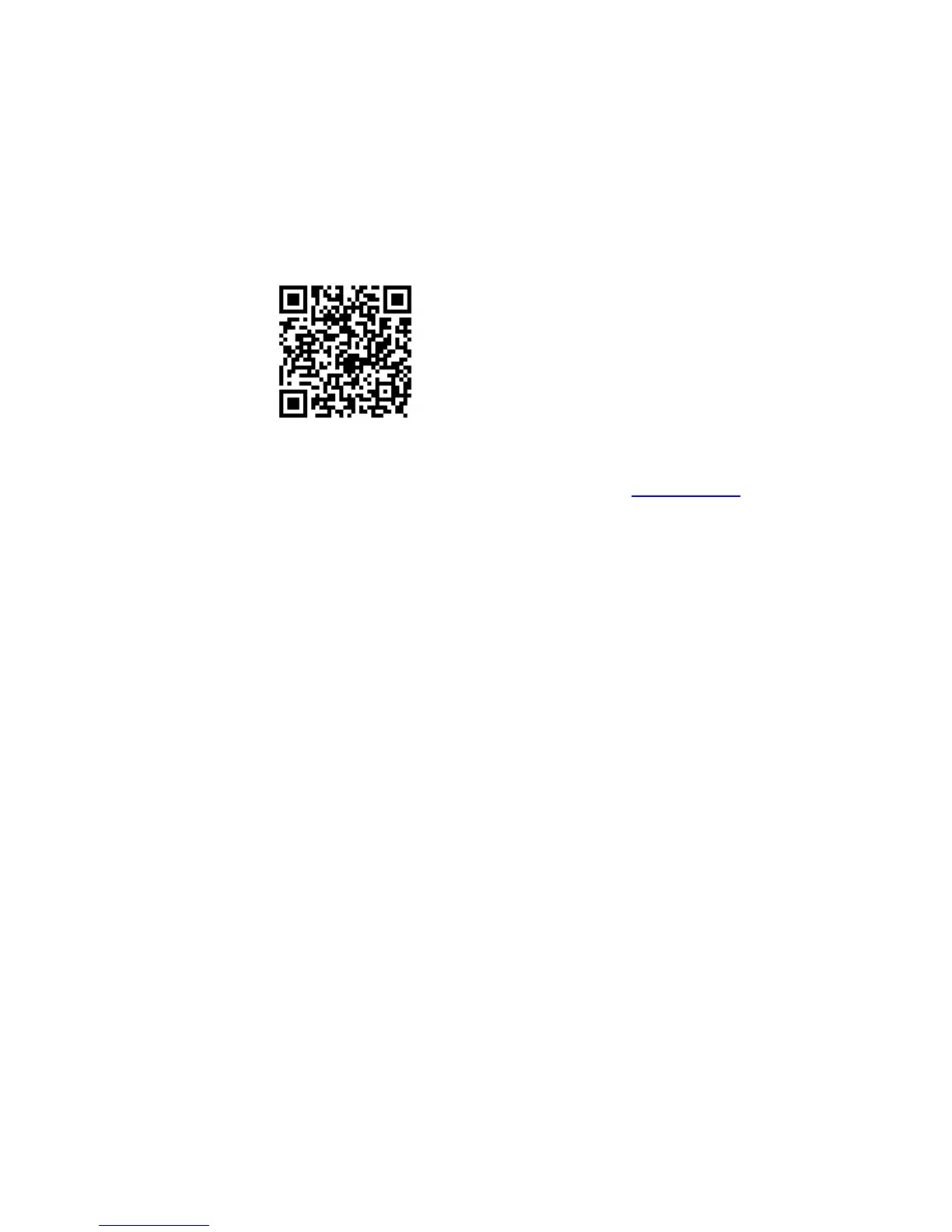
2.1. How to Download the App
1. Scan QR code with the phone to download the MIPC app.
2. Download the MIPC app from Apple App Store (iOS) or Google Play Store
3. PC Users please download the MIPC app on the website: www.mipcm.com.
2.2. Wi-Fi Connection Setup through Wi-Fi Mode
1. Before connecting to your camera, please confirm your home Wi-Fi network is
2.4G. Meanwhile, please choose 2.4G WiFi to connect your phone. Additionally,
please put this camera more close to your router, it will help you to connect your
home Wi-Fi successfully.
2. Launch the MIPC app, click the “Sign Up” button at the top right of the landing
screen to register a new account by inputting your username and password in
the sign up page (Figure 1 and Figure 2). Please make sure your user name is at
least 6 characters beginning with letter;
3. After successfully register and sign in, you should be brought to the camera list
screen. You can see it’s initially empty because you have not added any camera
for it (Figure 3);
4. Select “add device” by clicking the plus icon at the top left and choose the first
device type “ PTZ Cameras” (Figure 4), which will direct you to the QR Code Scan
page;
5. Scan the QR code at the bottom of the camera (Figure 5); a device ID should be
automatically filled in the “device ID” input box (Figure 6) if it scans successfully,
and then click “Add”. If you got a blank screen, please add this camera through
“Wi-Fi Connection Setup through Computer”;


 To Next Page