10CH TXT Essential Instructions v1.docx 2024-09-05 15
Appendices
Appendix 1: Setting Up Text Display with EdgeTX
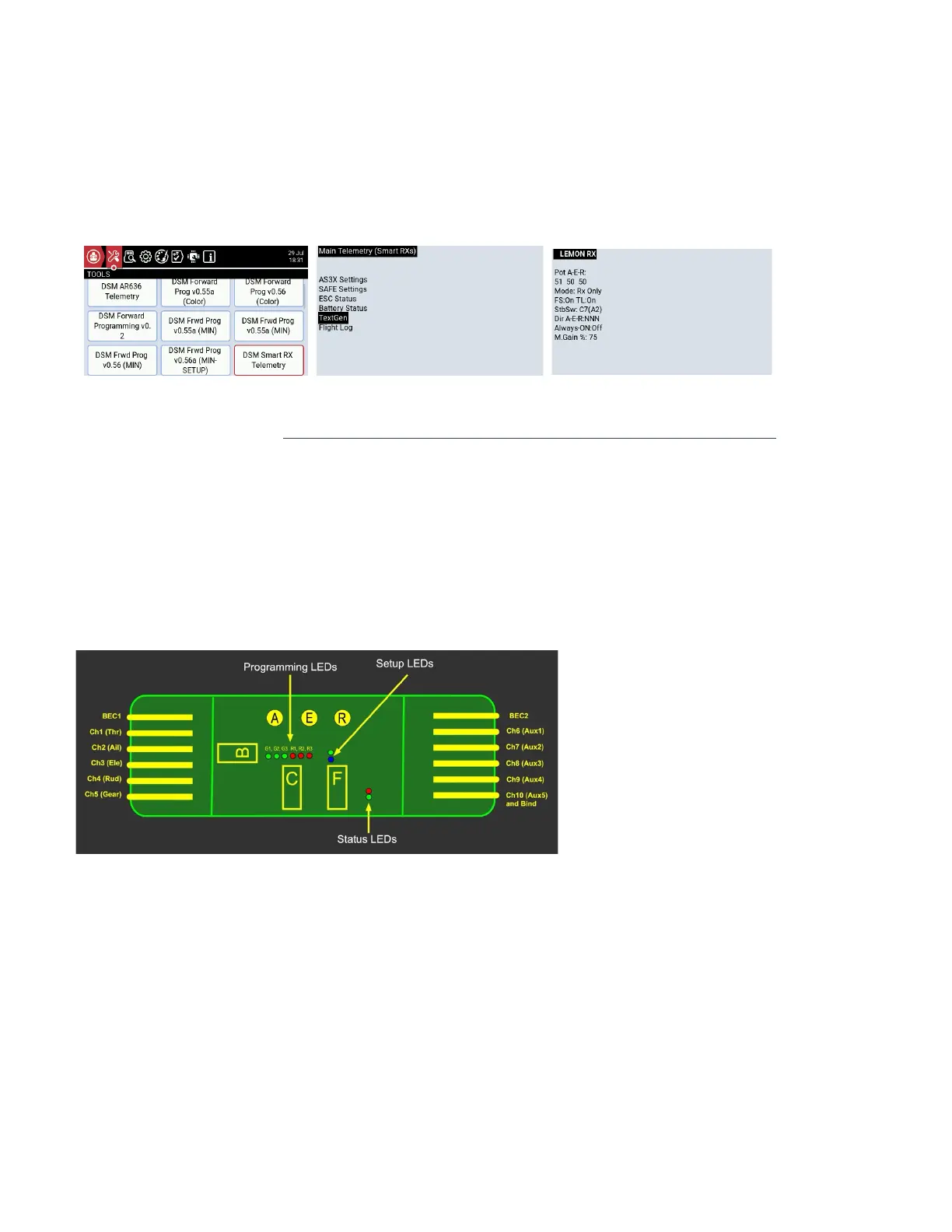
On a colour screen radio such as the Radiomaster TX16S, bind as usual then press the SYS button. Choose the
TOOLS icon (Wrench and Screwdriver), then select “DSM Smart RX Telemetry”. On the screen that appears,
scroll down to TextGen and select it. The LEMON RX screen will then display.
With a black and white screen EdgeTX radio the required script file must be downloaded from GitHub and
copied to the SD card. Go to https://github.com/frankiearzu/DSMTools/blob/main/DSM_Telemetry
Find the latest version of the DSM_Telemetry zip file, download (using the download button) and extract all files.
Copy the file DSM_SmartRX_Tel.lua to the SD card folder SCRIPTS/TOOLS. In Radio Setup select this file.
Edge TX transmitters from version 2.8.3 onwards have DSM Telemetry scripts installed or available that enable
TextGen and thus support Lemon Text Display.
Appendix 2: Meaning of the LM0087X Receiver LEDs
LED Identification
This diagram identifies the various indicator LEDS on the receiver.
With the receiver powered ON, locate the
three green and three red programming
lights (G1, G2, G3 and R1, R2, R3). Press
button C for no more than 2 seconds to
identify these lights.
Also locate the position of the blue and
green Setup lights and the red and green
Status lights, as shown in the picture.
Red Stabilization Option LEDs
The three red LEDs shown above are referred, from left to right, as R1, R2, R3. They indicate the stabilization
mode of the receiver as follows.
Option A: Delta Wing (Elevons) – R1
Option B: V-Tail – R2
Option C: Normal Tail – R1+R2
Option D: Dual Aileron Channels with normal tail – R1+R2+R3
Option E: Dual Aileron Channels with V-Tail – R2+R3
The option is chosen using Text Display. Dual Aileron Channel is set separately from the basic option.



 To Next Page