Chapter 2. Starting to use Windows 10
23
Connecting to a wireless network - - - - - - - - - - - - - - - - - - - - - - - - - - - - - - - - - - - - -
Enabling wireless connection
To enable wireless functions, do one of the following:
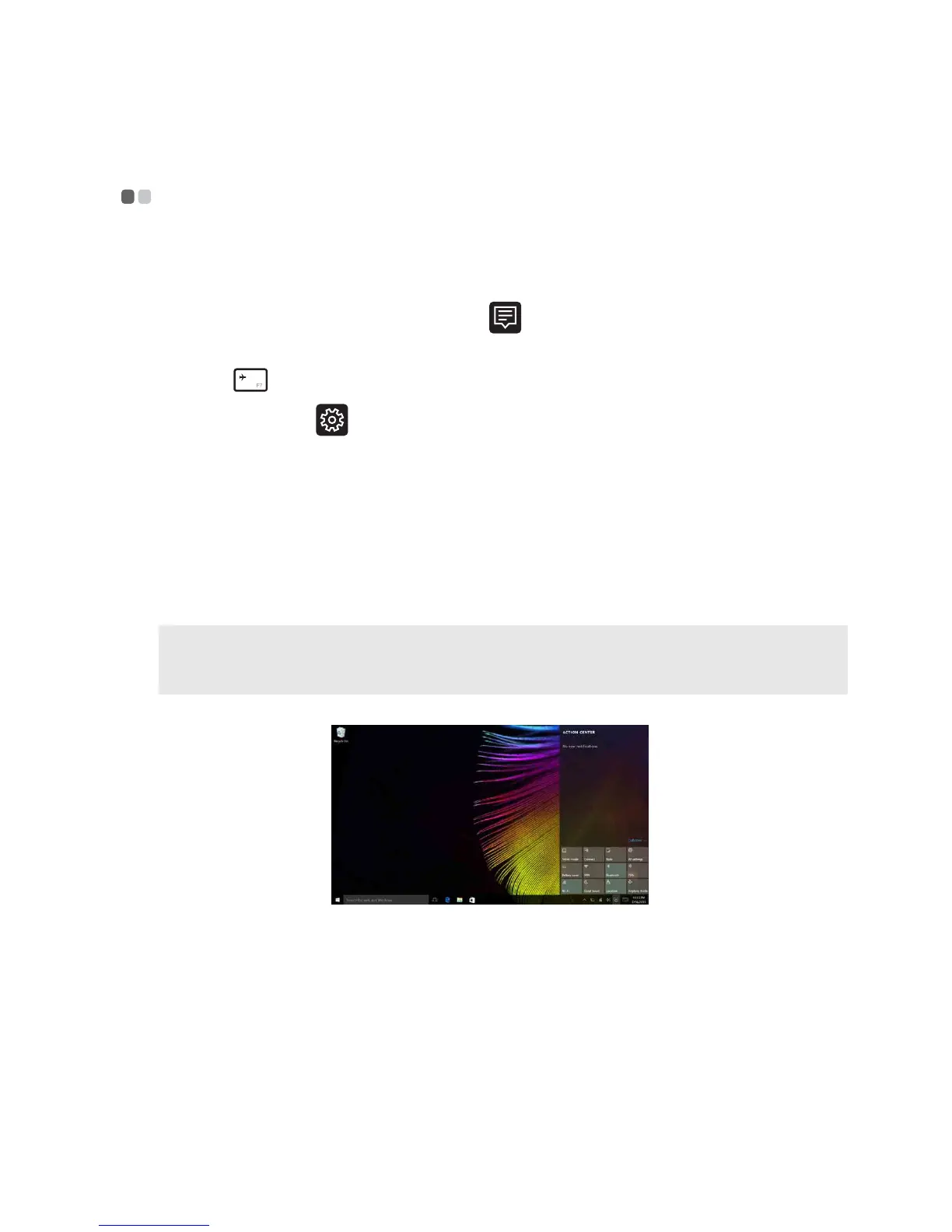
• Select the ACTION CENTER icon in the notification area, and then
deselect Airplane mode.
• Press to disable airplane mode.
• Select Settings → Network & Internet → Airplane mode to open the
network configuration page. Then toggle the airplane mode switch to Off.
Connecting to a wireless network
After wireless has been enabled, the computer will automatically scan for
available wireless networks and display them in the wireless network list. To
connect to a wireless network, click the network name in the list, and then
click Connect.
Note: Some networks require a network security key or passphrase for connection. To
connect to one of those networks, ask the network administrator or the Internet service
provider (ISP) for the security key or passphrase.



 To Next Page