EasyManua.ls Logo

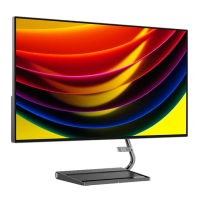
Lenovo Q27q-10 - User Manual

Lenovo Q27q-10
31 pages
Print Icon
To Next Page IconTo Next Page
Loading...
Lenovo
Q27q-10
User Guide

Questions and Answers

  • S
    Shane WilliamsJul 27, 2025
    Why is my Lenovo Q27q-10 Monitor screen blank and the power indicator amber?
    • G
      Glenn JacksonJul 27, 2025
      The Lenovo monitor is likely in Standby/Suspend mode. To restore operation, press any key on the keyboard or move the mouse. You may also want to check the Power Options settings on your computer.
  • K
    Kimberly BeasleyAug 1, 2025
    What to do if my Lenovo Q27q-10 Monitor power indicator is amber, but there is no image?
    • O
      oliverkellyAug 1, 2025
      This issue may arise if the video signal cable is loose or disconnected. Ensure the video cable is properly connected to the system. Also, check if the monitor's brightness and contrast are at their lowest settings; if so, adjust them via the OSD menu.
  • L
    Lisa MartinezAug 5, 2025
    What to do if my Lenovo Q27q-10 power indicator is not lit and there is no image?
    • S
      Shelby StevensonAug 5, 2025
      First, be sure the power cord is connected properly and that the outlet has power. Then, power on the monitor. If it’s still not working, try using another power cord and another electrical outlet.
  • W
    wwilliamsAug 9, 2025
    How to fix unacceptable image quality on Lenovo Q27q-10?
    • A
      Andre EdwardsAug 9, 2025
      Poor image quality on your Lenovo monitor can stem from a few causes. First, ensure the video signal cable is firmly plugged into both the system and the monitor. If the connection is secure, the color settings may be incorrect, so select another color setting from the OSD menu. Finally, try performing automatic image setup.
  • C
    Courtney MoraAug 14, 2025
    How to fix fuzzy text or blurry image on Lenovo Q27q-10?
    • K
      Kimberly PittmanAug 14, 2025
      Fuzzy text or blurry images on your Lenovo monitor often indicate that the image setup hasn't been optimized. First, adjust the resolution settings on your system to match the native resolution for this monitor: 2560 x 1440 at 75 Hz. Additionally, optimize your system's Display Properties by performing automatic image setup. If automatic setup doesn't suffice, perform manual image setup.
  • K
    Kathryn SmithAug 17, 2025
    Why are pixels discolored on my Lenovo monitor?
    • M
      miguelkaneAug 17, 2025
      The appearance of discolored pixels is a characteristic of LCD technology and not necessarily a defect. If more than five pixels are missing, contact the Support Center.
  • R
    Robert HubbardAug 22, 2025
    What to do if Lenovo monitor shows "Out of Range"?
    • P
      Peter YoungAug 22, 2025
      The "Out of Range" message on your Lenovo monitor indicates that the system is set to a display mode not supported by the monitor. If you replaced an old monitor, reconnect it and adjust the display mode to within the specified range for your new monitor. If using a Windows system, restart the system in safe mode, then select a supported display mode for your computer. If these options do not work, contact the Support Center.

Summary

Safety Information

General Safety Guidelines

Tips for using your computer safely and avoiding hazards.

Getting Started

Shipping Contents

Lists all items included in the product package for initial setup.

Notice for Use

Important instructions and precautions before operating the monitor.

Product Overview

Introduction to monitor features, controls, and cable management.

Adjusting the Tilt

Instructions on how to adjust the monitor's screen angle for optimal viewing.

Monitor Controls

Explanation of the function of each control button on the monitor panel.

Cable Lock Slot

Details on the security feature for locking the monitor cable.

Setting Up Your Monitor

General guidance and steps for the initial setup of the monitor.

Connecting and Turning On Your Monitor

Step-by-step instructions for connecting the monitor and powering it on.

Adjusting and Using Your Monitor

Comfort and Accessibility

Emphasizes ergonomic practices for comfortable and productive computer usage.

Arranging Your Work Area

Tips for organizing your workspace to maximize comfort and efficiency.

Positioning Your Monitor

Guidance on optimal monitor viewing distance, height, and general location.

Quick Tips for Healthy Work Habits

Advice on maintaining good posture and taking short breaks for well-being.

Adjusting Your Monitor Image

Explains how to adjust brightness, contrast, and other image settings.

Using the Direct Access Controls

Details on using monitor buttons for quick access to functions without OSD.

Using the On-Screen Display (OSD) Controls

Comprehensive guide to navigating and using the On-Screen Display menu.

Selecting a Supported Display Mode

Information on choosing compatible display modes and resolutions for optimal display.

Understanding Power Management

Explains the monitor's power states and energy-saving features.

Caring for Your Monitor

Instructions on how to properly clean and maintain the monitor's appearance.

Detaching the Monitor Base and Stand

Step-by-step instructions for safely removing the monitor's base and stand.

Wall Mounting (Optional)

Guidance for securely mounting the monitor on a wall using a VESA bracket.

Reference Information

Monitor Specifications

Detailed technical specifications for the Lenovo Q27q-10 monitor model.

Troubleshooting

Common problems and their suggested solutions for monitor issues.

Manually Installing the Monitor Driver

Step-by-step guide to manually install monitor drivers in Windows 7 and 10.

Getting Further Help

Contact information for Lenovo Support if problems cannot be resolved.

Service Information

General information regarding product service and support policies.

Customer Responsibilities

Outlines what is and is not covered by the product warranty.

Service and Support

Registering Your Option

Instructions on how to register the product for service updates and offers.

Online Technical Support

Information on accessing technical support and resources via the Lenovo website.

Telephone Technical Support

Contact numbers and required information for phone-based technical assistance.

Notices

Recycling Information

Guidance on responsible recycling of Lenovo products and electronic waste.

Trademarks

Lists of registered trademarks belonging to Lenovo and other companies.

Power Cords and Power Adapters

Important safety and usage guidelines for power accessories.

Lenovo Q27q-10 Specifications

General IconGeneral
BrandLenovo
ModelQ27q-10
CategoryMonitor
LanguageEnglish

Related product manuals