EasyManua.ls Logo

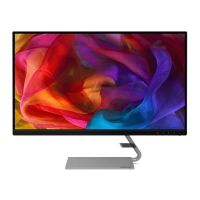
Lenovo Q27q-1L - User Manual

Lenovo Q27q-1L
31 pages
Print Icon
To Next Page IconTo Next Page
Loading...
Lenovo
Q27q-1L
User Guide
Questo manuale d’istruzione è fornito da trovaprezzi.it. Scopri tutte le offerte per Lenovo Q27Q-1L o
cerca il tuo prodotto tra le migliori offerte di Monitor

Questions and Answers

  • E
    Edwin DominguezJul 27, 2025
    Why is my Lenovo Monitor screen blank but the power indicator is amber?
    • S
      stevensanchezJul 27, 2025
      If your Lenovo monitor screen is blank and the power indicator is amber, it might be in Standby/Suspend mode. Try pressing any key on the keyboard or moving the mouse to restore operation. Also, check the Power Options settings on your computer, as this can be the cause.
  • A
    Angela RobinsonJul 31, 2025
    What to do if my Lenovo Monitor power indicator is amber but there is no image?
    • J
      Julie HicksJul 31, 2025
      If your Lenovo monitor's power indicator is amber but there is no image, ensure the video cable is properly connected to the system. You should also adjust the brightness and contrast settings on the OSD menu. The cause may be that the video signal cable is loose or disconnected, or the monitor brightness and contrast are at the lowest setting.
  • E
    Erin SullivanAug 4, 2025
    How to fix blurry image on Lenovo Monitor?
    • J
      Jeffrey SerranoAug 5, 2025
      To fix a blurry image or fuzzy lines on your Lenovo monitor, adjust the resolution settings on your system to match the native resolution for this monitor: 2560 x 1440 at 75 Hz. Perform automatic, or manual, image setup. When working in the native resolution, you may find additional improvements by adjusting the Dots Per Inch (DPI) setting on your system. The issue may be that image setup has not been optimized or your system Display Properties setting have not been optimized.
  • E
    everettrhondaAug 8, 2025
    What to do if Lenovo Monitor image quality is unacceptable?
    • T
      tjonesAug 8, 2025
      If the image quality on your Lenovo monitor is unacceptable, ensure the video signal cable is firmly plugged into both the system and the monitor. If the issue persists, select another color setting from the OSD menu. Finally, perform automatic image setup. The cause may be that the video signal cable is not completely connected, the color settings are incorrect, or the automatic image setup function was not performed.
  • B
    Bruce PadillaAug 13, 2025
    What to do if my Lenovo Monitor power indicator is not lit?
    • C
      Christina SimmonsAug 13, 2025
      If the power indicator on your Lenovo monitor isn't lit and there's no image, ensure the power cord is properly connected and the outlet has power. Also, switch on the monitor's power. Try another power cord or electrical outlet if necessary. The cause may be that the monitor’s power switch is not switched on, the power cord is loose or disconnected, or there is no power at the outlet.
  • E
    ericgreenAug 18, 2025
    Why does my Lenovo Q27q-1L Monitor say 'Out of Range'?
    • D
      deborahclarkAug 18, 2025
      If your Lenovo monitor displays "Out of Range", and the power indicator is flashing white, it means the system is set to a display mode not supported by the monitor. If replacing an old monitor, reconnect it and adjust the display mode to within the specified range for your new monitor. If using a Windows system, restart the system in safe mode, then select a supported display mode for your computer.
  • J
    Jeffery GoldenAug 22, 2025
    Why does my Lenovo Monitor have discolored pixels?
    • W
      woodpatrickAug 22, 2025
      The appearance of one or more discolored pixels is a characteristic of LCD technology and not necessarily a defect. If there are more than five pixels missing, contact the Support Center.

Summary

Safety Information

General Safety Guidelines

Guidance for safe computer usage.

TCO Certified Information

Information about the product's sustainability certification.

Chapter 1. Getting Started

Shipping Contents

Lists items included in the product package.

Notice for Use

Instructions for setting up the monitor.

Product Overview

Information on monitor positions, controls, and cable lock.

Adjusting the Tilt

How to adjust the monitor's tilt angle.

Monitor Controls

Explains the functions of the panel frame keypad controls.

Cable Lock Slot

Location and use of the cable lock slot.

Setting Up Your Monitor

Provides information on how to set up the monitor.

Connecting and Turning On Your Monitor

Steps to connect and power on the monitor.

Chapter 2. Adjusting and Using Your Monitor

Comfort and Accessibility

Importance of ergonomics for comfort and productivity.

Arranging Your Work Area

Tips for optimizing workspace for comfort and efficiency.

Positioning Your Monitor

Guidance on optimal monitor viewing distance and height.

Tilt

Adjusting monitor tilt for preferred posture.

General Location

Positioning monitor to avoid glare.

Quick Tips for Healthy Work Habits

Advice for maintaining posture and taking breaks.

Adjusting Your Monitor Image

Explains features for adjusting monitor image settings.

Using the Direct Access Controls

Details on using direct access controls for monitor functions.

Using the On-Screen Display (OSD) Controls

How to navigate and use the OSD menu for settings.

Selecting a Supported Display Mode

Guide to choosing display modes for optimal performance.

Understanding Power Management

Explanation of monitor power states and management.

Power Management Modes

Details on different power management modes and consumption.

Caring for Your Monitor

Guidelines for cleaning and maintaining the monitor.

Detaching the Monitor Base and Stand

Steps to remove the monitor base and stand.

Wall Mounting (Optional)

Instructions for mounting the monitor on a wall.

Chapter 3. Reference Information

Monitor Specifications

Detailed technical specifications of the monitor.

Troubleshooting

Solutions for common monitor problems.

Manually Installing the Monitor Driver

Step-by-step guide for manual driver installation.

Installing the Monitor Driver in Windows 7

Specific steps for installing drivers in Windows 7.

Installing the Monitor Driver in Windows 10

Specific steps for installing drivers in Windows 10.

Getting Further Help

Information on how to obtain additional support.

Service Information

Customer Responsibilities

User's responsibilities regarding warranty and product care.

Appendix A. Service and Support

Registering Your Option

How to register the product for service updates.

Online Technical Support

Details on accessing online technical support.

Telephone Technical Support

Information on contacting telephone support.

Appendix B. Notices

Recycling Information

Environmental and recycling guidelines for the product.

Trademarks

List of trademarks associated with the product.

Power Cords and Power Adapters

Guidelines for using power cords and adapters.

Lenovo Q27q-1L Specifications

General IconGeneral
HD type2K Ultra HD
Color depth8 bit
Pixel pitch0.2331 x 0.2331 mm
Screen shapeFlat
Pixel density109 ppi
Response time6 ms
Backlight typeW-LED
Display diagonal27 \
Display technologyLED
Native aspect ratio16:9
Maximum refresh rate75 Hz
Response time (fast)4 ms
Viewable size, vertical335.66 mm
sRGB coverage (typical)99 %
Contrast ratio (dynamic)3000000:1
Display number of colors16.7 million colors
Viewable size, horizontal596.84 mm
Display brightness (typical)250 cd/m²
AMD FreeSyncYes
AMD FreeSync typeFreeSync
RMS rated power3 W
Number of speakers2
Feet colorSilver
Product colorBlack, Grey
Front bezel colorBlack
Market positioningHome
HDMI version1.4
DisplayPort version1.2
Headphone connectivity3.5 mm
Tilt angle range-5 - 22 °
Cable lock slot typeKensington
Panel mounting interface100 x 100 mm
AC input voltage100 - 240 V
AC input frequency50 - 60 Hz
Energy efficiency scaleA to G
Power consumption (max)40 W
Power consumption (off)0.3 W
Power consumption (standby)0.5 W
Power consumption (typical)25 W
HDMI cable length1.8 m
Package typeBox
Package depth160 mm
Package width725 mm
Package height455 mm
Package weight7510 g
Sustainability certificatesChina Energy Label (CEL), TCO
Harmonized System (HS) code85285210
Weight and Dimensions IconWeight and Dimensions
Bezel width (side)2.5 mm
Depth (with stand)179.5 mm
Width (with stand)614.2 mm
Height (with stand)476.9 mm
Weight (with stand)5290 g
Bezel width (bottom)20 mm
Depth (without stand)38 mm
Height (without stand)366.4 mm
Weight (without stand)3520 g

Related product manuals