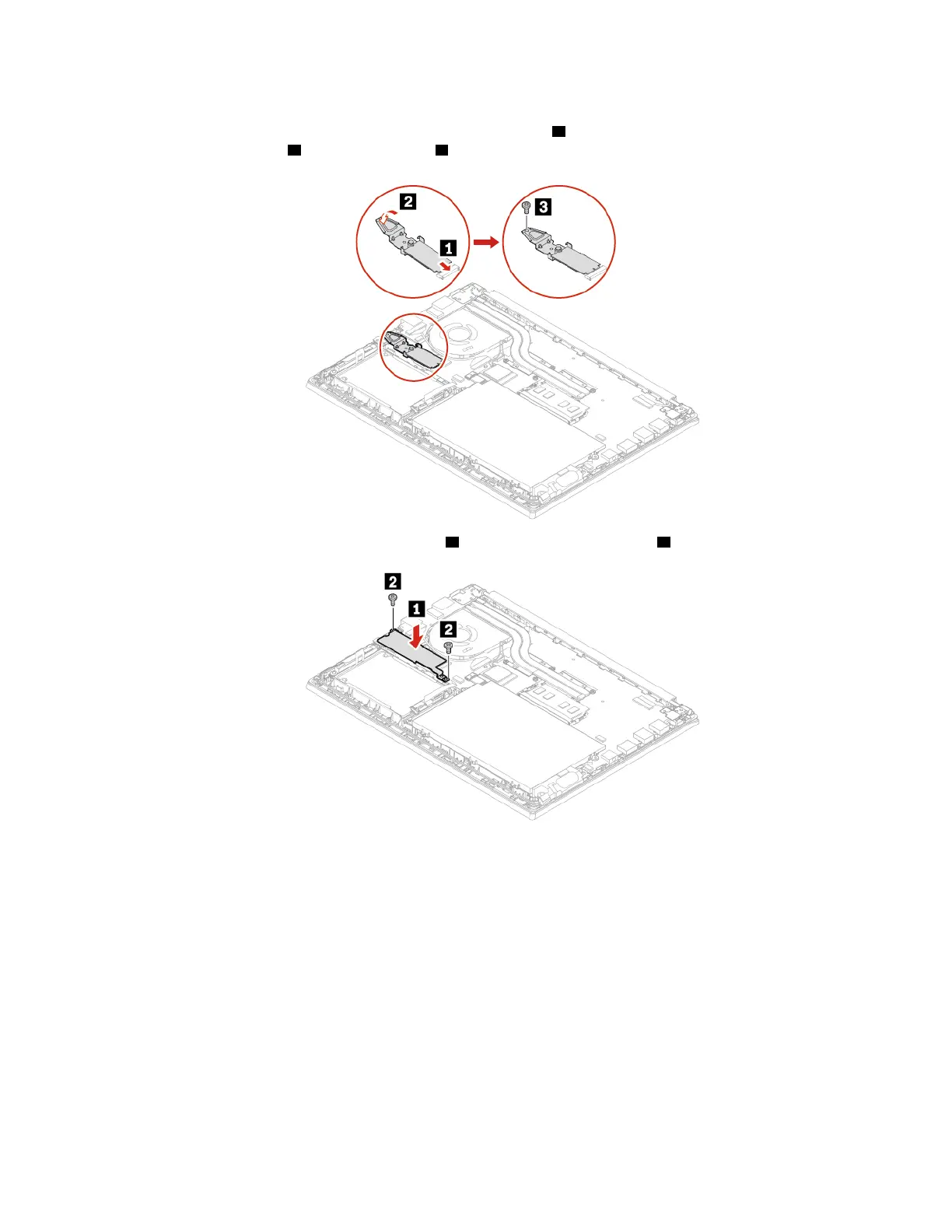
9. Align the contact edge of the new M.2 solid-state drive assembly with the key in the slot and carefully
insert the drive into the slot at an angle of about 20 degrees
1 . Then, pivot the M.2 solid-state drive
assembly downward
2 . Tighten the screw 3 .
10. Install the long M.2 solid-state drive bracket 1 and then tighten the screws 2 .
Note: Two thermal pads are attached underneath the long bracket to prevent possible overheating.
Ensure that the thermal pads are not removed or damaged.
11. Reinstall the base cover assembly.
12. Turn the computer over. Connect the ac power adapter and all disconnected cables to the computer.
Replacement procedure (long M.2 solid-state drive)
1. If you are going to replace an Intel Optane memory, disable the Intel Optane memory by doing the
following:
a. Restart the computer. When the logo screen is displayed, press F1.
Note: If a supervisor password has been set, enter the correct password when prompted. You also
can press Enter to skip the password prompt and enter the BIOS menu. However, you cannot
change the system configurations that are protected by the supervisor password.
Chapter 6. CRU replacement 45















 To Next Page