
 Need help?
Do you have a question about the Lenovo ThinkStation P360 Tiny and is the answer not in the manual?
Guide detailing safety information and warranty terms for the computer.
Notices regarding safety, compliance, and regulatory information for the computer.
Instructions for the initial setup and configuration of the computer.
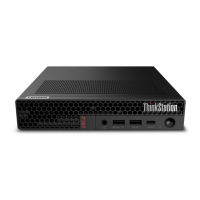
Details the components and indicators on the front panel of the computer.
Details the connectors and ports on the rear panel of the computer.
Provides detailed specifications including dimensions, weight, and hardware configuration.
Explains the different USB connector types, their capabilities, and transfer rates.
Guides on connecting to wired Ethernet and wireless Wi-Fi networks.
Instructions for connecting projectors or monitors, including wireless display setup.
Details the features and benefits of the preinstalled Vantage application.
Explains how to manage power plans for energy efficiency and performance.
Steps to connect Bluetooth-enabled devices like keyboards and mice to the computer.
Guide on integrating the computer with a Tiny-In-One monitor, including display switching.
Methods for physically securing the computer, such as using a Kensington lock.
Setting and managing various BIOS passwords (power-on, supervisor, etc.) for security.
Utilizing certificate-based authentication for secure UEFI BIOS management.
Overview of software tools like Windows Firewalls for computer security.
Leveraging BIOS features like secure wipe and Smart USB Protection for data security.
Explanation of UEFI BIOS function and its role in computer startup and configuration.
Guide to using keyboard shortcuts and navigation keys within the UEFI BIOS menu.
Instructions for selecting the desired display language in the UEFI BIOS settings.
Options for switching between graphic and text modes in the UEFI BIOS interface.
Procedure for setting the system date and time within the UEFI BIOS.
How to change the permanent or temporary boot order for devices.
Enabling or disabling the feature that detects hardware configuration changes.
Configuring the computer to start up automatically at a scheduled time.
Enabling the feature to wake the computer using specific key combinations.
Adjusting acoustic and thermal performance modes for the computer's processor.
Steps to modify BIOS settings, like Secure Boot, before installing a new operating system.
Methods for downloading and installing the latest UEFI BIOS updates.
Procedure to recover the system in case of an unsuccessful UEFI BIOS update.
Steps to reset BIOS settings to default values by clearing the CMOS.
Explanation of Redundant Array of Independent Disks (RAID) for storage enhancement.
Details on supported RAID levels (RAID 0, RAID 1) and their characteristics.
Configuration steps in the system BIOS to enable NVMe RAID functionality.
Step-by-step instructions for creating RAID volumes using the UEFI interface.
Procedure for removing RAID volumes and resetting drives to non-RAID configuration.
Information on accessing and using Lenovo's diagnostic tools for hardware checks.
How to use the Vantage app to diagnose hardware problems and run scans.
Definition of Customer Replaceable Units (CRUs) and their types (Self-service, Optional-service).
Inventory of self-service and optional-service CRUs for the computer.
Instructions for removing and replacing the power adapter and its cord.
Steps for installing or removing the VESA mount bracket for display mounting.
Procedure for attaching or detaching the vertical stand for computer positioning.
Guide for connecting and securing the external Wi-Fi antenna.
Instructions for replacing the external optical drive box and the drive itself.
Instructions for removing the computer's outer cover to access internal parts.
Steps for removing and replacing the internal speaker, including connector disconnection.
Guide for accessing and replacing the system fan, including prerequisite component removal.
Procedure for replacing the coin-cell battery that maintains system settings.
Steps for replacing PCle cards and converters, covering different types.
Instructions for replacing the Wi-Fi card and its associated shield.
Steps to remove the bottom cover to access internal components.
Detailed steps for safely replacing the M.2 solid-state drive, with handling precautions.
Procedure for installing or replacing memory modules (RAM) in the computer.
Links and guides for troubleshooting, FAQs, and accessing product documentation.
Instructions for using Lenovo or Windows recovery options to reset the operating system.
How to use the Vantage app for device settings, updates, and diagnostics.
Resources available on the Lenovo Support website, including drivers and knowledge base.
Accessing help and support directly from the Windows operating system.
Guidance on preparing information and contacting Lenovo Customer Support Center.
Explains how the memory controller determines system memory speed based on module type and frequency.
Details on memory module types, operating voltage, and speed supported by the computer.
Product name, machine types, and links for further compliance information.
Details on maximum altitude, temperature ranges, and relative humidity for operation and storage.
Information on product availability, licensing, and disclaimers regarding warranties and specifications.
List of registered trademarks for Lenovo and third-party products and technologies.
 General
| Brand | Lenovo |
|---|---|
| Model | ThinkStation P360 Tiny |
| Category | Musical Instrument |
| Language | English |

 To Next Page
