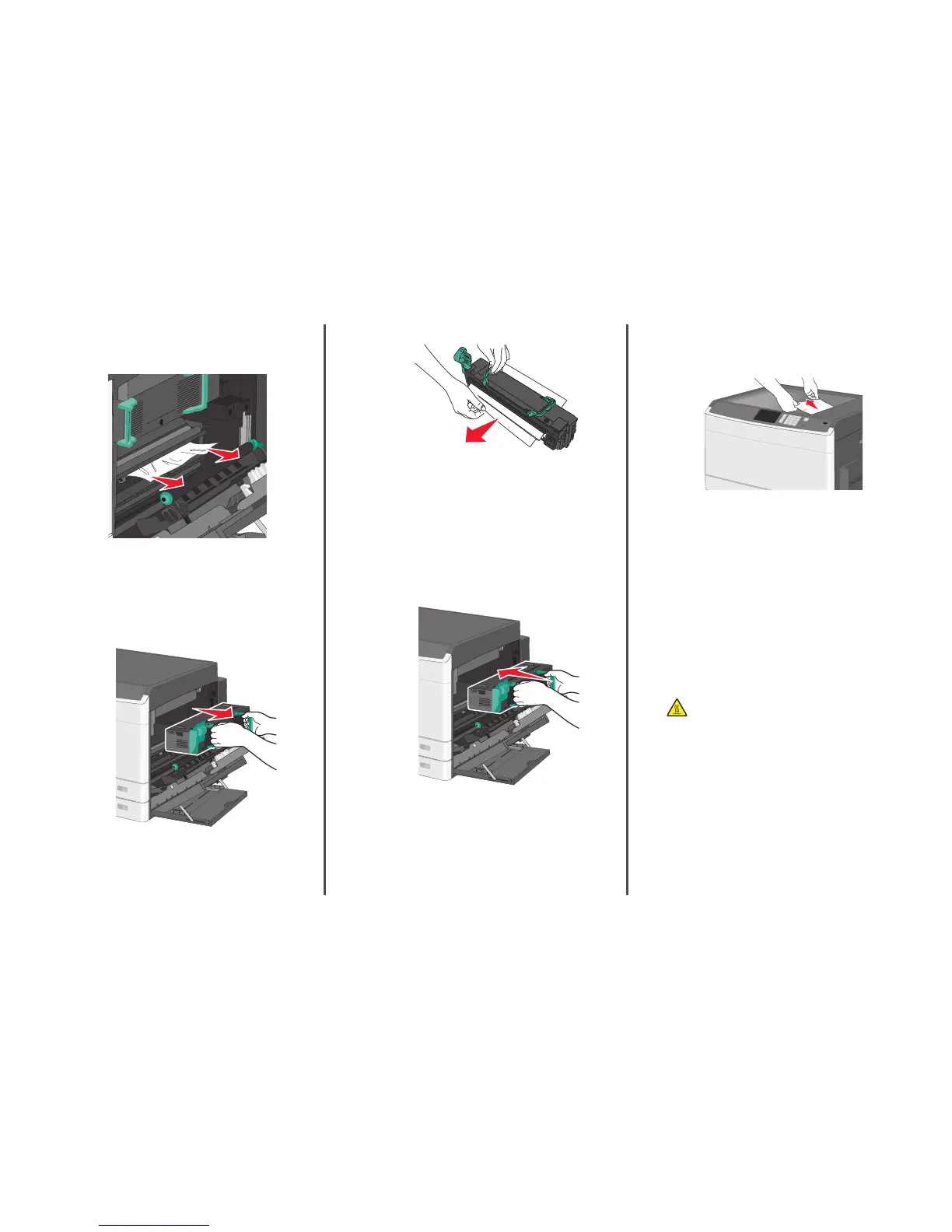
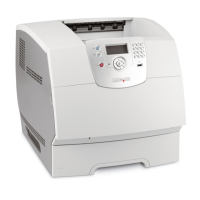
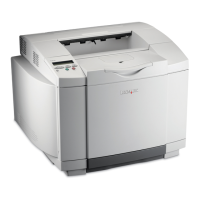
2 Determine where the jam is located, and then remove it:
a If the paper is visible under the fuser, then grasp it on each side
and pull it out.
b If the paper is not visible, then you will need to remove the fuser
unit.
Warning—Potential Damage: Do not touch the center of
the fuser unit. Doing so will damage the fuser.
1 Lift the handles on each side of the fuser, and then pull to
remove the fuser unit.
2 Remove the jammed paper.
Notes:
• Make sure all paper fragments are removed.
• Pull the jammed paper downwards.
• If the paper is in the fuser, then the fuser nip release
lever should be lowered and should be switched to
envelope mode.
• After removing the jammed paper, return the lever to
the proper position.
3 Align the fuser unit using the handles on each side, and then
place it back into the printer.
3 Close the side door.
4 Touch Continue, jam cleared.
203 paper jam
1 Grasp any jammed paper visible in the standard exit bin, and then
gently pull it out.
Notes:
• Make sure all paper fragments are removed.
• If the page is in the fuser, then the fuser nip release lever
should be lowered and should be switched to envelope
mode.
• After removing the jammed page, return the lever to the
proper position.
2 Touch Continue, jam cleared.
230 paper jam
1 Open the side door.
2 Hold onto the handles of the duplexing unit, open the cover, and
then remove any jammed paper.
CAUTION—HOT SURFACE: The inside of the printer might
be hot. To reduce the risk of injury from a hot component,
allow the surface to cool before touching.
9



 To Next Page