EasyManua.ls Logo

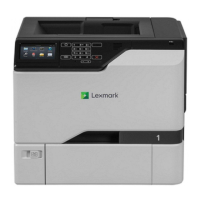
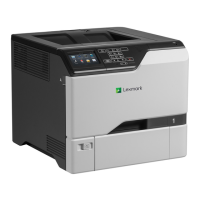
Lexmark CS820de - User Manual

Lexmark CS820de
6 pages
Print Icon
To Next Page IconTo Next Page
Loading...
Quick Reference
Loading paper
Loading trays
CAUTION—TIPPING HAZARD: To reduce the risk of
equipment instability, load each tray separately. Keep all
other trays closed until needed.
1
Pull out the tray.
Note: Do not remove trays while the printer is busy.
2
Adjust the guides to match the size of the paper you are
loading.
Note: Use the indicators on the bottom of the tray to position
the guides.
3
Flex, fan, and align the paper edges before loading.
4
Load the paper with the printable side faceup.
Notes:
Do not slide paper into the tray.
Make sure that the stack height is below the maximum
paper fill indicator. Overfilling may cause paper jams.
5
Insert the tray.
If loading a paper type other than plain, set the paper size and
type to match the paper loaded in the tray.
Loading the multipurpose feeder
1
Open the multipurpose feeder.
2
Adjust the guide to match the size of the paper you are loading.
3
Flex, fan, and align the paper edges before loading.
1
Question and Answer IconNeed help?

Do you have a question about the Lexmark CS820de and is the answer not in the manual?

Overview

This document provides a quick reference guide for a printer, detailing its loading, printing, and maintenance procedures.

Function Description:

The device is a printer designed for various media types, including plain paper, card stock, transparencies, and envelopes. It supports printing from a computer and offers features for managing print jobs, including holding and canceling jobs. The printer also includes a multipurpose feeder for specialized media.

Important Technical Specifications:

While specific technical specifications like print speed, resolution, or memory are not explicitly stated, the manual implies a robust design capable of handling different paper sizes and types. It features multiple paper trays and a multipurpose feeder, suggesting versatility in media handling. The presence of a fuser unit indicates it is likely a laser printer.

Usage Features:

Loading Paper:

The printer supports loading paper into multiple trays and a multipurpose feeder.

  • Loading Trays:

    1. Pull out the desired tray.
    2. Flex, fan, and align the paper edges before loading.
    3. Load paper with the printable side faceup.
    4. Adjust the guides to match the paper size.
    5. Insert the tray.
    • Caution: Tipping Hazard - Load each tray separately and keep other trays closed until needed. Do not remove trays while the printer is busy.
    • Notes: Do not slide paper into the tray. Ensure the stack height is below the maximum fill indicator to prevent jams. Use indicators on the bottom of the tray to position guides.
    • If loading a paper type other than plain, set the paper size and type on the printer to match the loaded paper.
  • Loading the Multipurpose Feeder:

    1. Open the multipurpose feeder.
    2. Adjust the guide to match the paper size.
    3. Flex, fan, and align the paper edges.
    4. Load paper with the printable side facedown and the top edge entering first.
    • Notes: Do not slide paper into the tray. Ensure the stack height is below the maximum fill indicator. Overfilling may cause paper jams.
    • For card stock and transparencies, load with the printable side facedown and the top edge entering first.
    • For envelopes, load with the flap side up and against the left side of the paper guide. Load European envelopes with the flap side up and entering first.
    • Warning - Potential Damage: Do not use envelopes with stamps, clasps, snaps, windows, coated linings, or self-stick adhesives.
    1. From the control panel, set the paper size and type to match the paper loaded.

Setting Size and Type of Specialty Media:

The trays automatically detect plain paper size. For specialty media (labels, card stock, envelopes):

  1. From the home screen, navigate to Settings > Paper > Tray Configuration > select a tray.
  2. Configure the size and type of the specialty media.

Printing:

  • Printing from a Computer:

    • Note: For specialty media, set the paper size and type on the printer before sending the print job.
    1. With a document open, click File > Print.
    2. Adjust settings if necessary.
    3. Send the print job.
  • Printing Held Jobs:

    1. With a document open, select File > Print.
    2. Select the printer.
    3. For Windows users, click Properties or Preferences, then Print and Hold. For Macintosh users, select Print and Hold.
    4. Select the print job type.
    5. Assign a user name if necessary.
    6. Send the print job.
    7. From the printer home screen, touch Held Jobs.
    8. Send the print job.
  • Canceling a Print Job:

    • From the Printer Control Panel:
      1. From the home screen, touch Job Queue (or the top section of the home screen).
      2. Select the job to cancel.
    • From the Computer:
      1. Depending on the operating system, open the printers folder and select your printer, or navigate to your printer from System Preferences in the Apple menu.
      2. Select the job to cancel.

Maintenance Features:

Replacing a Toner Cartridge:

  1. Open door A.
  2. Remove the old toner cartridge.
  3. Unpack the new toner cartridge.
  4. Insert the new toner cartridge until it clicks into place.
  5. Close door A.

Clearing Jams:

Avoiding Jams (Load Paper Properly):

  • Ensure paper lies flat in the tray.
  • Paper guides should be positioned correctly, not pressing tightly against paper or envelopes.
  • Push the tray firmly into the printer after loading.
  • Do not load or remove a tray while the printer is printing.
  • Do not load too much paper; stack height must be below the maximum fill indicator.
  • Use only recommended paper or specialty media.
  • Do not load wrinkled, creased, damp, bent, or curled paper.
  • Flex, fan, and align paper edges before loading.
  • Do not use hand-cut or trimmed paper.
  • Do not mix paper sizes, weights, or types in the same tray.
  • Ensure paper size and type are set correctly on the computer or printer control panel.
  • Store paper according to manufacturer recommendations.

Paper Jam in Trays:

  1. Pull out the tray.
  2. Remove the jammed paper.
    • Note: Ensure all paper fragments are removed.
  3. Insert the tray.

Paper Jam in the Multipurpose Feeder:

  1. Remove paper from the multipurpose feeder.
  2. Remove the jammed paper.
    • Note: Ensure all paper fragments are removed.
  3. Open door B and remove any paper fragments.
    • Caution - Hot Surface: The inside of the printer might be hot. Allow the surface to cool before touching.
  4. Close door B.
  5. Flex, fan, and align paper edges before loading.
  6. Reload paper.

Paper Jam in the Standard Bin:

  1. Remove the jammed paper.
    • Note: Ensure all paper fragments are removed.
  2. Open door B and remove any paper fragments.
    • Caution - Hot Surface: The inside of the printer might be hot. Allow the surface to cool before touching.

Paper Jam in Door B:

  1. Close door B.

Paper Jam in the Fuser:

  1. Open door B.
    • Caution - Hot Surface: The inside of the printer might be hot. Allow the surface to cool before touching.
  2. Remove the jammed paper.
    • Note: Ensure all paper fragments are removed.
  3. Open the fuser access door.
  4. Remove the jammed paper.
    • Note: Ensure all paper fragments are removed.
  5. Close door B.

Paper Jam in the Duplex Unit:

  1. Open door B.
    • Caution - Hot Surface: The inside of the printer might be hot. Allow the surface to cool before touching.
  2. Remove the jammed paper.
    • Note: Ensure all paper fragments are removed.
  3. Open the duplex cover.
  4. Remove the jammed paper.
    • Note: Ensure all paper fragments are removed.
  5. Close the duplex cover and door B.

Lexmark CS820de Specifications

General IconGeneral
BrandLexmark
ModelCS820de
CategoryPrinter
LanguageEnglish

Related product manuals