EasyManua.ls Logo

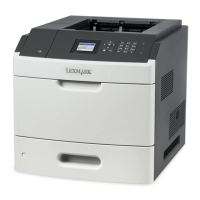
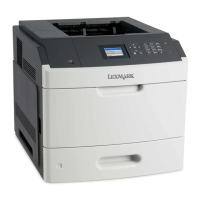
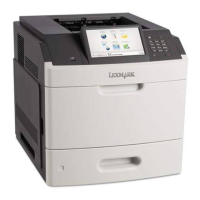
Lexmark MS810de - User Manual

Lexmark MS810de
19 pages
Print Icon
To Next Page IconTo Next Page
Loading...
Print Quality Guide
Characters have jagged or uneven edges
Action Yes No
Step 1
a Print a font sample list to check if the fonts you are using are supported by
the printer.
1 From the printer control panel, navigate to:
Menus > Reports > Print Fonts
2 Select PCL Fonts or PostScript Fonts.
b Resend the print job.
Are you using fonts that are supported by the printer?
Go to step 2. Select a font that is
supported by the printer.
Step 2
Check if the fonts installed on the computer are supported by the printer.
Are the fonts installed on the computer supported by the printer?
The problem is solved. Contact
customer
support.
Clipped pages or images
Leading edge
Trailing edge
ABCDE
ABCDE
ABCDE
Action Yes No
Step 1
a Move the width and length guides in the tray to the correct positions for the
paper loaded.
b Resend the print job.
Is the page or image clipped?
Go to step 2. The problem is solved.
Print Quality Guide
Page 1 of 19

Other manuals for Lexmark MS810de

Questions and Answers

  • W
    wilsonlisaSep 6, 2025
    What to do when Lexmark Printer says 'Change [paper source] to [custom string]'?
    • R
      Ronald FloresSep 6, 2025
      When your Lexmark printer displays the message 'Change [paper source] to [custom string]', load the correct paper size and type in the tray. Verify the paper size and type settings are specified in the Paper menu on the printer control panel, and then select Finished changing paper. Alternatively, you can cancel the print job.
  • F
    Frank BerryAug 21, 2025
    How to fix Lexmark MS810de Printer when it says 'Incorrect paper size, open [paper source] [34]'?
    • B
      Brent HollowayAug 22, 2025
      If your Lexmark printer displays the message 'Incorrect paper size, open [paper source] [34]', try the following: * Load the correct size of paper in the tray. * From the printer control panel, select Continue to clear the message and print using a different tray. * Check the tray length and width guides and make sure the paper is loaded properly in the tray. * Make sure the correct paper size and type are specified in the Printing Preferences or in the Print dialog. * Make sure the paper size and type are specified in the Paper menu on the printer control panel. * Make sure that the paper size is correctly set. * Cancel the print job.
  • D
    Deanna HamiltonSep 3, 2025
    What does 'Maintenance kit low [80.xy]' mean on my Lexmark MS810de Printer?
    • M
      Malik McdowellSep 4, 2025
      If your Lexmark printer displays 'Maintenance kit low [80.xy]' message, you may need to order a maintenance kit. For more information, contact customer support. If necessary, select Continue to clear the message and continue printing.
  • S
    Sylvia HerringSep 2, 2025
    What to do if my Lexmark MS810de displays 'Fuser kit near end of life [81.xx]'?
    • J
      Justin HunterSep 2, 2025
      If your Lexmark printer displays the message 'Fuser kit near end of life [81.xx]', replace the fuser. You can also select Continue on the printer control panel to clear the message and continue printing.
  • L
    Laura SnyderAug 31, 2025
    What does 'Imaging unit low [84.xy]' mean on my Lexmark MS810de Printer and what should I do?
    • T
      Timothy NealSep 1, 2025
      If your Lexmark printer displays the message 'Imaging unit low [84.xy]', it indicates that you may need to order an imaging unit. If necessary, select Continue on the printer control panel to clear the message and continue printing.
  • B
    bwagnerAug 30, 2025
    Why does my Lexmark MS810de say 'Cartridge, imaging unit mismatch [41.xy]'?
    • P
      Pamela ChandlerAug 30, 2025
      The 'Cartridge, imaging unit mismatch [41.xy]' error on your Lexmark printer indicates a mismatch between the toner cartridge and imaging unit types. Check if the toner cartridge and imaging unit are both MICR (Magnetic Imaging Content Recording) or non-MICR supplies. Change the toner cartridge or imaging unit so that both are MICR or non-MICR supplies.
  • H
    hmarksAug 29, 2025
    What to do if my Lexmark MS810de displays 'Disk full [62]'?
    • C
      Christopher TaylorAug 29, 2025
      If your Lexmark printer displays the message 'Disk full [62]', you can try the following: * Select Continue to clear the message and continue printing. * Delete fonts, macros, and other data stored in the printer hard disk. * Install a printer hard disk with larger capacity.
  • T
    Tracy RodriguezAug 27, 2025
    What to do if Lexmark MS810de Printer displays 'Load [paper source] with [custom string] [paper orientation]'?
    • E
      Erin EdwardsAug 27, 2025
      If your Lexmark printer displays the message 'Load [paper source] with [custom string] [paper orientation]', load the tray or feeder with the correct size and type of paper. To use the tray that has the correct size or type of paper, select Finished loading paper on the printer control panel. Alternatively, cancel the current job.
  • B
    Bailey FrazierAug 26, 2025
    How to resolve 'Check tray [x] connection' error on Lexmark MS810de Printer?
    • K
      Kyle ReidAug 27, 2025
      To resolve a 'Check tray [x] connection' error on your Lexmark printer, follow these steps: 1. Turn off the printer, and then turn it back on. 2. If the error appears again: * Turn off the printer. * Unplug the power cord from the electrical outlet. * Remove the specified tray. * Reattach the tray. * Connect the power cord to a properly grounded electrical outlet. * Turn the printer back on. 3. If the error persists: * Turn off the printer. * Unplug the power cord from the electrical outlet. * Remove the tray. * Contact customer support. 4. To clear the message and resume the job, select Continue on the printer control panel.
  • A
    Amy TurnerAug 25, 2025
    What to do if my Lexmark MS810de displays 'Close door or insert cartridge'?
    • J
      James VegaAug 25, 2025
      If your Lexmark printer displays the message 'Close door or insert cartridge', it means the toner cartridge is either missing or not installed correctly. To resolve this, insert the cartridge properly, and then ensure all doors and covers are securely closed.

Lexmark MS810de Specifications

General IconGeneral
Print TechnologyLaser
Print Resolution1200 x 1200 dpi
Print Resolution (Black)1200 x 1200 dpi
Processor Speed1.2 GHz
Memory512 MB
Standard Memory512 MB
Maximum Memory2 GB
Print Speed (Black)55 pages per minute
Print Speed (Letter, Black)55 pages per minute
Standard Paper Capacity650 pages
Standard Paper Input Capacity650 pages
Maximum Paper Input Capacity4400 pages
ConnectivityUSB, Ethernet
Duplex PrintingStandard

Related product manuals