EasyManua.ls Logo

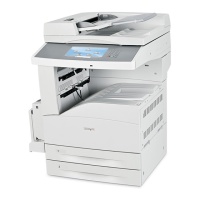
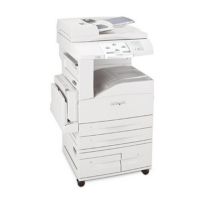
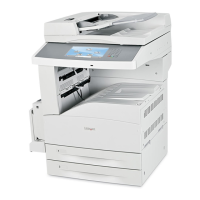
Lexmark X860de - Service Manual

Lexmark X860de
42 pages
Print Icon
To Next Page IconTo Next Page
Loading...
Lexmark
X860de, X862de, & X864de
Booklet Maker Finisher
7500-432, -632, and -832
Table of contents
Start diagnostics
Safety and notices
Trademarks
Index
Lexmark and Lexmark with diamond design are
trademarks of Lexmark International, Inc., registered
in the United States and/or other countries.
Edition: December 12, 2011
www MK-Electronic de

Other manuals for Lexmark X860de

Questions and Answers

  • R
    reginalddiazSep 9, 2025
    How to fix 'Embedded Web Server does not open' on Lexmark All in One Printer?
    • P
      patriciajohnsonSep 9, 2025
      If the Embedded Web Server on your Lexmark All in One Printer does not open, ensure that both the printer and your computer are turned on and connected to the same network. Depending on your network settings, you might need to type https:// instead of http:// before the printer's IP address to access the Embedded Web Server.
  • J
    Jennifer PonceAug 23, 2025
    What to do if my Lexmark All in One Printer displays 'Memory full, cannot print faxes'?
    • B
      Barbara WhiteAug 23, 2025
      If your Lexmark All in One Printer displays the message 'Memory full, cannot print faxes', it means there is not enough memory available to print the fax job. To resolve this, touch Continue on the printer's display to clear the message without printing the fax.
  • J
    James MasonAug 25, 2025
    What to do if Lexmark All in One Printer shows 'An error has occurred with the Flash Drive'?
    • D
      David MortonAug 25, 2025
      If your Lexmark All in One Printer displays the message 'An error has occurred with the Flash Drive. Please remove and re-insert the drive.', try removing and reinserting the flash drive. If the issue persists, the flash memory may be defective and needs replacement.
  • J
    Jason AguilarAug 26, 2025
    What does 'Toner may be low' mean on Lexmark All in One Printer?
    • K
      Kara HarrisAug 26, 2025
      If your Lexmark All in One Printer displays 'Toner may be low', or if the print becomes faded, it's time to replace the print cartridge.
  • J
    johncarrilloAug 27, 2025
    What to do if Lexmark All in One Printer displays 'Disk corrupted'?
    • J
      Jessica HarrisAug 27, 2025
      If your Lexmark All in One Printer displays the message 'Disk corrupted', it means the printer attempted a hard disk recovery on a corrupted hard disk. You can touch 'Reformat disk' to reformat the hard disk and clear the message. Note that reformatting the disk will delete all files currently stored on it.
  • M
    Mr. Reginald GuerraAug 29, 2025
    How to resolve 'Fax server 'To Format' not set up' on Lexmark All in One Printer?
    • D
      Dr. Angela BrownAug 29, 2025
      If your Lexmark All in One Printer displays the message 'Fax server 'To Format' not set up', it indicates that the printer is in Fax Server mode, but the Fax Server setup has not been completed. Complete the Fax Server setup. If the message appears again, contact your system support person.
  • M
    Michael ReedSep 18, 2025
    What does 'Remove paper from all bins' mean on Lexmark All in One Printer?
    • D
      Desiree SmithSep 18, 2025
      If your Lexmark All in One Printer displays the message 'Remove paper from all bins', it means you should remove the paper from all of the bins. The printer automatically senses paper removal and resumes printing.
  • A
    angelicarodriguezSep 19, 2025
    What does 'Remove paper from bin ' mean on Lexmark All in One Printer?
    • J
      James GordonSep 22, 2025
      If your Lexmark All in One Printer displays the message 'Remove paper from bin ', it means you should remove the paper from the specified bin.
  • M
    Michael RomanSep 7, 2025
    Why is my Lexmark All in One Printer unresponsive?
    • J
      Jaime TorresSep 7, 2025
      Your Lexmark All in One Printer might be unresponsive due to several reasons. Ensure the power cord is correctly plugged into both the printer and a grounded electrical outlet, and that the outlet is active. Avoid using surge protectors, UPS devices, or extension cords. Verify that other devices plugged into the same outlet are functioning. Confirm the printer is powered on and the power switch is in the correct position. Check the printer cable connection to both the printer and the computer or network device. Ensure all optional components are properly installed and that the printer driver settings are accurate. After checking these, turn the printer off for 10 seconds, then turn it back on.
  • S
    Scott NolanSep 4, 2025
    What to do if Lexmark All in One Printer displays 'If removing the paper does not clear the message, then touch Continue'?
    • B
      Barbara BellSep 4, 2025
      If your Lexmark All in One Printer displays the message 'If removing the paper does not clear the message, then touch Continue', you should touch Continue.

Summary

Parts Catalog

Assembly 1: Finisher-bridge unit

Details parts for the finisher bridge unit assembly, including the main unit and screws.

Assembly 2: Finisher-bridge unit top cover assembly

Lists components for the bridge unit top cover, specifically the top cover and pinch roll kit.

Assembly 3: Finisher-bridge unit lower assembly

Encompasses parts for the bridge unit's lower section, such as covers, shafts, belts, and sensors.

Assembly 4: Finisher-covers

Covers various external parts of the finisher, including top, bottom, and side covers, and caster wheels.

Assembly 5: Finisher-covers and front door

Details front-facing covers and the front door assembly, including interlock switches and docking kits.

Assembly 6: Finisher-stacker bin lift

Contains components related to the stacker bin lift mechanism, such as lift belts, sensors, and motors.

Assembly 7: Finisher-punch

Outlines parts for the punch unit, including motors, hammers, stoppers, waste boxes, and sensors.

Assembly 8: Finisher-stapler

Lists components of the stapler unit, such as cable assemblies, carriage parts, and staple cartridges.

Assembly 9: Finisher-media eject

Includes parts for the media ejection mechanism, like paddles, switches, gears, and clamp assemblies.

Assembly 10: Finisher-eject and compiler unit

Covers parts for the eject and compiler unit, including sensors, shafts, bushings, and clutch kits.

Assembly 11: Finisher-lower exit drive

Details components of the lower exit drive system, such as sensors, brushes, rolls, and drive pulleys.

Assembly 12: Finisher-buffer and entrance drive

Lists parts for the buffer and entrance drive, including guides, diverters, rolls, and motors.

Assembly 13: Finisher-buffer, transport, and upper drive

Encompasses parts for buffer, transport, and upper drive mechanisms, including sensors, belts, and motors.

Assembly 14: Booklet maker 1

Details components for the first booklet maker assembly, including bins, glides, cables, and controllers.

Assembly 15: Booklet maker 2

Lists parts for the second booklet maker assembly, focusing on diverter gates, transport rolls, and solenoids.

Assembly 16: Booklet maker 3

Contains components for the third booklet maker assembly, such as stapler units, feed knobs, and catches.

Assembly 17: Booklet maker 4

Encompasses parts for the fourth booklet maker assembly, including motors, gears, belts, and paddle assemblies.

Assembly 18: Booklet maker 5

Lists components for the fifth booklet maker assembly, focusing on knife sector gears and sensors.

Assembly 19: Booklet maker 6

Details parts for the sixth booklet maker assembly, including tampers, motors, and rear tamper assemblies.

Assembly 20: Booklet maker 7

Contains components for the seventh booklet maker assembly, such as drive gears, idler gears, and belts.

Assembly 21: Booklet maker 8

Lists parts for the eighth booklet maker assembly, including feed gears, pinch roll assemblies, and sensors.

Assembly 23: Finisher-electronics

Covers electronic components of the finisher, such as interface cards, cables, and controller assemblies.

Assembly 24: Finisher-cables 1

Details sensor and interface cable assemblies for the finisher, including exit, entrance, and buffer path cables.

Assembly 25: Finisher-cables 2

Lists specific cable assemblies for the finisher, such as diverter gate sensor and punch waste box cables.

Assembly 26: Finisher-cables 3

Encompasses remaining finisher cable assemblies, including main drive, bridge unit, and stapler unit cables.

Lexmark X860de Specifications

General IconGeneral
BrandLexmark
ModelX860de
CategoryAll in One Printer
LanguageEnglish

Related product manuals