EasyManua.ls Logo

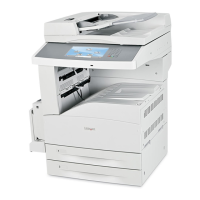
Lexmark X860DE 3 - User Manual

Lexmark X860DE 3
309 pages
Print Icon
To Next Page IconTo Next Page
Loading...
X860de, X862de , X864de
User's Guide
April 2009 www.lexmark.com
Machine type(s):
7500
Model(s):
432, 632, 832

Table of Contents

Other manuals for Lexmark X860DE 3

Questions and Answers

  • S
    Sandra OlsonAug 19, 2025
    What to do if Lexmark All in One Printer shows 'Disk corrupted'?
    • D
      dorrAug 19, 2025
      If your Lexmark All in One Printer displays a 'Disk corrupted' message, it means the printer attempted a hard disk recovery on a corrupted hard disk, but the hard disk could not be repaired. Touch Reformat disk to reformat the hard disk and clear the message.
  • C
    Cindy DunnAug 21, 2025
    What to do if Lexmark All in One Printer shows 'Load with '?
    • J
      Jennifer VazquezAug 21, 2025
      If your Lexmark All in One Printer displays a 'Load with ' message, load the specified paper in the tray. Then, touch Continue to clear the message and continue printing.
  • M
    Mary ColemanAug 23, 2025
    What to do if Lexmark X860DE 3 All in One Printer shows 'Load with '?
    • C
      castilloelizabethAug 23, 2025
      If your Lexmark All in One Printer displays a 'Load with ' message, load the specified paper in the tray. Then, touch Continue to clear the message and continue printing.
  • D
    danielle09Aug 26, 2025
    What to do if Lexmark All in One Printer shows 'Weblink server not set up'?
    • B
      bjohnstonAug 26, 2025
      If your Lexmark All in One Printer displays a 'Weblink server not set up' message, it means an error occurred on the Weblink server, or the server is not configured properly. Touch Continue to clear the message. If the message appears again, contact your system support person.
  • M
    mendezmichelleAug 27, 2025
    What to do if Lexmark All in One Printer shows 'Disk Full - Scan Job Canceled'?
    • M
      Mitchell BellAug 28, 2025
      If your Lexmark All in One Printer displays a 'Disk Full - Scan Job Canceled' message, touch Continue to clear the message.
  • L
    leah71Aug 30, 2025
    What to do if Lexmark All in One Printer shows 'Fax memory full'?
    • S
      Steven SanchezAug 30, 2025
      If your Lexmark All in One Printer displays a 'Fax memory full' message because there is not enough memory to send the fax job, touch Continue to clear the message.
  • R
    richard04Sep 1, 2025
    What to do if Lexmark All in One Printer shows 'Fax server 'To Format' not set up'?
    • R
      rayamberSep 1, 2025
      If your Lexmark All in One Printer displays a 'Fax server 'To Format' not set up' message, it means the printer is in Fax Server mode, but the Fax Server setup has not been completed. Touch Continue to clear the message. Complete the Fax Server setup. If the message appears again, contact your system support person.
  • B
    Bobby GillespieSep 3, 2025
    What to do if Lexmark X860DE 3 All in One Printer shows 'Memory full, cannot print faxes'?
    • E
      Edward KaufmanSep 3, 2025
      If your Lexmark All in One Printer displays a 'Memory full, cannot print faxes' message because there is not enough memory to print the fax job, touch Continue to clear the message without printing.
  • R
    Robert PinedaSep 5, 2025
    What to do if Lexmark X860DE 3 shows 'Remove paper from all bins'?
    • C
      cervantestimothySep 5, 2025
      If your Lexmark All in One Printer displays a 'Remove paper from all bins' message, remove the paper from all of the bins. The printer automatically senses paper removal and resumes printing. If removing the paper does not clear the message, then touch Continue.
  • A
    Alexis HerreraSep 7, 2025
    What to do if Lexmark X860DE 3 All in One Printer shows 'Replace all originals if restarting job'?
    • K
      Kathryn HallSep 7, 2025
      If your Lexmark All in One Printer displays a 'Replace all originals if restarting job' message, it means one or more messages which interrupted a scan job are now cleared. Touch Cancel Job if a scan job is processing when the message appears. This cancels the job and clears the message.

Summary

Safety information

Learning about the printer

Additional printer setup

Installing internal options

Instructions for customizing printer connectivity and memory with optional cards.

Setting up the printer software

Guidance on installing printer drivers for Windows and Macintosh systems.

Setting up wireless printing

Information required and steps to connect the printer to a wireless network.

Loading paper and specialty media

Printing

Printing a document

Steps for printing documents on Windows and Macintosh systems.

Copying

Making copies

Basic steps for making copies using the ADF or scanner glass.

E-mailing

Faxing

Getting printer ready to fax

Initial setup for fax functionality, including station name and number.

Scanning to a computer or flash drive

Maintaining the printer

Cleaning the scanner glass

Procedure for cleaning the scanner glass to ensure image quality.

Replacing supplies

Step-by-step instructions for replacing consumables like toner cartridges.

Troubleshooting

Solving basic problems

Initial steps to resolve common printer issues like unresponsiveness or blank displays.

Solving printing problems

Solutions for issues like jobs not printing, incorrect characters, or unexpected page breaks.

Solving copy problems

Troubleshooting steps for copier issues like unresponsiveness or poor quality.

Solving scanner problems

Guidance for resolving scanner issues like unresponsiveness or poor scanned image quality.

Lexmark X860DE 3 Specifications

General IconGeneral
Duplex printingYes
Print technologyLaser
Maximum resolution1200 x 1200 DPI
Time to first page (black, normal)6 s
Print speed (black, normal quality, A4/US Letter)35 ppm
Copy speed (black, normal quality, A4)35 cpm
Total input capacity1100 sheets
Total output capacity500 sheets
Maximum input capacity5100 sheets
Total number of input trays3
Sound power level (standby)30 dB
Sound pressure level (copying)53 dB
Control typeTouch
Display diagonal9 \
Market positioningBusiness
Dimensions (WxDxH)641 x 705 x 803 mm
Networking featuresGigabit Ethernet
All-in-one functionsCopy, Scan
Maximum internal memory1.28 GB
Color all-in-one functionsscan, n
Compatible operating systemsMac OS 9.2, Win XP, Vista, 7, Server 2000, Server 2003, Server 2008, Linux, Novell, UNIX
Envelopes sizes7 3/4, 10, C5, DL
Paper tray media typesCard stock, Envelopes, Glossy paper, Plain paper, Transparencies
Non-ISO print media sizesExecutive (184 x 267mm), Folio (media size), Legal (media size), Letter (media size), Statement (140 x 216mm)
ISO A-series sizes (A0...A9)A3, A4, A5
JIS B-series sizes (B0...B9)B4, B5
Maximum ISO A-series paper sizeA3
Security algorithmsLEAP, PEAP
Supported network protocols (IPv4)TCP/IP, IPv4, IPX/SPX, AppleTalk, LexLink (DLC), TCP/IP IPv6, TCP, UDP
Standard interfacesUSB 2.0
USB 2.0 ports quantity2
Maximum duty cycle150000 pages per month
Page description languagesPCL 5e, PCL 6, PDF 1.6, PostScript 3, PPDS, xHTML
Operating altitude0 - 3048 m
Operating temperature (T-T)16 - 32 °C
Operating relative humidity (H-H)8 - 80 %
Sustainability certificatesENERGY STAR
CertificationCSA, ICES Class A, BSMI Class A, VCCI Class A, FCC Class A, UL 60950-1, IEC 320-1, ECMA-74, CE Class A, CB IEC 60950 1, IEC 61000-3-2, -3-3, EN 55022, EN 55024, CISPIR 22 Class A, GS (TÜV)-EN 60950-1, SEMKO, UL AR, CS, TÜV Rh, N Mark, C-tick Class A, CCC Class A, RPC, PSB, MIC, EK - K60950.

Related product manuals