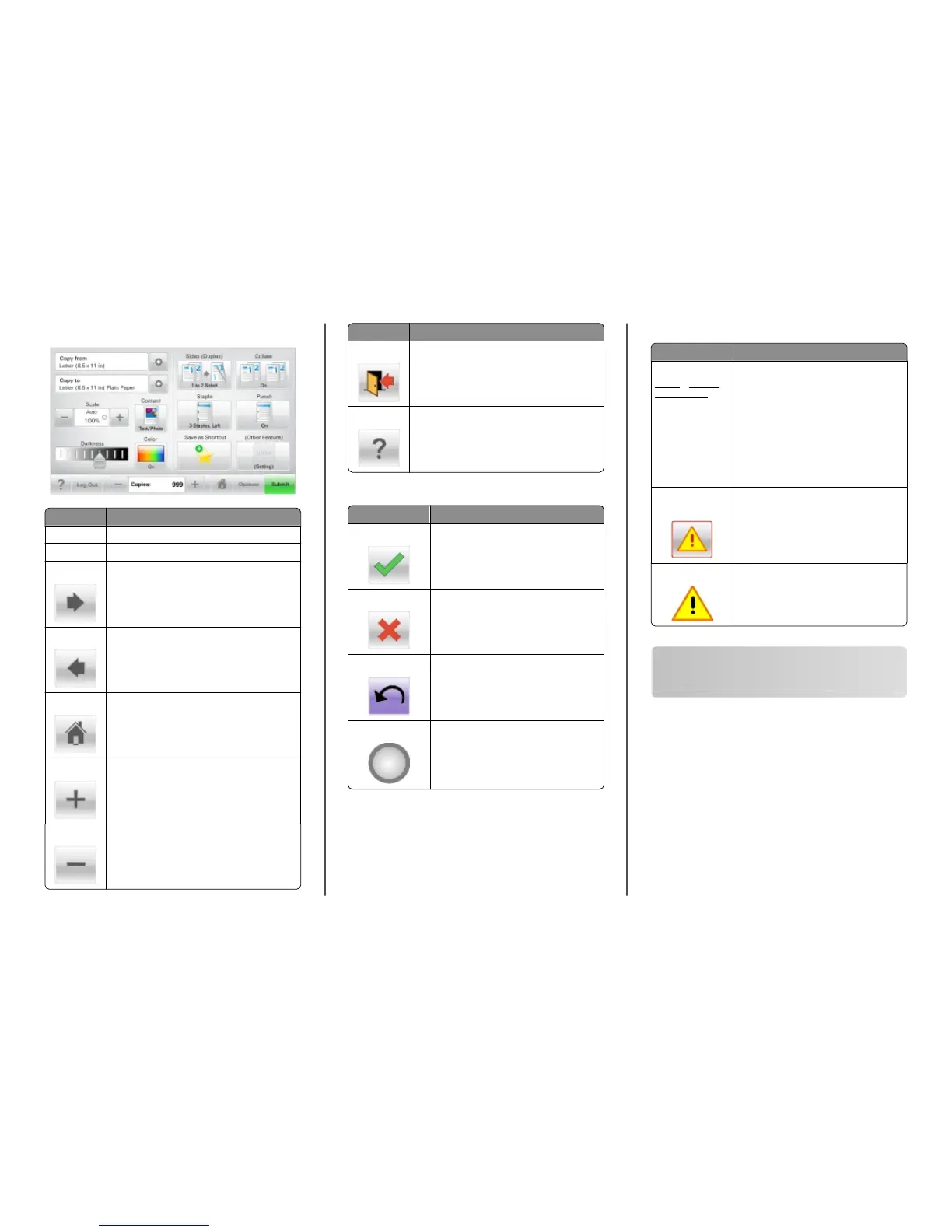
Sample touch screen
Touch To
Submit Submit changes made in the printer settings.
Sample Copy Print a sample copy.
Right arrow Scroll to the right.
Left arrow Scroll to the left.
Home Return to the home screen.
Right increase Select a higher value.
Left decrease Select a lower value.
Touch To
Exit Exit from the current screen.
Tips Open a context-sensitive Help dialog on the touch
screen.
Other touch-screen buttons
Touch To
Accept Save a setting.
Cancel
• Cancel an action or a selection.
• Exit a screen and lets you return to the
previous screen without saving changes.
Reset Reset values on the screen.
Radio button Select or clear an item.
Features
Feature Description
Menu trail line:
Menus > Settings >
Copy Settings >
Number of Copies
A menu trail line is located at the top of each
menu screen. This feature shows the path
taken to arrive at the current menu.
Touch any of the underlined words to return
to that menu.
Number of Copies is not underlined since this
is the current screen. If you touch an
underlined word on the Number of Copies
screen before the Number of Copies is set
and saved, then the selection is not saved,
and it does not become the default setting.
Attendance
message alert
If an attendance message affects a function,
then this icon appears and the red indicator
light blinks.
Warning If an error condition occurs, then this icon
appears.
Setting up and using the home
screen applications
Finding the IP address of the printer
Note: Make sure your printer is connected to a network or to a
print server.
You can find the printer IP address:
• From the top left corner of the printer home screen.
• From the TCP/IP section in the Network/Ports menu.
• By printing a network setup page or menu settings page, and
then finding the TCP/IP section.
Note: An IP address appears as four sets of numbers separated
by periods, such as 123.123.123.123.
Setting up and using the home screen applications
3



 To Next Page