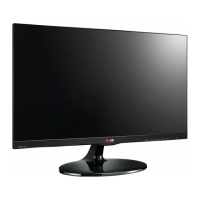
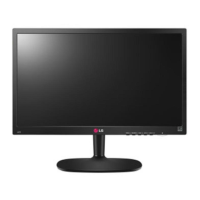
This document is an owner's manual for an LG LED LCD Monitor, model 22EB23PY. It provides comprehensive instructions for assembling, setting up, using, customizing, and troubleshooting the monitor, along with information on proper posture for usage.
Function Description
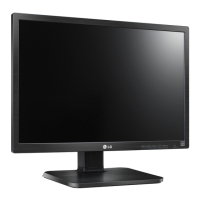
The LG LED LCD Monitor is a display device designed for use with personal computers and other peripheral devices. It supports both analog (D-SUB) and digital (DVI-D, Display Port) video signals, allowing for versatile connectivity with various systems. The monitor is equipped with USB ports for connecting peripheral devices like a mouse, keyboard, or memory stick, enhancing its functionality as a central hub for a workstation. It also features audio input and output capabilities, including a headphone/speaker jack, to manage sound from connected devices. The monitor is designed to be energy-efficient, incorporating a "SUPER ENERGY SAVING" function to reduce power consumption and CO2 emissions.
Usage Features
The monitor offers a range of features to enhance user experience and flexibility:
- Assembly and Setup: The manual details how to unpack the monitor, identify all parts and buttons, and set it up. This includes attaching and detaching the stand base and body, using a cable holder for neat cable management, and mounting the monitor on a table or wall. For wall mounting, it emphasizes adherence to VESA standards and proper screw usage to prevent damage or injury.
- Adjustability: The monitor is highly adjustable to ensure ergonomic comfort. Users can adjust the screen's angle from -5° to 20° (forwards and backwards) and adjust the stand height up to 120 mm. It also features a swivel stand, allowing the monitor to rotate 355 degrees, and a pivot function to rotate the screen 90 degrees clockwise for landscape or portrait viewing. The manual provides warnings to prevent injury during adjustments, such as avoiding placing fingers between the screen and base when changing height.
- Connectivity: The monitor supports multiple input types: D-SUB (analog), DVI-D (digital), and Display Port. It automatically detects the input signal when only one is connected, or users can manually select the desired input when multiple signals are present. USB upstream and downstream ports allow for easy connection of various USB peripherals, with specific current specifications for downstream ports.
- On-Screen Display (OSD) Menu: The OSD menu provides extensive customization options for the monitor's display and audio settings.
- Picture Settings: Users can adjust contrast, sharpness, brightness, and the wide/original aspect ratio. The "Wide" setting switches to full-screen mode, while "Original" changes the image signal ratio to its original form, especially useful for resolutions lower than the monitor's native 16:9 ratio.
- Color Settings: This section allows for fine-tuning of gamma values and color temperature (Warm, Medium, Cool). Users can also customize individual red, green, and blue color levels.
- Display Settings: Adjustments for horizontal and vertical position, clock, and phase are available to optimize image clarity, stability, and eliminate vertical bars or stripes.
- Audio Settings: Users can select the audio input source (DP, Audio-In, or Auto) to control sound output through speakers or headphones.
- Other Settings: This includes language selection, control over the power indicator (On/Off), and an "Off Time Setting" to automatically power off the monitor after a user-defined period (1-24 hours).
- Special Functions (FUNC. Menu): The monitor includes several specialized functions accessible through the FUNC. menu:
- Picture Mode: Offers predefined modes (Custom, Text, Photo, Cinema, Game) that optimize screen settings for specific content types. "Custom" allows for user-defined adjustments.
- SUPER ENERGY SAVING: An energy-efficient function that can be enabled or disabled. It tracks and displays the total power reduction and CO2 emission reduction estimates, helping users monitor their environmental impact.
- DUAL DISPLAY: Requires the DUAL SMART SOLUTION program. This feature allows the monitor to function as a secondary display in either "Clone" mode (mirroring the primary monitor) or "Extended" mode (extending the desktop).
- DUAL WEB: Also requires the DUAL SMART SOLUTION program. This feature helps users browse the web more efficiently by dividing the screen in half, facilitating window arrangement and control over divided window ratios.
- MY KEY Setting: This feature allows users to assign a favorite function from the FUNC. menu (Picture Mode, SUPER ENERGY SAVING, DUAL DISPLAY, DUAL WEB) to the "MY KEY" button for quick access.
- Self Image Setting Function: When the monitor is powered on for the first time or after connecting a new PC (in Analog Mode), this function automatically adjusts the display to optimal settings for individual input signals.
- AUTO Function: In Analog Mode, this button can be pressed to improve resolution and correct issues like blurry screens, blurred letters, or screen flicker.
- OSD Lock/Unlock: Users can lock the OSD controls to prevent inadvertent changes by pressing and holding the MENU button for several seconds. The OSD can be unlocked using the same method.
Maintenance Features
The manual emphasizes several points for maintaining the monitor and ensuring its longevity:
- Accessory Usage: Users are advised to only use approved accessories to ensure safety and product life span. Damages or injuries from unapproved accessories are not covered by the warranty.
- Screen Protection: When handling or moving the monitor, especially during assembly or disassembly, users are instructed to place the screen face down on a soft, cushioned surface to prevent scratches. They should only hold the stand or plastic cover, avoiding unnecessary pressure on the screen.
- Power Management: Disconnecting the power cord before moving or installing the monitor is crucial to prevent electric shock.
- Image Burn Prevention: To prevent image burn, users should avoid displaying a fixed image on the screen for extended periods and are advised to use a screensaver.
- Cable Connections: Ensure signal input cables are properly connected and tightened with screws to prevent display issues.
- Driver Installation: For optimal performance and to resolve "Unrecognized monitor" messages, users should install the display driver from the provided CD or download it from the LG website.
- Troubleshooting Guide: The manual includes a comprehensive troubleshooting section to help users diagnose and resolve common issues such as no image, incorrect display position, flickering screen, or "OUT OF RANGE" messages. It guides users through checking power connections, adjusting brightness/contrast, using the AUTO button, and verifying resolution settings.
- Kensington Lock: The monitor includes a connector for a Kensington lock, allowing users to secure the monitor to a table and deter theft. This is an optional feature, and the lock can be purchased separately.


 To Next Page
 General