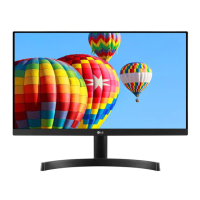
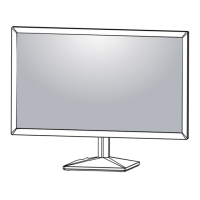
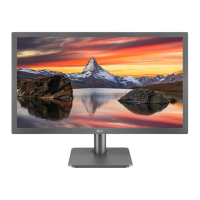
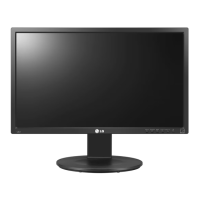
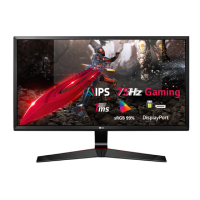
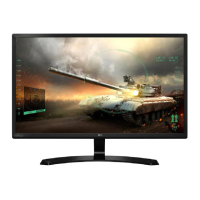
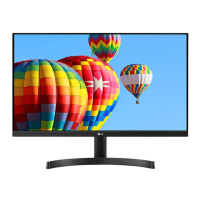
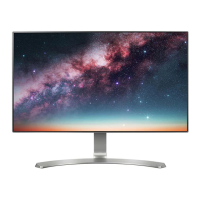
This document is an owner's manual for an LG LED LCD Monitor, covering various models within the 22MK4, 24MK4, 27MK4, 22BK4, 24BK4, and 27BK4 series. It provides comprehensive instructions for assembling, setting up, using, customizing, and troubleshooting the monitor.
Function Description
The LG LED LCD Monitor is designed to display digital video and audio signals from a personal computer (PC) or AV devices. It utilizes LED backlighting for its LCD panel, offering a clear and vibrant visual experience. The monitor supports various input connections, including D-SUB (VGA) for analog signals and HDMI for digital video and audio. A key feature is its Plug & Play capability, allowing for easy connection and recognition by a PC without extensive configuration. The monitor is equipped with a joystick button, providing an intuitive interface for controlling its functions and navigating the on-screen display (OSD) menu. It also includes a headphone output for connecting external audio devices.
Usage Features
The monitor offers a range of features to enhance user experience and display customization:
- Joystick Button Control: The monitor's functions are easily controlled via a single joystick button located at the bottom. This button allows users to power on/off the monitor, adjust volume (for HDMI input), and navigate through the OSD menu.
- Input Connectivity: It supports both D-SUB and HDMI inputs, allowing connection to a wide array of PCs and AV devices. For HDMI connections, it transmits both digital video and audio signals.
- Headphone Output: A dedicated headphone port allows users to connect headphones or external speakers directly to the monitor, providing audio output from the connected source.
- On-Screen Display (OSD) Menu: The OSD menu provides extensive options for customizing display settings. It is accessed and navigated using the joystick button.
- Quick Settings: Within the OSD, "Quick Settings" allow for rapid adjustments of Brightness, Contrast, and Volume. The volume can also be muted/unmuted directly from this menu.
- Input Selection: Users can manually select the input source (D-SUB or HDMI) via the OSD menu.
- Aspect Ratio Control: The monitor offers "Full Wide" and "Original" aspect ratio options. "Full Wide" displays video in widescreen regardless of the input signal, while "Original" maintains the aspect ratio of the video signal input.
- Picture Mode Presets: Several predefined "Picture Modes" are available, including Custom, Reader, Photo, Cinema, Color Weakness, and Game. These modes optimize display settings for specific content types, such as documents, photos, movies, or gaming. The "Color Weakness" mode is a subsidiary feature designed to help users with red-green color blindness distinguish between these colors more easily.
- Picture Adjustments: Fine-tuning of picture quality is possible through settings like Brightness, Contrast, and Sharpness.
- SUPER RESOLUTION+: This feature enhances picture quality, offering "High," "Middle," and "Low" settings for crystal-clear images, comfortable viewing, or smooth and natural images, respectively. It can also be turned off.
- Black Level Control: For HDMI input, users can adjust the black level, which defines the darkest color the monitor can display. Options include "High" (keeps current contrast ratio) and "Low" (lowers black levels, raises white levels).
- Dynamic Contrast Ratio (DFC): DFC automatically adjusts brightness based on the screen content, and can be turned on or off.
- Game Adjustments: Specific features for gaming include "Response Time" (Faster, Fast, Normal, Off) to reduce motion blur, and "FreeSync" (On/Off) for seamless image synchronization with compatible AMD graphics cards.
- Black Stabilizer: This feature allows users to control black contrast in dark scenes, making objects more visible in games or dark content.
- Cross Hair: A "Cross Hair" overlay can be enabled for First Person Shooter (FPS) games, providing a central aiming point.
- Color Adjustments: "Gamma" settings (Mode 1, 2, 3, 4) allow for adjusting image darkness/lightness. "Color Temp" presets (Warm, Medium, Cool, Custom) modify the screen's color tone. "Red/Green/Blue" allows for custom color calibration.
- Configuration Adjust (D-SUB only): For D-SUB input, users can adjust Horizontal and Vertical position, Clock (to minimize vertical bars/stripes), and Phase (to adjust display focus and sharpen images).
- Resolution Selection (D-SUB only): Users can set the desired resolution for D-SUB input, with a list of supported resolutions provided.
- Picture Reset: This option allows users to revert all picture settings to their default values.
- General Settings: Includes "Language" selection for the OSD menu.
- SMART ENERGY SAVING: Offers "High," "Low," and "Off" options to reduce power consumption by adjusting monitor luminance.
- Automatic Standby: The monitor can be configured to automatically switch to standby mode after a certain period of inactivity. This setting can be disabled.
- OSD Lock: Prevents incorrect key input by disabling OSD controls, except for brightness, contrast, input, information, and volume.
- Information Display: Shows monitor details such as Model, Serial Number, Total Power On Time, and Resolution.
- Reset All Settings: Allows users to return all monitor settings to their factory defaults.
Maintenance Features
The manual provides guidelines for safe handling and maintenance of the monitor:
- Product Components Check: Users are advised to check all components upon unboxing and contact the retailer if anything is missing.
- Genuine Components: Emphasizes the use of genuine LG components for safety and performance, warning against the use of counterfeit or non-certified generic cables.
- Safe Moving and Lifting: Detailed instructions are provided for safely moving and lifting the monitor to prevent scratches, damage, or injury. This includes holding the top and bottom of the frame, disconnecting cables, and avoiding touching the screen panel. It also warns against carrying the monitor by the stand base alone if the panel is not securely attached.
- Stand Assembly/Disassembly: Instructions for attaching and detaching the stand base and body are provided, including recommended screw torque. Warnings are given to avoid injury during assembly and to prevent applying excessive force when tightening screws.
- Wall Mounting: Comprehensive instructions for wall mounting are included, specifying clearance requirements for ventilation, VESA standard screw specifications, and warnings about disconnecting power, using authorized wall mounts, and not overtightening screws.
- Cleaning: While not explicitly detailed as a "maintenance feature," the caution about covering the screen with a soft cloth during stand assembly implies a need for care to prevent scratches, suggesting gentle cleaning practices.
- Kensington Security System: The monitor includes a connector for a Kensington security system, allowing users to secure the monitor to a table and deter theft.
- Driver and Software Updates: Users are encouraged to download and install the latest monitor drivers and "OnScreen Control" software from the LG website to ensure optimal performance and functionality.
- Troubleshooting Guide: A dedicated section helps users diagnose and resolve common issues such as no image, "Out of Range" messages, "NO SIGNAL" messages, OSD control problems, incorrect display image (mono color, blinking), and "Unrecognized monitor" messages. It advises checking cable connections, adjusting resolution, and installing display drivers.


 To Next Page

 General