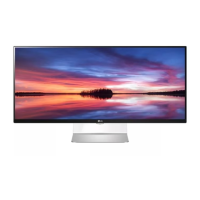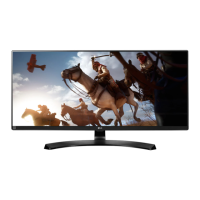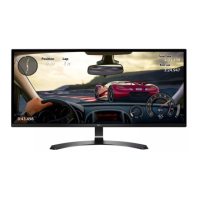
EasyManua.ls Logo

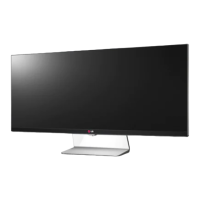
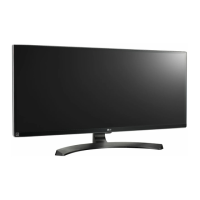
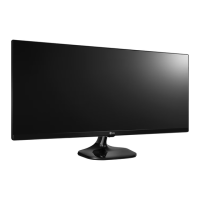
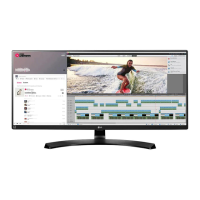
LG 34UM61 - User Manual

LG 34UM61
28 pages
Print Icon
To Next Page IconTo Next Page
Loading...
www.lg.com
Please read the safety information carefully before using the product.
IPS LED Monitor (LED Monitor) Model List
Owner's Manual
IPS LED MONITOR
(LED MONITOR*)
*LG LED Monitors are LCD Monitors with LED Backlighting.
34UM61

Other manuals for LG 34UM61

Questions and Answers

  • K
    Kelly PinedaAug 3, 2025
    How to fix an LG 34UM61 Monitor when nothing is displayed on the screen?
    • H
      hoganaaronAug 3, 2025
      If nothing is displayed on your LG Monitor, here are a few things to check: * Ensure the power cord is correctly plugged into the power outlet. * Verify the power cable connection and press the power button. * Confirm that the connected input is enabled by going to Menu > Quick Settings > Input. * If the monitor is in sleep mode, move the mouse or press any key on the keyboard. Also, check if the computer is turned on. * Make sure the signals transferred from the PC (graphics card) are within the horizontal or vertical frequency range of the monitor. Refer to the Product Specification section of this manual to set the appropriate frequency. * Inspect the cable and try reconnecting it.
  • J
    johnwalshAug 8, 2025
    Why does the display color look abnormal on my LG 34UM61 Monitor?
    • R
      Robert WhitneyAug 8, 2025
      If the display color on your LG Monitor appears abnormal: 1. Set the color to 24 bit (true color) or higher. In Windows, this can be found at Control Panel > Display > Settings > Color Quality. 2. Check the signal cable to ensure it's properly connected. Reconnect the cable or reinsert the PC's graphics card. Note that when using the monitor, pixilated spots (red, green, blue, white, or black) may appear on the screen. This is normal for an LCD screen and does not indicate an error or affect the monitor's performance.
  • M
    Mitchell MorrisonAug 13, 2025
    What to do if my LG 34UM61 screen display is unstable and shaky?
    • M
      Michael MckeeAug 13, 2025
      If your LG Monitor's screen display is unstable, shaky, or images leave shadow trails, and if the selected resolution is HDMI 1080i 60/50 Hz (interlaced), the screen may be flickering. Try changing the resolution to 1080P or the recommended resolution.
  • E
    Erica StewartAug 19, 2025
    Why does my LG Monitor show "Unrecognized monitor, Plug&Play (VESA DDC) monitor found"?
    • J
      Joshua HowardAug 19, 2025
      If you see an "Unrecognized monitor, Plug&Play (VESA DDC) monitor found" message on your LG Monitor, install the display driver from the display driver CD (or diskette) that came with your display. Also, check if the video card supports Plug&Play function.
  • X
    Xavier RayAug 23, 2025
    How to prevent image retention on my LG Monitor screen?
    • D
      Dustin HicksAug 23, 2025
      If the screen of your LG Monitor retains an image, it may be due to displaying a still image for a prolonged time, which can cause damage. To extend the monitor's lifetime, use a screensaver.
  • N
    Nicole HoustonAug 28, 2025
    How to turn off the OSD lock message on an LG Monitor?
    • M
      Mark JonesAug 28, 2025
      If the OSD lock message is displayed on your LG Monitor, go to Menu > General and set OSD Lock to Off.

Summary

Assembling and Preparing the Monitor

Safe Assembly Precautions

Essential safety warnings regarding component usage and potential risks.

Monitor Controls and Indicators

Joystick Button Operation

Detailed explanation of the joystick button's functions for power and navigation.

Monitor Input Connections

Identifying Input Ports

Visual guide to the monitor's input connectors, including HDMI and DC-IN.

Safe Monitor Handling

Critical Safety Warnings

Important cautions about screen contact and using the monitor without its stand.

Monitor Installation Procedures

Assembling the Stand Base

Step-by-step guide for correctly assembling the monitor stand.

Setting Up the Monitor on a Table

Table Installation Steps

Guide to placing the monitor on a table, ensuring proper ventilation.

Power Cord Connection Safety

Safety precautions for connecting the power cord to an electrical outlet.

Adjusting Monitor Viewing Angle

Angle Adjustment Safety

Warnings to prevent finger injury and screen damage during angle adjustments.

Security and Stand Removal

Wall Mount Plate Attachment

Steps to attach a wall mount plate to the rear of the monitor.

Wall Mounting the Monitor

Wall Clearance Requirements

Specifies necessary spacing around the monitor for ventilation during wall mounting.

Wall Mounting Safety Guidelines

Critical safety warnings for wall mounting, including screw length and force.

Using the Monitor

Connecting to a PC

Guide for connecting the monitor to a computer using Plug and Play technology.

Connecting to AV Devices

Instructions for linking audio-visual equipment to the monitor via HDMI.

Customizing Monitor Settings

Navigating the Main Menu

Steps to access and operate the monitor's On-Screen Display (OSD) menu.

Quick Settings Adjustments

Adjusting Basic Settings

Guides on modifying brightness, contrast, volume, input, and aspect ratio.

Picture Settings and Modes

Detailed Picture Mode Guide

Troubleshooting Display Issues

No Screen Display Solutions

Diagnostic steps for when the monitor shows no image or is unresponsive.

Display Instability and Ghosting

Troubleshooting tips for screen flickering, ghosting, or shaky images.

Advanced Troubleshooting Topics

Monitor Specifications

LG 34UM61 Specifications

General IconGeneral
Screen Size34 inches
Resolution2560 x 1080
Aspect Ratio21:9
Panel TypeIPS
Refresh Rate60 Hz
Brightness250 cd/m²
Color GamutsRGB 99%
Response Time5ms
Contrast Ratio1000:1
Ports2x HDMI, 1x DisplayPort
Viewing Angle178°/178°

Related product manuals