EasyManua.ls Logo

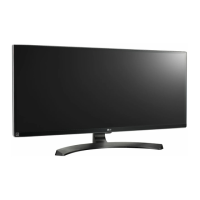
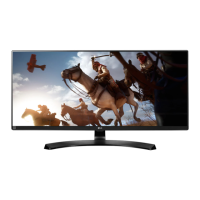
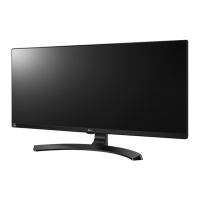
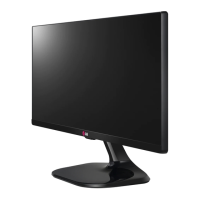
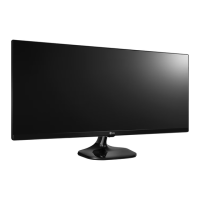
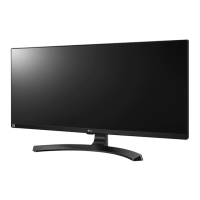
LG 34UM88C - User Manual

LG 34UM88C
35 pages
Print Icon
To Next Page IconTo Next Page
Loading...
OWNER’S MANUAL
IPS LED
MONITOR
(LED Monitor*)
* LG LED Monitor applies LCD screen with LED backlights.
Please read this manual carefully before operating your set and retain it for future
reference.
34UM88
34UM88C
34UB88
Copyright © 2017 LG Electronics Inc. All Rights Reserved.
www.lg.com

Questions and Answers

  • W
    wilsonreginaldJul 27, 2025
    What to do if nothing is displayed on my LG 34UM88C Monitor screen?
    • D
      Donald WagnerJul 27, 2025
      If your LG Monitor screen is blank, ensure the power cord is securely plugged into the outlet and that the power cable is properly connected. Press the power button to turn on the monitor. Also, verify the connected input is enabled by navigating to Menu > Quick Settings > Input. If the monitor is in sleep mode, move the mouse or press a key. Confirm that your computer is also powered on. Check the cable and reconnect it.
  • T
    Tonya CruzJul 31, 2025
    Why is my LG Monitor screen display unstable and shaky?
    • C
      Cassandra JonesJul 31, 2025
      If your LG Monitor screen display is unstable, shaky, or images leave shadow trails, and the resolution is set to HDMI 1080i 60/50 Hz (interlaced), the screen may be flickering. Try changing the resolution to 1080p or the recommended resolution.
  • C
    Courtney FloresAug 5, 2025
    Why is there no sound from the headphone port on my LG 34UM88C?
    • J
      Jeffrey FieldsAug 6, 2025
      If you are experiencing no sound from the headphone port on your LG Monitor, first ensure that the headphone port connections are properly made. Then, try increasing the volume using the joystick. Finally, set the audio output of your PC to the monitor by going to Control Panel > Hardware and Sound > Sound and setting the Monitor as the default device.
  • T
    Tara ColeAug 10, 2025
    Why is the display color abnormal on my LG 34UM88C Monitor?
    • C
      carmenterryAug 10, 2025
      If the display color on your LG Monitor appears abnormal, try setting the color to 24 bit (true color) or higher through Control Panel > Display > Settings > Color Quality in Windows. Also, check the signal cable connection; reconnect the cable or reinsert the PC's graphics card to ensure it's properly connected.
  • M
    medinaglennAug 14, 2025
    Why does the screen of my LG 34UM88C Monitor retain an image?
    • E
      ericaballardAug 14, 2025
      Displaying a still image for a prolonged time may cause damage to the screen of your LG Monitor, resulting in the retention of the image. To extend the lifetime of the monitor, use a screensaver.
  • M
    michael71Aug 18, 2025
    What to do if I see an "Unrecognized monitor, Plug and Play (VESA DDC) monitor found" message on my LG 34UM88C?
    • S
      sandra81Aug 18, 2025
      If you see an "Unrecognized monitor, Plug and Play (VESA DDC) monitor found" message on your LG Monitor, install the display driver from the provided CD (or diskette) or download it from the LG website. Also, verify that your graphics card supports the Plug and Play function.
  • D
    Dale DavisAug 22, 2025
    How to turn off the OSD Lock message on my LG Monitor?
    • J
      James WilsonAug 23, 2025
      If you are getting an OSD Lock message on your LG Monitor, go to Menu > General and set OSD Lock to Off.

Summary

Assembling and Preparing the Monitor

Product and Button Description

Joystick Button Operation

Explains how to use the joystick button for monitor control.

Installing the Monitor

Assembling the Monitor Stand

Step-by-step guide for assembling the monitor stand.

Installing the Monitor on a Table

Instructions for placing the monitor on a table and connecting power.

Installing the Monitor on the Wall

Details on wall mounting, including VESA standards and screw specifications.

Using the Monitor

Connecting to a PC

Explains how to connect the monitor to a personal computer.

HDMI Connection

Instructions for connecting the monitor to a PC via HDMI cable.

User Settings and Menu Navigation

Activating the Main Menu

Step-by-step guide to activate and navigate the main menu using the joystick.

Main Menu Features Overview

Details the main menu options like Menu, Game Mode, Input, Monitor off, and Exit.

Detailed Menu Settings

Provides detailed descriptions of various monitor settings like Picture, Sound, and General.

Quick Settings Configuration

Guides on adjusting Brightness, Contrast, Volume, Input, and Aspect Ratio.

Picture-by-Picture (PBP) Mode

Explains how to set up and configure the Picture-by-Picture mode.

Picture Settings and Modes

Details various picture modes like Custom, Reader, Photo, Cinema, and game modes.

Picture Adjustments and Game Features

Covers adjustments for Sharpness, Black Level, Response Time, FreeSync, and Black Stabilizer.

Color Adjustments

Explains how to adjust Gamma, Color Temperature, Hue, and Saturation for custom colors.

Sound Settings

General Settings

Resetting Monitor Settings

Restore Default Settings

Restores all monitor settings to their default values.

Troubleshooting Common Issues

Troubleshooting No Display

Steps to resolve issues where the screen displays nothing.

Troubleshooting Unstable Display

Resolves issues with unstable display or shadow trails.

Troubleshooting Display Color Issues

Resolves abnormal display colors or pixilated spots.

Product Specifications (34 UM88;34 UB88)

LG 34UM88C Specifications

General IconGeneral
BrandLG
Model34UM88C
CategoryMonitor
LanguageEnglish

Related product manuals