EasyManua.ls Logo

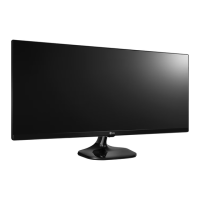
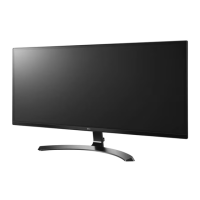
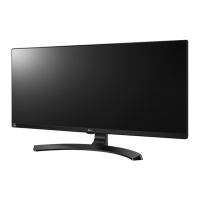
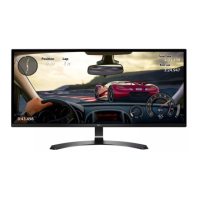
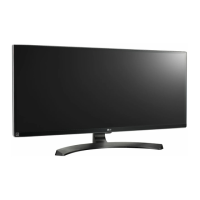
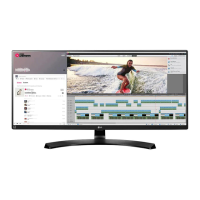
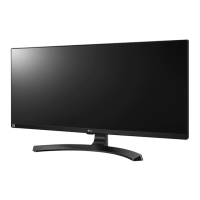
LG 34UM57-P - User Manual

LG 34UM57-P
34 pages
Print Icon
To Next Page IconTo Next Page
Loading...
www.lg.com
34UM57
Please read the safety information carefully before using the
product.
IPS LED Monitor (LED Monitor) Model List
Owner's Manual
IPS LED MONITOR
(LED MONITOR*)
*LG LED Monitors are LCD Monitors with LED Backlighting.

Questions and Answers

  • J
    Jose Fowler DVMJul 29, 2025
    What to do if nothing is displayed on my LG 34UM57-P Monitor screen?
    • J
      Jonathan TorresJul 29, 2025
      If your LG Monitor screen is blank, try these steps: * Ensure the power cord is securely plugged into the outlet. * Verify the power cable connection and press the power button. * Confirm the correct input is enabled via Menu - Input. * If the monitor is in sleep mode, move the mouse or press a key. * Check that your computer is turned on. * If the signal cable between the PC and the monitor is missing or disconnected, check the cable and reconnect it. * If signals from the PC are out of the monitor's frequency range, see the 'Product Specification' section of this manual to set the appropriate frequency.
  • F
    fchoiAug 7, 2025
    Why is the display color abnormal on my LG 34UM57-P?
    • J
      Jennifer CampbellAug 7, 2025
      Abnormal display color on your LG Monitor can be due to several factors: * Ensure your color is set to 24 bit (true color) or higher by navigating to Control Panel > Display > Settings > Color Quality in Windows. * Check the signal cable connection; reconnect it or reinsert the PC's video card. Also, note that pixilated spots (red, green, blue, white, or black) may appear, which is normal for LCD screens and not a defect.
  • N
    nwashingtonAug 19, 2025
    How to prevent image retention on my LG Monitor?
    • P
      Patrick JacksonAug 19, 2025
      To prevent image retention on your LG Monitor, which can occur if a still image is displayed for a long time, use a screen saver when the monitor is in prolonged use.

Summary

Assembling and Preparing Your Monitor

Product Components

Lists items included in the box for setup.

Component and Button Description

Details the monitor's physical components and buttons.

How to Use the Joystick Button

Explains operation of the monitor's joystick control.

Moving and Lifting the Monitor

Provides instructions for safe handling and transport of the monitor.

Assembling the Stand Base

Guides on attaching the monitor stand base for stability.

Using the Cable Holder

Instructions for managing cables using the provided holder.

Detaching the Stand Base

Instructions for removing the monitor stand base.

Installing onto a Table

Guides for setting up the monitor on a desk.

Adjusting the Angle

How to tilt the monitor screen for comfortable viewing.

Using the Kensington Lock

Explains how to use the security cable slot.

Installing the Wall Mount Plate

Guides for attaching a wall mounting bracket.

Installing to a Wall

Instructions for mounting the monitor on a wall.

Using the Monitor

Connecting to a PC

Explains the Plug and Play feature for PC connectivity.

DisplayPort Connection

Steps for connecting your PC via DisplayPort.

HDMI Connection

Steps for connecting your PC via HDMI.

Connecting to AV Devices

How to connect external audio-visual equipment.

Connecting Headphones

Instructions for connecting audio output devices.

Installing LG Monitor Software

Installing The Screen Split

Guides on installing the screen division software.

Installing The Dual Controller

Guides on installing the software for controlling multiple PCs.

User Settings

Activating the Main Menu

How to access and navigate the monitor's OSD menu.

Quick Settings

Adjustments for brightness, contrast, volume, input, and ratio.

Picture-by-Picture (PBP) Mode

How to display multiple inputs simultaneously.

Picture Settings

Detailed adjustments for screen display modes and color.

General Settings

Options for language, energy saving, DAS mode, and FreeSync.

Reset Settings

How to restore the monitor to factory default settings.

Game Mode Settings

Optimizing settings for gaming experiences.

Troubleshooting

No Display Issues

Troubleshooting steps for when the screen remains blank.

Image Retention Issues

Addressing problems like image sticking or screen burn-in.

Display Color Issues

Resolving problems with abnormal or unstable display colors.

Specifications

Proper Posture for Using the Monitor

LG 34UM57-P Specifications

General IconGeneral
Screen Size34 inches
Resolution2560 x 1080
Aspect Ratio21:9
Panel TypeIPS
Refresh Rate60 Hz
Response Time5 ms
Brightness250 cd/m²
Contrast Ratio (Typical)1000:1
Color GamutsRGB 99%
ConnectivityHDMI, DisplayPort
Viewing Angle178° (H) / 178° (V)
VESA Mount100 x 100 mm

Related product manuals