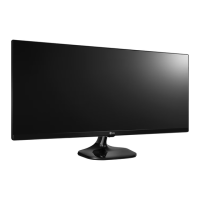
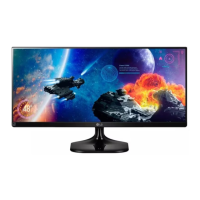
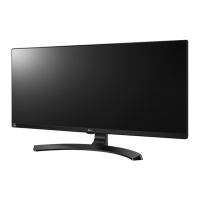
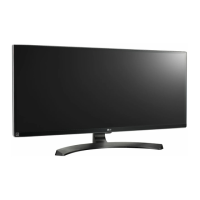
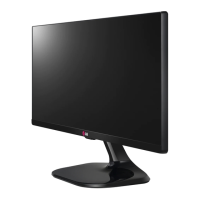
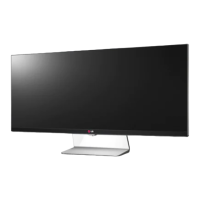
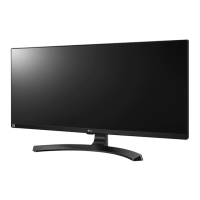
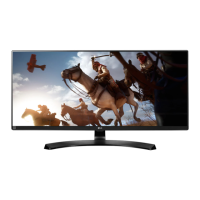
This document is an owner's manual for an LG IPS LED Monitor, specifically models 34UM59, 34UM59B, and 34UM59R. The manual provides comprehensive information on assembling, preparing, using, customizing settings, troubleshooting, and technical specifications of the monitor.
Function Description:
The LG IPS LED Monitor is designed for displaying digital video and audio signals from PCs and AV devices. It features an IPS (In-Plane Switching) panel with LED backlighting, offering wide viewing angles and consistent color reproduction. The monitor supports Plug and Play functionality, allowing for easy connection to devices without extensive configuration. It includes a joystick button for intuitive control of the monitor's functions and OSD (On-Screen Display) menu.
Important Technical Specifications:
- Display Type: TFT (Thin Film Transistor) LCD (Liquid Crystal Display) Screen
- Pixel Pitch: 0.312 mm x 0.310 mm
- Maximum Resolution: 2560 x 1080 @ 60 Hz
- Recommended Resolution: 2560 x 1080 @ 60 Hz
- Horizontal Frequency: 30 kHz to 90 kHz
- Vertical Frequency: 56 Hz to 75 Hz
- Input Connectors: HDMI IN1, HDMI IN2, H/P (Headphone Port)
- Power: 19 V ⎓ 2.0 A
- Power Consumption (Typical):
- On mode: 27.3 W (ENERGY STAR® standard) / 34.6 W (Outgoing condition)
- Sleep Mode: ≤ 0.5 W
- Off Mode: ≤ 0.3 W
- AC/DC Adaptor: Type ADS-45SN-19-3 19040G (SHENZHEN HONOR ELECTRONIC) or LCAP21C (LIEN CHANG ELECTRONIC ENTERPRISE) or LCAP26B-E (LIEN CHANG ELECTRONIC ENTERPRISE). Output: 19 V ⎓ 2.1 A
- Environmental Conditions:
- Operating Temperature: 0 °C to 40 °C
- Operating Humidity: Less than 80%
- Storing Temperature: -20 °C to 60 °C
- Storing Humidity: Less than 85%
- Stand Angle Adjustment: Forwards/Backwards: -5° to 15° (Head)
- Monitor Size (Width x Depth x Height):
- With Stand: 828.5 mm x 222.4 mm x 460.2 mm
- Without Stand: 828.5 mm x 41.5 mm x 370.2 mm
- Weight (Without Packaging):
- With Stand: 7.1 kg
- Without Stand: 6.1 kg
- Wall Mount (A x B): 100 x 100 mm
- Standard Screw for Wall Mount: M4 x L10
- Number of Screws for Wall Mount: 4
- Wall Mount Plate (Optional): LSW 149
- HDMI Timing (Video) Support: Includes 480P, 576P, 720P, 1080P at various horizontal and vertical frequencies.
- Power Indicator LED Colors: Light On (On Mode), Blinking (Power-saving), Off (Off Mode).
Usage Features:
- Joystick Button Control: A single joystick button located at the bottom of the monitor allows for easy power on/off, volume control, and navigation through the OSD menu.
- Input Connectivity: Supports HDMI for connecting to both PCs and AV devices, transmitting digital video and audio signals.
- Headphone Port: Allows connection of headphones or other peripheral audio devices. Straight earphones are recommended for optimal connection.
- Adjustable Angle: The monitor's screen angle can be adjusted forwards and backwards (-5° to 15°) for comfortable viewing. The monitor head can also be slightly rotated up or down (up to 3°) to adjust the horizontal level.
- Cable Holder: Integrated cable holder on the stand body helps organize cables for a tidy setup.
- Kensington Lock Support: Features a Kensington security system connector for securing the monitor to a table, preventing theft.
- Wall Mount Compatibility: Supports standard VESA wall mount plates (100 x 100 mm) for flexible installation options.
- On-Screen Display (OSD) Menu: Provides extensive customization options, accessible via the joystick button.
- Quick Settings: Adjusts brightness, contrast, volume, input selection, and screen ratio. Includes a Mute function for volume.
- Picture Settings: Offers various picture modes (Custom, Reader, Photo, Cinema, FPS1, FPS2, RTS, Custom (Game)) optimized for different content. Allows adjustment of sharpness, Black Level (High/Low for HDMI only), and DFC (Dynamic Contrast Ratio).
- Game Adjust: Includes Black Stabilizer for enhanced visibility in dark scenes and Response Time settings (High, Middle, Low, Off) for optimal performance in fast-moving content.
- FreeSync: Provides seamless and natural images by synchronizing the vertical frequency of the input signal with the output signal (requires a FreeSync-supported graphic card and HDMI interface).
- Color Adjust: Allows selection of factory default picture colors (Warm, Medium, Cool) or custom adjustment of Red, Green, and Blue colors. Features Six Color adjustment for hue and saturation of Red, Green, Blue, Cyan, Magenta, and Yellow.
- General Settings: Configures language, SMART ENERGY SAVING (High/Low/Off for energy conservation), Power LED on/off, Automatic Standby (monitor switches to standby after a period), and OSD Lock (disables key input).
- Reset: Returns all settings to their default values.
- Automatic Standby: The monitor is set to turn off automatically after 4 hours of no display adjustment (for Europe market, ErP Directive compliance). This can be disabled in the OSD menu.
- SMART ENERGY SAVING: Utilizes a luminance compensation algorithm to conserve energy. Saving data may vary based on the panel.
Maintenance Features:
- Cleaning: When moving or lifting the monitor, avoid touching the screen to prevent scratches or damage. It is recommended to place the monitor in its original packaging for transportation.
- Cable Management: The integrated cable holder helps keep cables organized, reducing clutter and potential damage.
- Troubleshooting Guide: The manual includes a troubleshooting section to address common issues such as no display, power LED status, "OUT OF RANGE" or "No Signal" messages, OSD lock, image sticking, and unstable screen display.
- Display Driver Installation: For "Unrecognized monitor" messages, users are advised to install the display driver from the LG website (www.lg.com) and ensure the video card supports Plug&Play.
- Resolution and Frequency: Users are advised to set the graphics card resolution and frequency within the monitor's supported range to avoid blurred text, dimmed screens, or display misalignment.
- Certified Cables: It is recommended to use certified HDMI cables with the HDMI logo to prevent compatibility problems or connection errors.
- Image Sticking Prevention: To extend monitor lifetime, using a screensaver is recommended to prevent image retention from prolonged display of still images.


 To Next Page
 General