EasyManua.ls Logo

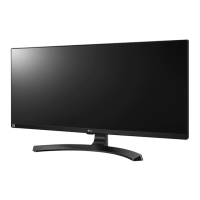
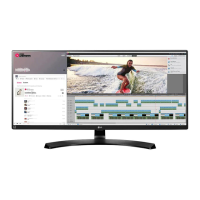
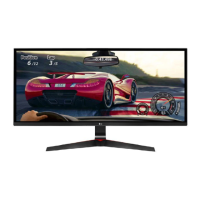
LG 34UM69G - User Manual

LG 34UM69G
31 pages
Print Icon
To Next Page IconTo Next Page
Loading...
www.lg.com
Please read the safety information carefully before using the product.
LED LCD Monitor (LED Monitor) Model List
Owner's Manual
LED LCD MONITOR
(LED MONITOR*)
*LG LED Monitors are LCD Monitors with LED Backlighting.
29UM69G
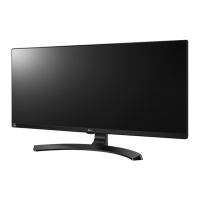
34UM69G

Questions and Answers

  • H
    Heather AndersonJul 27, 2025
    How to fix an LG Monitor when nothing is displayed on the screen?
    • C
      Charles WeberJul 27, 2025
      If nothing is displayed on your LG Monitor screen, first, ensure the power cord is correctly plugged into the power outlet and test the outlet with another device. Check the power cable connection and press the power button on the monitor. Also, ensure the correct input is enabled by navigating to Menu > Input > Input List. If the monitor is in sleep mode, move the mouse or press any key. Finally, verify that your computer is turned on and check the cable connection.
  • S
    Stephanie ThomasJul 31, 2025
    What to do if the LG 34UM69G Monitor screen display is unstable and shaky?
    • R
      Renee PerkinsJul 31, 2025
      If your LG Monitor displays an unstable and shaky screen, or if images leave shadow trails, and the selected resolution is HDMI 1080i 60/50 Hz (interlaced), the screen may be flickering. To resolve this, change the resolution to 1080P or the recommended resolution.
  • C
    Courtney Thomas DVMAug 5, 2025
    How to fix no sound from the headphone port or speaker on LG 34UM69G?
    • R
      Raymond CruzAug 6, 2025
      If you are getting no sound from the headphone port or speaker of your LG Monitor, try increasing the volume using the button on the monitor. Also, set the audio output of the PC to the monitor you are using. On Microsoft Windows, go to Control Panel > Hardware and Sound > Sound and set the monitor as the default device.
  • C
    Catherine LaraAug 9, 2025
    Why is the display color abnormal on my LG 34UM69G Monitor?
    • J
      John MorrisonAug 9, 2025
      If the display color on your LG Monitor appears abnormal, first, set the color to 24 bit (true color) or higher by going to Control Panel > Display > Settings > Color Quality in Windows. Next, check if the signal cable is properly connected; try reconnecting it or reinserting the PC's graphics card. Note that in some cases, this may not be an error related to the monitor's performance.
  • P
    Patricia CarterAug 14, 2025
    What does 'Unrecognized monitor, Plug&Play (VESA DDC) monitor found' mean on my LG 34UM69G Monitor?
    • J
      Jeffery ReidAug 14, 2025
      If you see an "Unrecognized monitor, Plug&Play (VESA DDC) monitor found" message on your LG Monitor, be sure to install the display driver from the LG website: http://www.lg.com. Also, ensure that your video card supports the Plug&Play function.
  • R
    Rebecca WilliamsAug 18, 2025
    Why does the screen retain an image on my LG 34UM69G Monitor?
    • V
      Victoria McculloughAug 18, 2025
      Displaying a still image for a prolonged time may cause damage to the screen of your LG Monitor, resulting in the retention of the image. To extend the lifetime of the monitor, use a screensaver.
  • J
    Jonathan MorrisonAug 22, 2025
    How to turn off the OSD lock message on an LG 34UM69G?
    • B
      Bryan CaseAug 22, 2025
      If your LG Monitor is displaying the OSD lock message, go to Menu > General and set OSD Lock to Off.

Summary

ASSEMBLING AND PREPARING

Product Components

Lists and describes the components included in the monitor package.

Component and Button Description

Details the components and buttons for both 29UM69G and 34UM69G models.

Joystick Button Operation

Explains how to operate the monitor using the joystick button for basic functions.

Monitor Handling Safety

Provides instructions and cautions for safely moving and lifting the monitor.

Monitor Installation Guide

Guides on setting up and assembling the monitor components.

Table Installation Guide

Guide on placing the monitor on a table and connecting the power cord.

Rotation Safety Warning

Warnings about rotating the monitor with cables connected and finger placement.

Wall Mounting Instructions

Instructions for wall mounting, including space requirements and bracket information.

Wall Mounting Safety

Comprehensive safety warnings for wall mounting.

USING THE MONITOR

Connecting to a PC

Explains the Plug and Play feature for connecting to a PC.

HDMI Connection Guide

How to connect the monitor to a PC or A/V device using an HDMI cable.

DisplayPort Connection Guide

How to connect the monitor to a PC using a DisplayPort cable.

TROUBLESHOOTING

No Screen Display Issues

Common issues related to no screen display and their solutions.

Unstable Display Issues

Troubleshooting unstable screen display and shadow trails.

Display Color Problems

Solutions for discolored, unstable, or monochrome display issues.

No Sound Output Issues

Troubleshooting no audio output issues.

SPECIFICATIONS

29 UM69 G Model Specifications

Technical specifications for the 29UM69G model.

34 UM69 G Model Specifications

Technical specifications for the 34UM69G model.

LG 34UM69G Specifications

General IconGeneral
3D-
DDC/CIYes
HD typeQXGA
Pixel pitch0.312 x 0.31 mm
Screen shapeFlat
Response time14 ms
SmartResponse5 ms
Display surfaceMatt
Display diagonal34 \
Display resolution2560 x 1080 pixels
Display technologyLED
Native aspect ratio21:9
Peak luminance ratio90 %
Supported video modes1080p
sRGB coverage (typical)99 %
Contrast ratio (typical)1000:1
Display number of colors16.78 million colors
Display brightness (typical)250 cd/m²
Supported graphics resolutions2560 x 1080
Dynamic contrast ratio marketing nameMega Contrast
RMS rated power14 W
Number of speakers2
AC input voltage100 - 240 V
AC input frequency50 - 60 Hz
Energy efficiency scaleA to G
Power consumption (typical)39 W
Power consumption (PowerSave)- W
Tilt angle range-5 - 20 °
Number of OSD languages17
Panel mounting interface100 x 100 mm
On Screen Display (OSD) languagesCHI (SIMPL), CHI (TR), DEU, ENG, ESP, FIN, FRE, GRE, ITA, JPN, KOR, POL, POR, RUS, SWE, UKR
Mercury content0 mg
CertificationUL(cUL), TUV, FCC-B, CE, CCC, EPA7.0, Erp
Product colorBlack, Red
Package depth212 mm
Package width982 mm
Package height488 mm
Package weight11300 g
Cables includedAC, HDMI
Weight and Dimensions IconWeight and Dimensions
Depth (with stand)279.7 mm
Height (with stand)465.3 mm
Weight (with stand)8500 g
Depth (without stand)41.5 mm
Width (without stand)828.5 mm
Height (without stand)370.2 mm
Weight (without stand)6400 g

Related product manuals