27
ENG
ENGLISH
ENTERTAINMENT
y If the USB HDD does not have an external
power source, the USB device may not be
detected. Connect to an external power
source.
- Use a power adaptor for an external power
source. We do not guarantee a USB cable
for an external power source.
y If your USB memory device has multiple
partitions, or if you use a USB multi-card
reader, you can use up to 4 partitions or USB
memory devices.
y If a USB memory device is connected to a
USB multi-card reader, its volume data may
not be detected.
y If the USB memory device does not work
properly, disconnect and reconnect it.
y How fast a USB memory device is detected
differs from device to device.
y If the USB is connected in Standby Mode,
specific hard disk will automatically be
loaded when the display is turned on.
y The recommended capacity is 1 TB or less
for a USB external hard disk and 32 GB or
less for USB memory.
y Any device with more than the recommended
capacity may not work properly.
y If a USB external hard disk with a Energy
Saving function does not work, turn the
hard disk off and on again to make it work
properly.
y USB storage devices below USB 2.0 are
supported as well. But they may not work
properly in the movie list.
y Maximum of 999 folders or files can be rec-
ognized under one folder.
y It is recommended to use a certified USB
storage device and cable. Otherwise, a USB
storage device may not be detected or a
playback error may occur.
y Only a USB memory stick can be used to
play back the files distributed and stored
by SuperSign Manager. A USB hard disk or
multi-card reader will not work.
y Only an FAT 32 file formatted storage device
can play back the files distributed and stored
by SuperSign manager.
y A USB 3.0 storage device may not work.
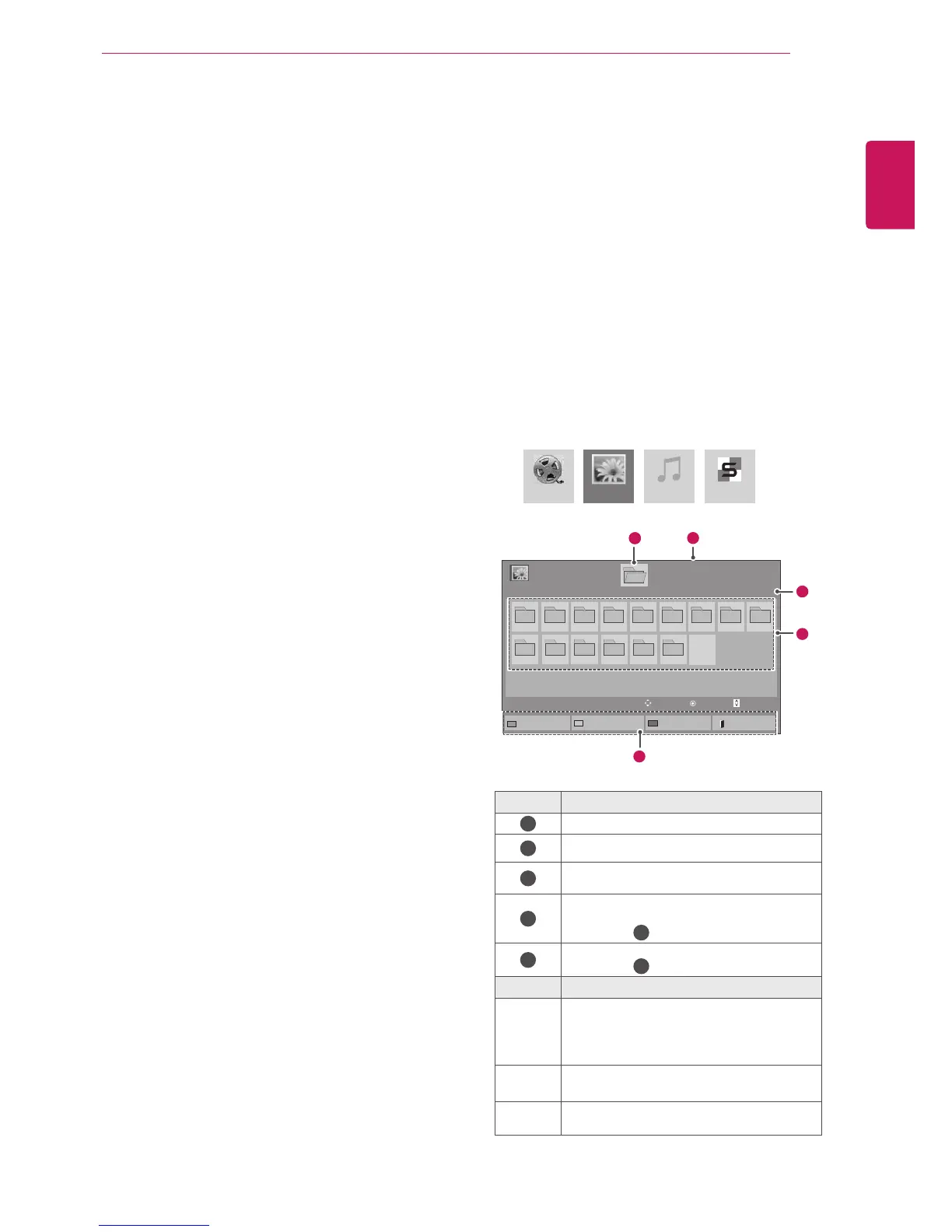
Browsing Files
Access the photo, music, or movie lists, and
browse files.
1
Connect a USB storage device.
2
Press MENU to access the main menus.
3
Press the navigation buttons to scroll to My
Media and press OK.
4
Press the navigation buttons to choose from
Movie List, Photo List, Music List
or Contents List and press OK.
No. Description
1
Moves to upper level folder
2
Current page/Total pages
3
Corresponding buttons on the
remote control
4
Current page/ total pages of
contents under the folder
focused on
1
5
Contents under the folder
focused on
1
Buttom Description
Green
button
Press the green button to toggle between
Photo List -> Music List, Music List ->
Contents List, Contents List -> Movie
List or Movie List -> Photo List.
Yellow
button
A method to view in 5 large thumbnail or
simple list.
Blue
button
Convert to Mark Mode.
Page 1/1
Photo List
Drive1
Page 1/1
USB External
001
010 011 012 013 014 015
002 003 004 005 006 007
008
009
To Music List
Change Numbers
Mark Mode
Exit
11
2
3
4
5
Movie List
Music List
Photo List
Contents List
View
Move
Page Change
Page



 To Next Page