66
ENG
ENGLISH
TROUBLESHOOTING
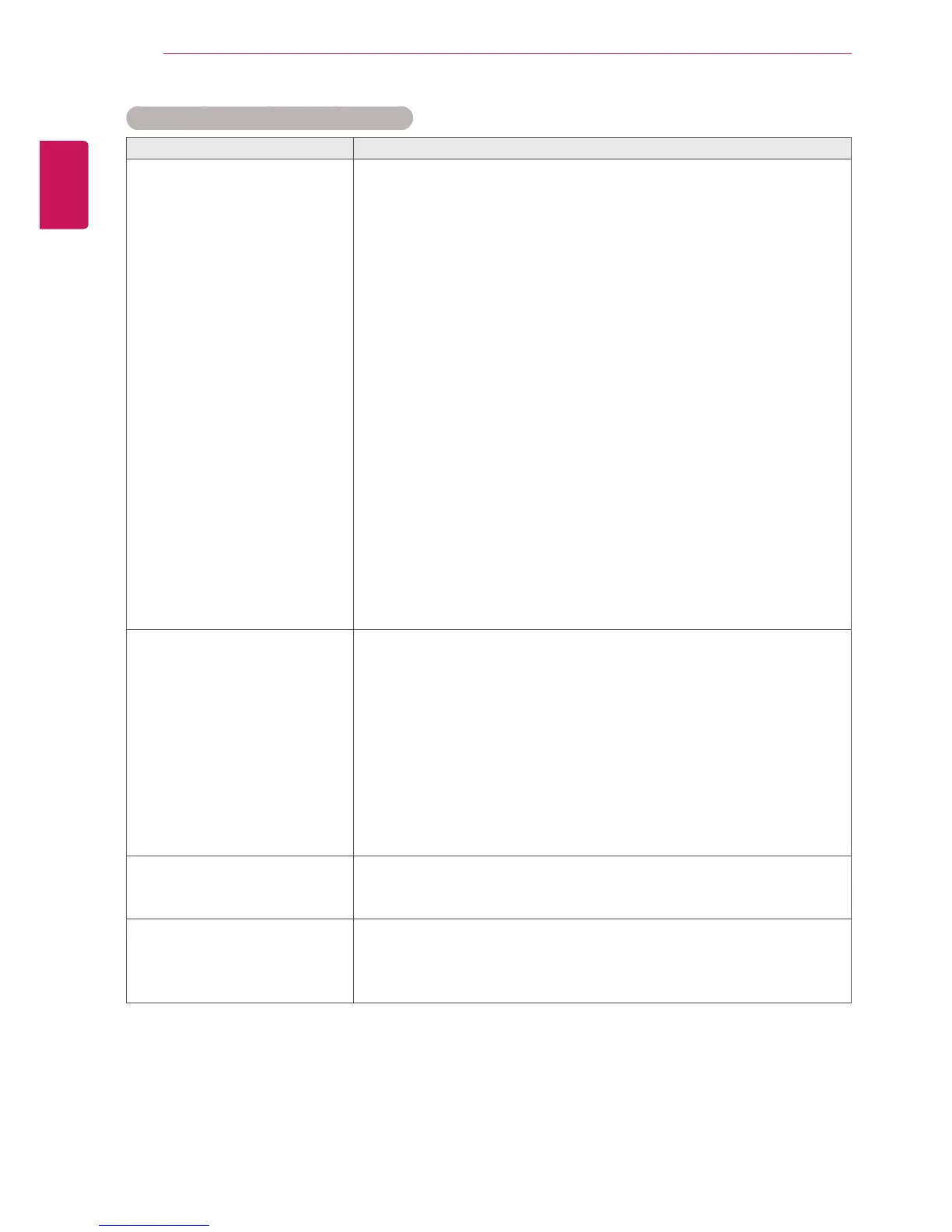
I have a problem with touch response.
Problem Resolution
Touch does not respond.
y
Check the USB cable connection.
- This may occur when the USB cable between PC and monitor is not
connected. Check the USB cable and make it firmly connected.
* Check the connection on Windows 7
Control Panel > System and Security > System
- Check the number of touch-points supported under Pen and Touch.
* Check the connection on Windows XP
Go to Control Panel > System > Hardware > Device Manager >
Human Interface Devices.
You need to be able to see LGE MultiTouch Device on the USB
Human Interface Device Properties window.
y
Check the PC power.
- This may occur when the PC is powered off. Make sure that your
PC's power cord is firmly plugged into a power outlet.
y
Restart your PC.
- Touch may not respond when the system is down due to the unstable
network. Reconnect the LAN cable or restart your PC.
y
Check the signal cable connection.
- If your PC and monitor are not connected using a signal cable, touch
does not respond. Check the signal cable connection.
y
Check the monitor power.
- Touch may not respond when the monitor is powered off.
y
Check if the screen is currently on.
The location of a touch does
not correspond to the touch
coordinates.
y
Change your tablet PC settings (Windows 7).
- This may occur when the touch screen is not calibrated properly.
Control Panel > Hardware and Sound > Tablet PC Settings > Display
> Display options > Calibrate or Reset
* For information about gestures and settings on Windows 7, refer to
the Windows Help.
y
Change the display setting to Full Screen (Windows XP).
- On Windows XP, rotation of touch coordinates works only in full
screen mode.
* Refer to help of the graphic card installed on your PC.
y
When using HDMI, set the Input Label to PC.
Touch coordinates appear to be
rotated 90 degrees (Windows
XP).
y
Change the Screen Rotation setting with LG TDS.
- Run the LG TDS provided with the monitor and set to Landscape or
Portrait.
I cannot start LG TDS.
y
Check whether the operating system is Windows XP.
- LG TDS is supported only in Windows XP.
y
Please install .NET Framework 3.5.
- You can download it at Microsoft Download Center.


 To Next Page
 Loading...