- 6 -
On Screen Display (OSD) Control
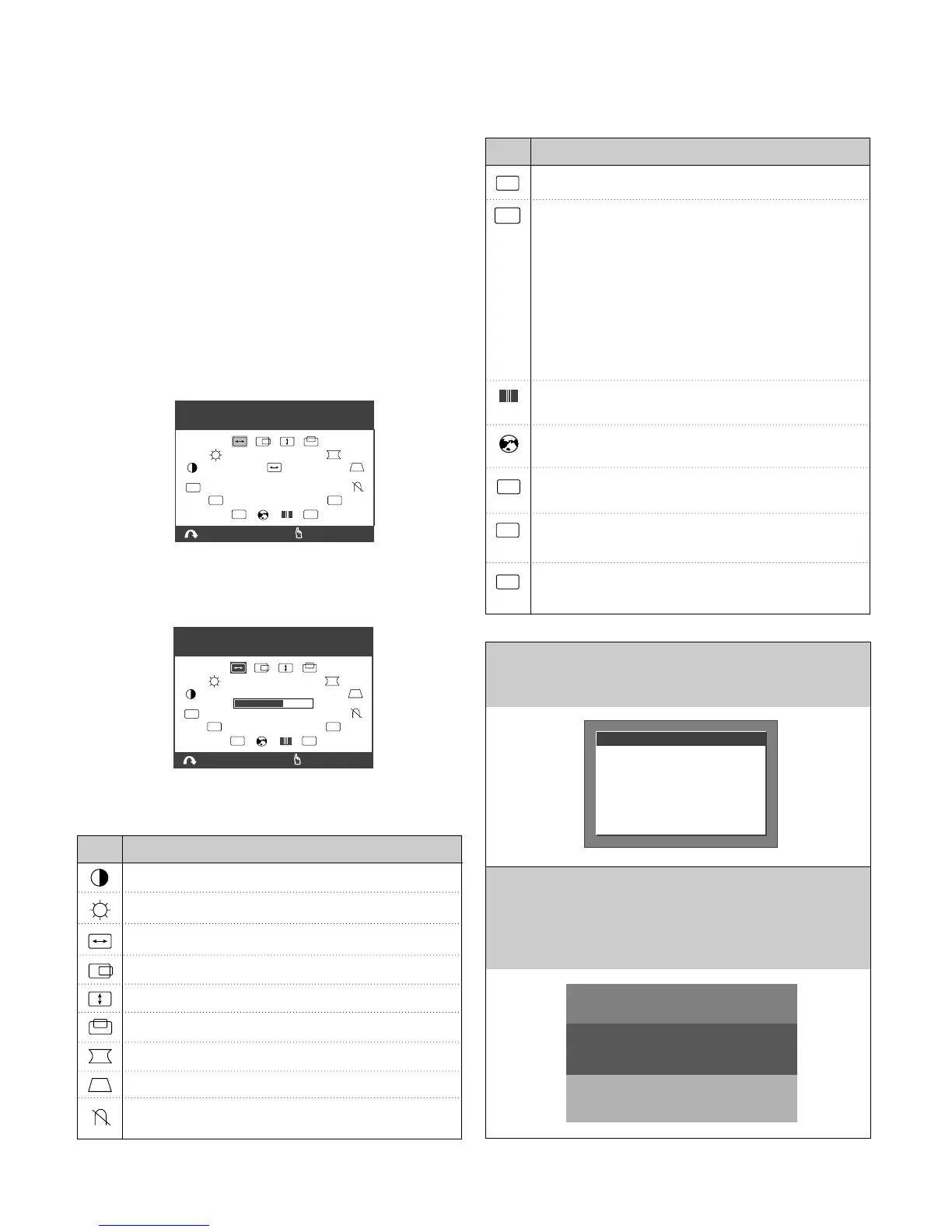
To adjust an image size, position, and operating
parameters are quick and easy with the On Screen Display
control system, using the OSD Select/Adjustment
knob.
A
quick example is given below to familiarize yourself with
use of the controls.
Example;
Note: (Monitor and PC’s power switch should be ON,
with an image or prompt on the screen). A single
press of the OSD Select/Adjustment knob will present
you the main menu as below:
To adjust this item, rotate the OSD Select/Adjustment
knob and push it at the point of the selected item.
The display will look like as below:
Listed below are icons, icon names.
800 x 600
H : 68.4 kHz V : 84.6 Hz
EXIT
OSD
R
USER
MORE
SELECT
:
NAVIGATE
:
HORIZONTAL
SIZE
800 x 600
H : 68.4 kHz V : 84.6 Hz
EXIT
OSD
R
USER
MORE
SELECT
:
ADJUST
:
Pincushion:
To correct bowing in or out of the image.
Tilt: To correct the image rotation.
Parallelogram: To correct the geometric distortion.
Pincushion Balance:
To correct balance on each side distortion.
Moiré: To reduce moiré.
Moiré is caused by intreference the periodical
display pattern with the periodical dot screen.
Trapezoid: To correct the geometric distortion.
Degauss: Used to demagnetize the picture to give
a more accurate image and color.
Mode Recall: To recall factory preset mode.
Advanced Option: There are four kinds of options.
Color Select: To select color temperature or set
color level; 9300K / 6550K / USER.
Exit:
To make the OSD disappear on the screen.
Language Select:
To choose one of the five languages for the OSD menu.
Information: There is information of video
modes-preset and user modes.
OSD Manager: To adjust horizontal or vertical
position of the OSD image.
Icon Description
Horizontal Size: To adjust the image width.
Horizontal Position:
To move the image left or right.
Vertical Size : To adjust the image height.
Vertical Position: To move the image up or down.
Contrast: To adjust the image contrast level.
Brightness:
To adjust the screen brightness level.
Icon Description
Out of Frequency Range
When inputed video signal is not available, the message will
display as below:
Self Diagnosis
This monitor has a SELF DIAGNOSIS OSD feature that is
pops up when the signal cable is not connection between a
PC and a monitor. The message will be highlighted as
below.
MONITOR SELF TEST
YOUR MONITOR IS
WORKING CORRECTLY
CHECK COMPUTER POWER
AND MONITOR CABLE
OUT OF FREQUENCY
HF : 120.0kHz
VF : 110.0Hz
HF : 30-70kHz
VF : 50-160Hz
OPERATING FREQUENCY



 To Next Page