Operating20
Operating
3
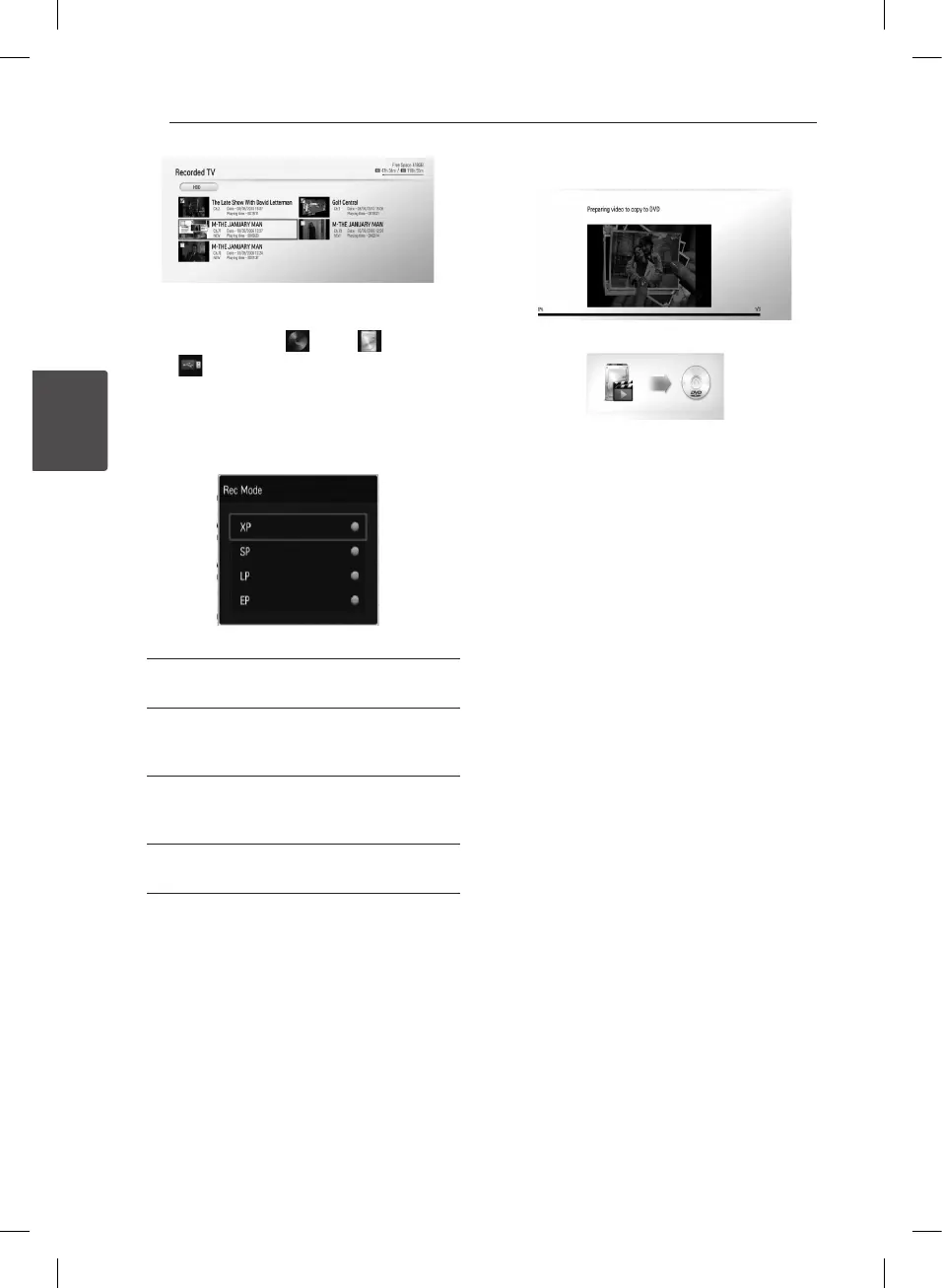
7. Press green (G) colored button to display the
[Device Selection] menu.
8. Use
w/s
to select [ DISC], [ HDD]
or [ USB] and press ENTER (
b
) for target
device.
9. (Disc only)
Use
w/s
to select a desired Rec Mode Set [XP,
SP, LP or EP] and press ENTER (
b
).
There are four preset copying quality modes:
[XP] – Highest quality setting, gives about 1
hour of recording time on a DVD (4.7 GB).
[SP] – Default quality, sucient for many
applications, gives about 2 hours of recording
time on a DVD (4.7 GB).
[LP] – Slightly lower video quality, gives about
3 hours of recording time on a DVD disc (4.7
GB).
[EP] – Low video quality, gives about 4 hours of
recording time on a DVD (4.7 GB).
10. Use
a/d
to select [Yes], and press ENTER (
b
)
to start copying.
11.
(Disc only)
It starts to copy to DVD after preparing video.
After completing copy to DVD, you can see the
copy list.
12. Press BACK (
1
) to exit the copy list.


 To Next Page