Operating 19
Operating
3
On-Screen display
You can display and adjust various information and
settings concerning the content.
Displaying content information
on-screen
DVD
AVCHD
1. During playback, press INFO/MENU (
m
) to
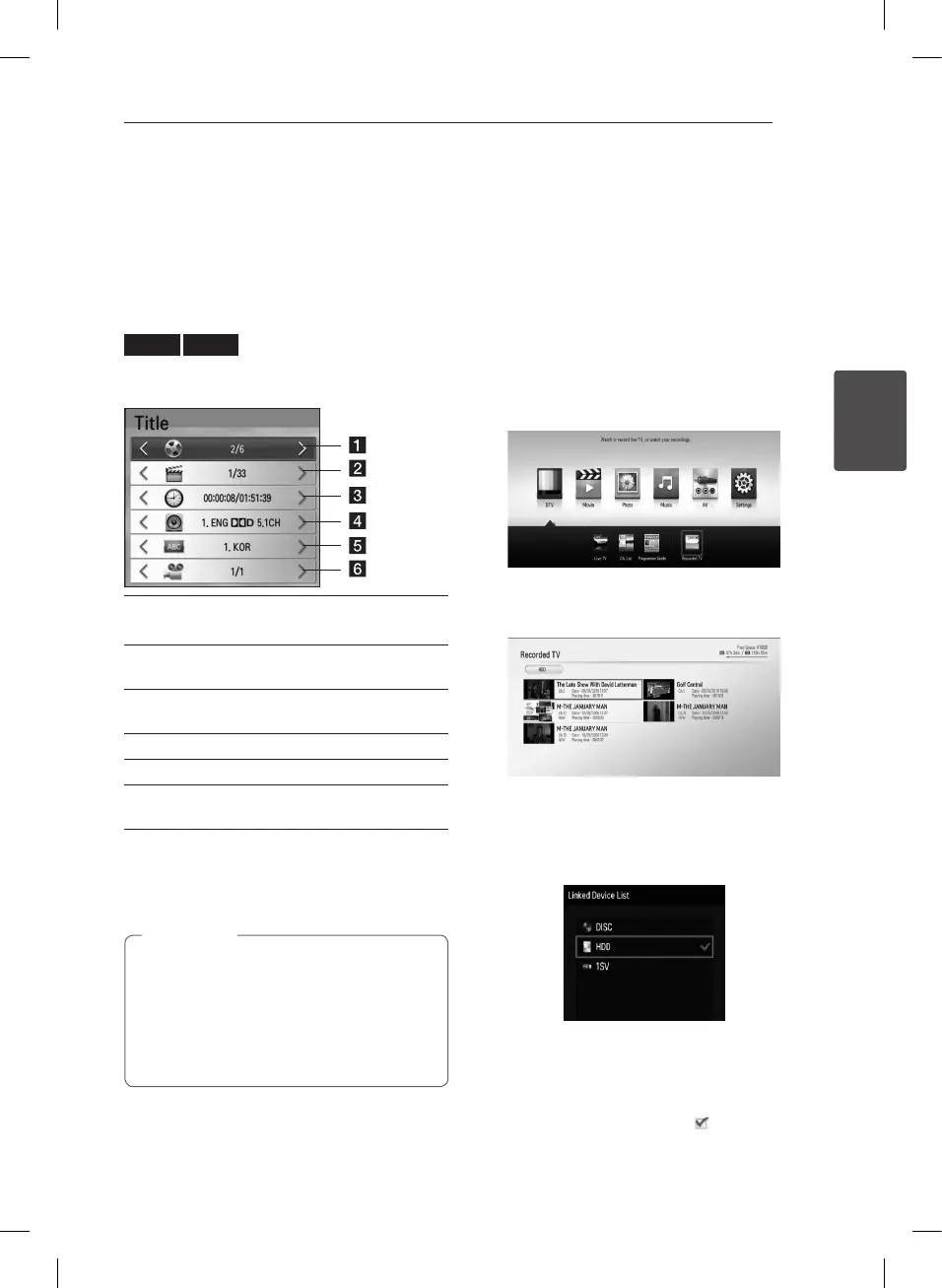
show various playback information.
a Title – current title number/total number of
titles
b Chapter – current chapter number/total
number of chapters
c Time – elapsed playing time/total playback
time
d Audio – selected audio language or channel
e Subtitle – selected subtitle
f Angle – selected angle/total number of
angles
2. Select an option using
w/s
.
3. Use
a/d
to adjust the selected option value.
4. Press BACK (
1
) to exit the On-Screen display.
y
If no button is pressed for a few seconds,
the on-screen display disappears.
y
A title number cannot be selected on some
discs.
y
Available items may dier depending on
discs or titles.
,
Note
Using the Recording
title Copy
You can copy recording title from to the other
storage device.
Preparations:
y
Insert a blank DVD disc in the DVD deck and
close the disc tray.
y
Insert a external HDD to the USB port until it ts
into place.
1. Press HOME (
n
).
2. Use
w/s/a/d
to select [Recorded TV] or
Disc icon, on the HOME menu and press ENTER
(
b
).
3. Press green (G) colored button to display the
[Linked Device List] menu.
If you want to copy the recorded title on disc,
internal HDD or external HDD, please select the
desired device.
4. Use
w/s
to select a storage device you want
to copy, and press ENTER (
b
).
5. Press blue (B) colored button.
6. Use
w/s/a/d
to select a recording title
then press ENTER (
b
). (shows icon)


 To Next Page