15 | Moku:Go Laser Lock Box User Manual © 2023 Liquid Instruments. All rights reserved.
Oscilloscope
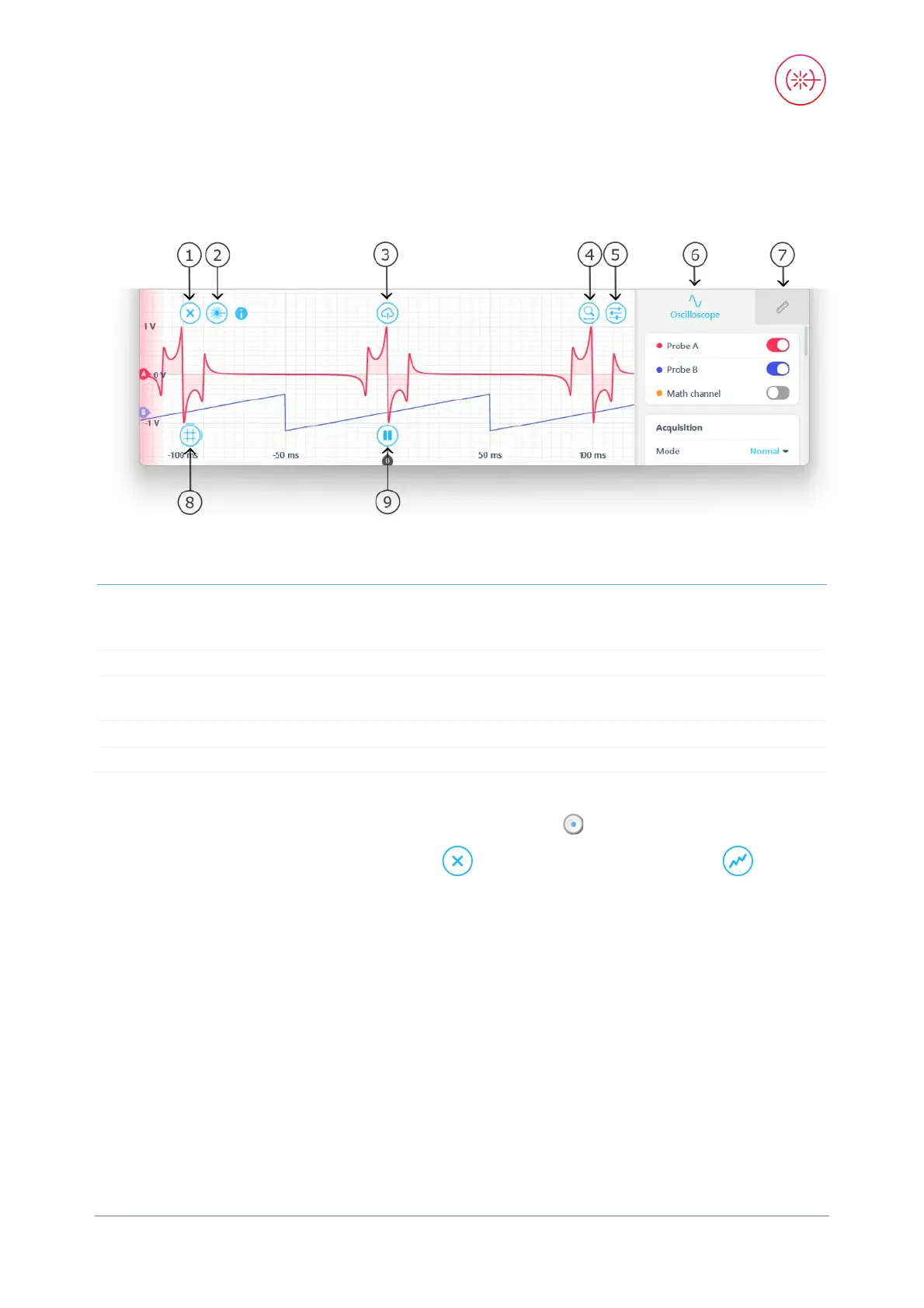
The Moku:Go Laser Lock Box includes a built-in Oscilloscope, enabling you to observe and record
data of up to two signals at a time in the Laser Lock Box’s processing chain.
1
6
Tap to configure Oscilloscope settings,
including Acquisition, Timebase,
Trigger, Type, and Sensitivity
2
7
Tap to select measurements tab
3 Share Oscilloscope data 8
Tap to add time/voltage cursors, or
drag right or drag up to create a cursor
4
Zoom in/out of the waveform
9
5
Reveal/hide settings sidebar
The Oscilloscope will appear automatically when a probe point is activated.
You can hide the Oscilloscope by pressing the icon and reveal it by pressing the icon.
Lock Assist feature
The Lock Assist can only be enabled after the locking stage is configured. When the Lock Assist is
enabled, the trigger settings will be configured to synchronize the oscilloscope traces with the scan
waveform. Selecting one of the error signal’s zero crossings will then adjust the output offset to the
corresponding voltage and engage the first locking stage which is not already fully engaged.


 To Next Page