6 | Moku:Pro Waveform Generator User Manual © 2023 Liquid Instruments. All rights reserved.
Preferences
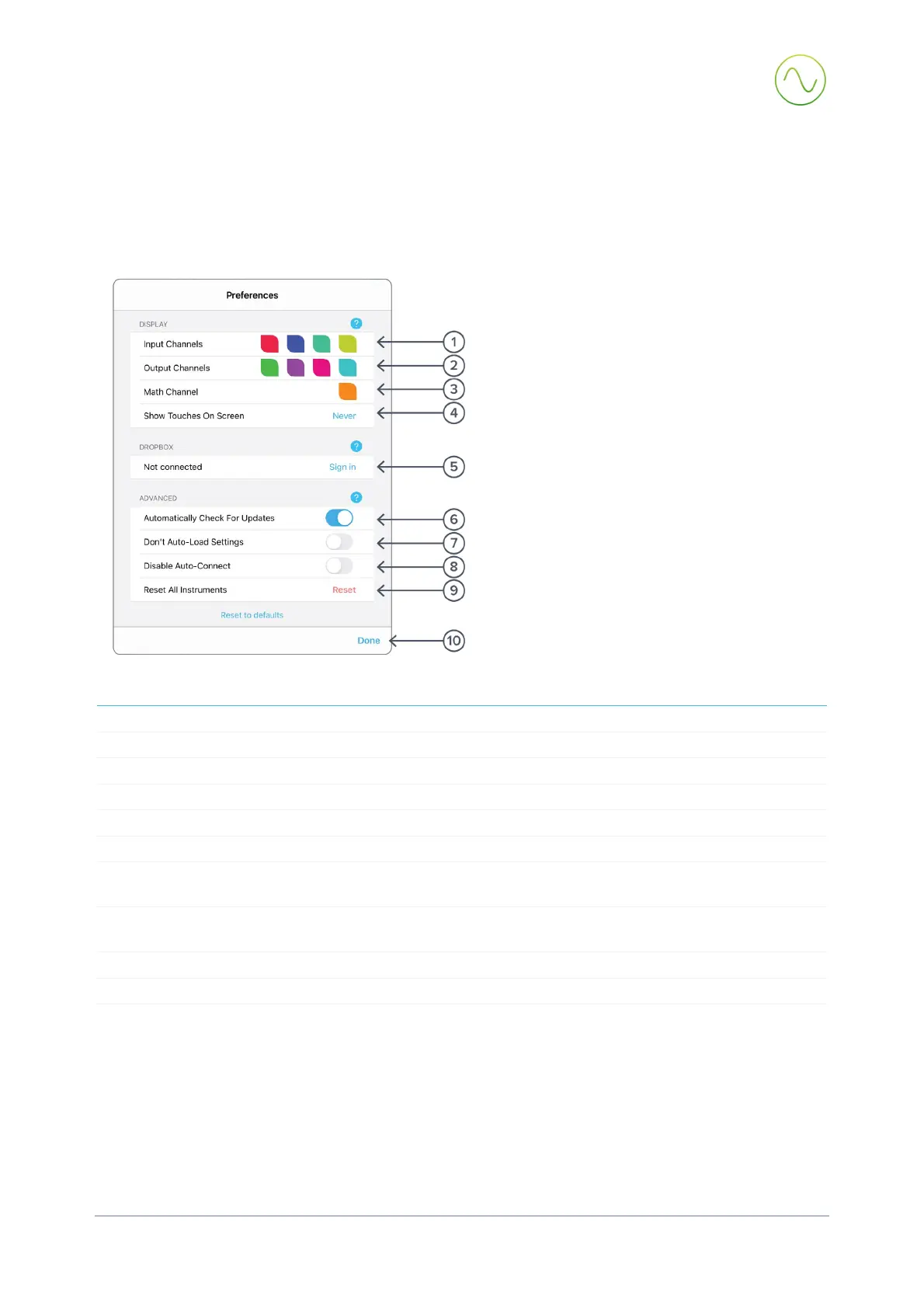
Access the preferences pane via the main menu. In here, you can reassign the color
representations for each channel, connect to Dropbox, etc. Throughout the manual, the default
colors (shown in the figure below) are used to present instrument features.
tion
1
Tap to change the color associated with input channels.
2
Tap to change the color associated with output channels.
3
Tap to change the color associated with math channel.
4
Indicate touch points on the screen with circles. This can be useful for demonstrations.
5
Change the currently linked Dropbox account to which data can be uploaded.
6
Notify when a new version of the app is available.
7
Moku:Pro automatically saves instrument settings when exiting the app, and restores them
again at launch. When disabled, all settings will be reset to defaults on launch.
8
Moku:Pro can remember the last used instrument and automatically reconnect to it at launch.
When disabled, you will need to manually connect every time.
9 Reset all instruments to their default state.
10


 To Next Page