Loewe bild 5 oled / bild 4 oled
User handbook
8
Remote control
(1
The assignment of these keys can be changed. The description refers to the standard setting. The factory setting of the keys can vary depending on the firmware version
of the remote control.
(2
Depending on the settings HbbTV mode on/off, start behaviour of HbbTV station (System Settings
ט
Control
ט
more ...
ט
HbbTV)
.
(3
In case of device type bild 4 oled to an externally connected USB hard disk.
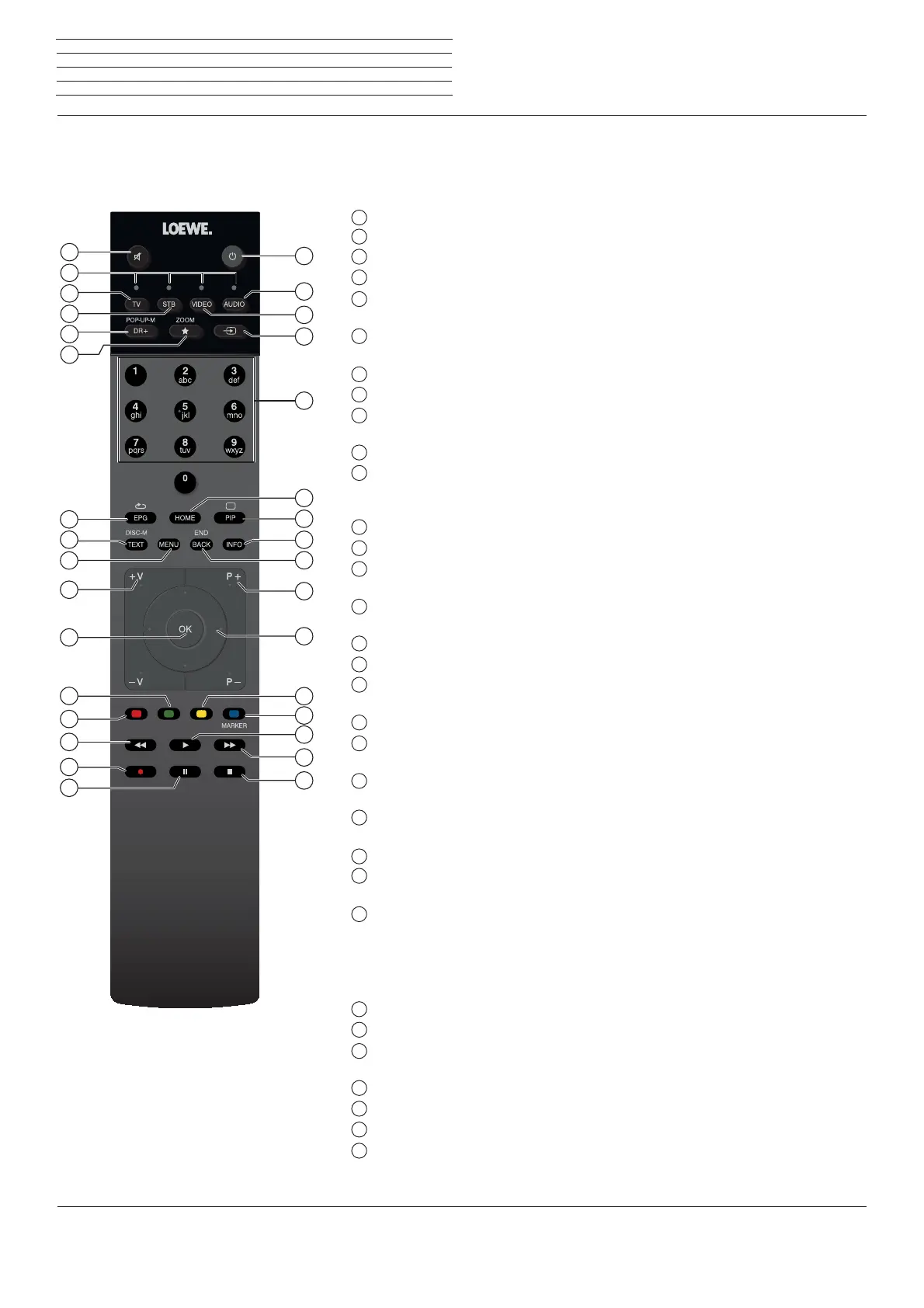
Remote control button mapping
Depending on the selected operating mode (TV/Video/Audio/Photo/Apps) and function (e.g. DR+, EPG, PIP, Teletext, HbbTV, etc.), the key assignment
may differ from the assignment described here (see the corresponding chapter).
1
Sound mute/on.
2
LED display for currently operated device.
3
Call the TV mode.
4
Reassign remote control to SetTop-Box
(1
(presetting: Apple TV).
5
Pressing briefly
: Open the DR+ archive.
P
ressing longer
: Call timer.
6
Pressing briefly
: Add current object to Home favourites.
P
ressing longer
: Open App Gallery. (standard assignment)
(1
7
EPG (Electronic Programme Guide) on/off.
8
Teletext/MediaText
(2
on/off.
9
Pressing briefly
: Call function list for the active operating mode.
P
ressing longer
: Call System settings.
10
V+/V- increase/reduce volume.
11
Pressing briefly
:
Call station list.
Pressing longer
: Call
expanded station list.
In the menu: confirm/call up.
12
Green coloured key: screen on/off in Audio/Radio mode.
13
Red coloured key: call preferred value-added network service, if available
(
2
.
14
Pressing briefly: skip backwards.
Pressing longer: winding backwards.
15
Pressing briefly: direct recording (with determination of recording duration)
(
3
.
Pressing longer: One Touch Recording
(
3
.
16
Pause / Start/pause the timeshift television
(
3
.
17
Stop / End timeshift (return to live image)
(
3
.
18
Pressing briefly: skip forwards.
Pressing longer: winding forwards.
19
Play / Start/continue timeshift television
(
3
.
20
Blue coloured key: call station function list
(selection of language/sound, subtitles or channel/video track).
21
Pressing briefly: Yellow coloured key: call history.
Pressing longer: Yellow coloured key: call last station.
22
Navigation on the user interface, select objects.
In the menu / lists: select/set.
23
P+/P– next/previous station.
24
Pressing briefly: step / level back.
Pressing long: close all displays.
25
Press briefly during an on-screen display: info display. Info text appropriate to the content
that can assist you further, should you have any questions about your TV set.
Press briefly, without on-screen display: access status display. With status display open
and repeatedly pressing the key call the detailed information on the broadcast.
Press longer: show Explanation of keys.
26
PIP (picture in picture) on/off.
27
Call up the Home view.
28
Select stations with numeric buttons directly.
In the menu: enter numbers or letters
29
Call Sources.
30
Reassign remote control to video device
(1
(presetting: BluTech Vision 3D).
31
Call radio mode (standard assignment)
(1
.
32
Switches the TV set on (mains switch must be turned on) or switches to standby mode.
Press briefly while TV set is switched on: TV set and all CEC-enabled devices connected to
the HDMI ports will be switched off to standby (System Standby).
1
2
3
4
5
6
7
8
9
10
11
12
13
14
15
16
31
18
19
20
21
22
23
24
25
26
27
28
29
30
32
17


 To Next Page