data. Click LogTag - Configure; LogTag
®
Analyzer will scan all
USB ports and display the configuration options for connected
UTRIX-16(M)‘s. Although you can configure many devices at the
same time, it is practical to limit the number of devices to about
10, using a powered USB hub. It is not possible to configure
different models at the same time.
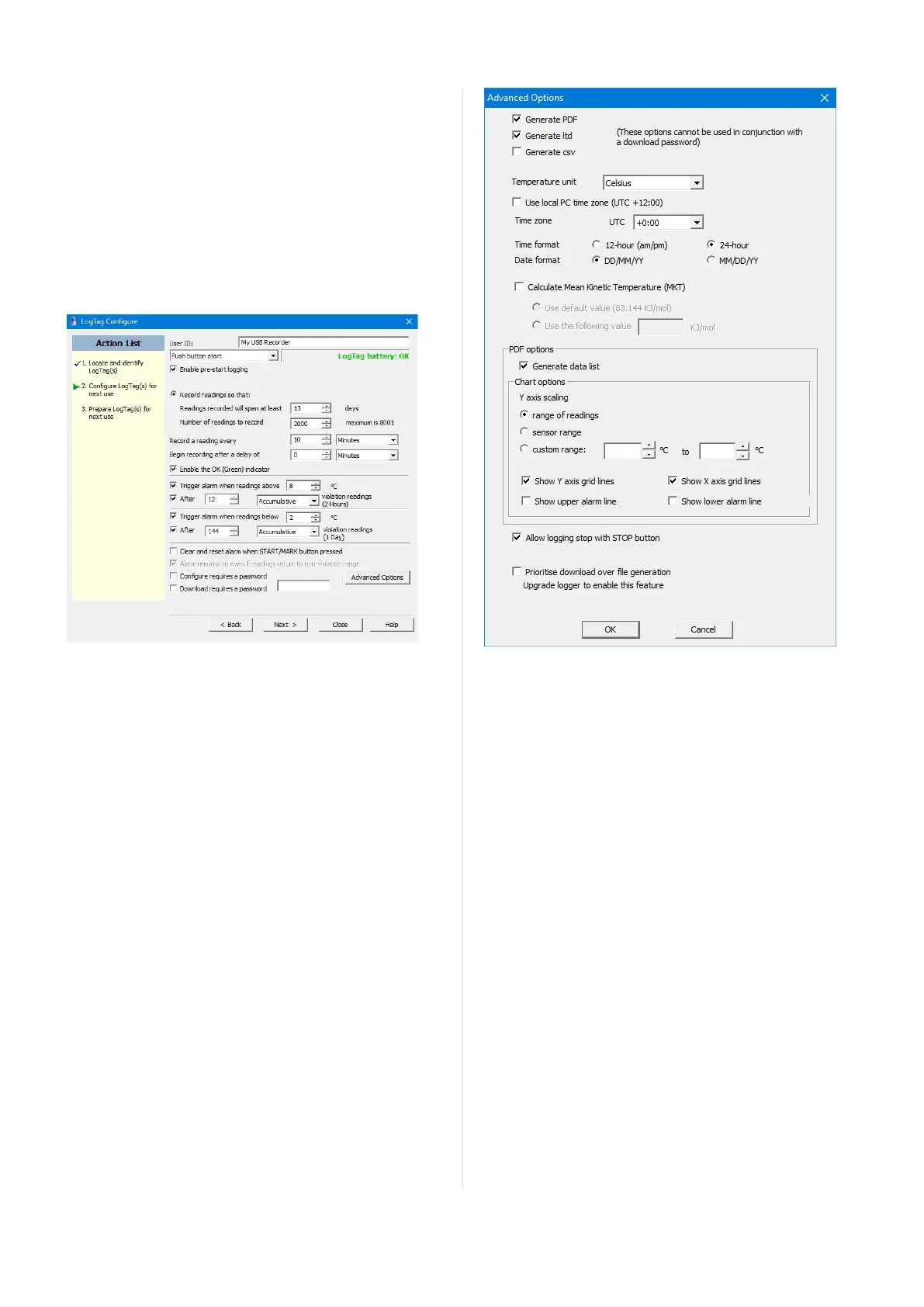
Standard Configuration Options
The standard configuration options are very similar to those of other
LogTag
®
recorder products and include settings such as User ID,
start method, pre-start recording, logging interval and duration,
start delay, temperature alarm parameters and password.
Figure 1: UTRIX-16(M) Standard Configuration Options
For detailed information about each parameter please read the section
about Configuring a LogTag
®
for logging in LogTag
®
Analyzer’s
User Guide or press F1 for help.
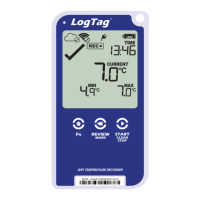
Advanced Configuration Options
Ckick Advanced Options for additional configuration settings. These
settings decide which files -if any- are generated at the end of the trip
and also determine the appearance and contents of the generated
files.
Figure 2: UTRIX-16(M) advanced configuration screen
Parameters that influence the appearance of all files are
l setting of the temperature units used in the files
l date and time format
l Time zone and MKT values
Parameters specifically influencing the appearance of the PDF file are
l scaling parameters for the chart
l showing or hiding gridlines
l showing or hiding alarm threshold lines
l creation of the data list
You can also set whether or not the recorder can be stopped using the
STOP button, and if the communication with LogTag
®
Analyzer
should be prioritised over the generation of files when the unit is
plugged into a computer.
Enter the desired options and click Close to accept the new values.
This returns you to the standard configuration dialogue.
Page 6 of 16 UTRIX-16(M) Product User Guide, Revision 2.0, copyright © 2004-2016, LogTag
®
Recorders . All rights reserved.


 To Next Page