26
Link Mode
IMPORTANT: This is an alternative to setting the channel and trap ID
manually. For more information on setting the channel and trap ID on your
receiver, please refer to the R4300 dip switch guide and page 24 of this
manual (Change System ID)
It is now possible to set the channel/frequency and trap number on the R4300 Receiver without using
dip switches. This operation only needs to be done once, or if you want to change the channel or
trap number. Once set, the channel and trap number are stored in memory until changed, even after
power is turned o to the machine.
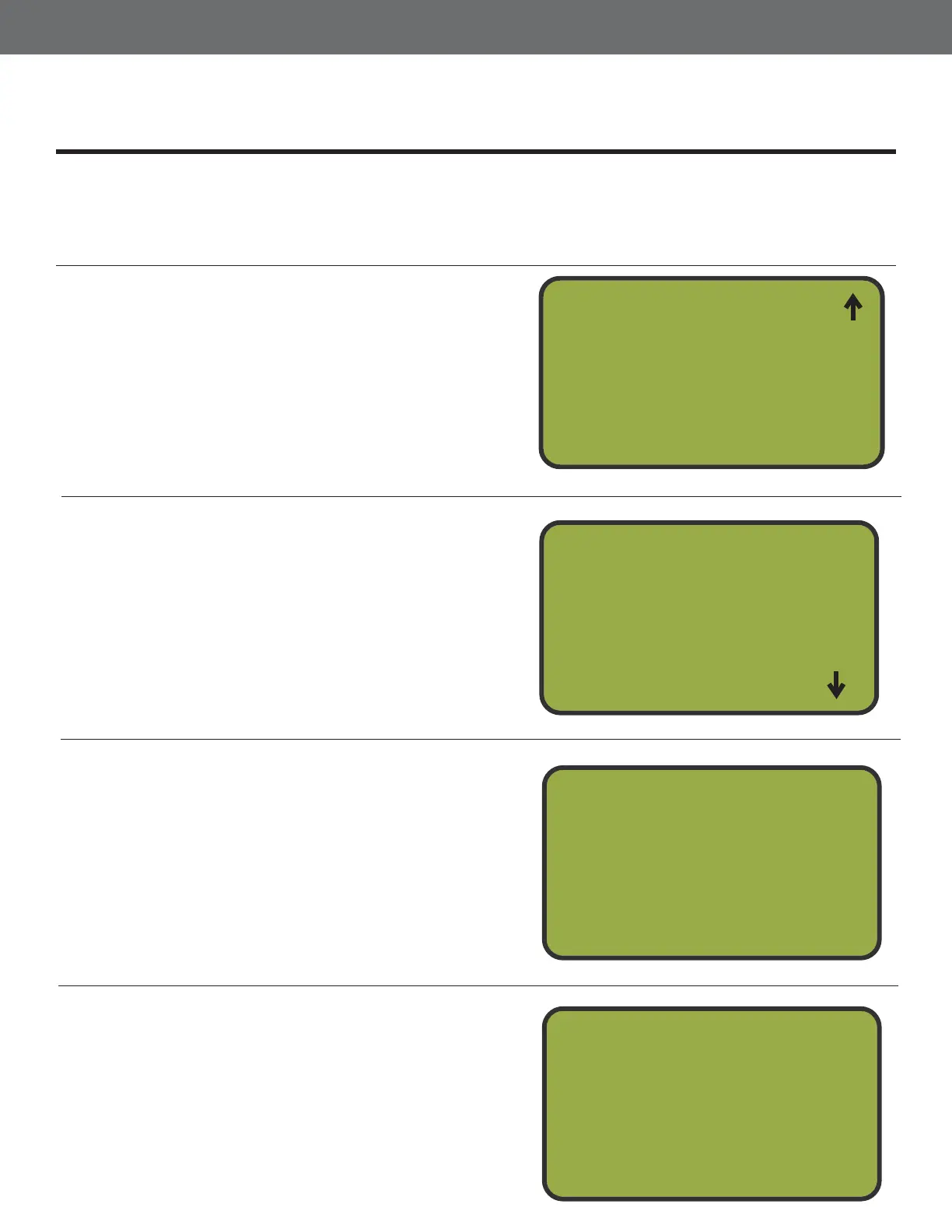
Select Option 4, System Setup
From the Main Menu, press button 4 which
corresponds with System Setup. ou will
be prompted to enter your 4-digit password,
then press NTR. This will bring you to the
System Setup Menu.
1
2
Select Option 2, Chg System ID
From the System Setup Menu, press button 2
which corresponds with Chg System ID. This
will bring you to the Set System IDs Menu.
System Setup
1
2
3
Chg Password
Chg System I D
Trap Status
Select Option 1, RF Channel
From the Set System IDs Menu, press the 1
button which corresponds with RF Channel.
This will take you to the Set RF Channel
Menu.
Select Option 2, Link Mode
From the Set RF Channel Menu, press the
2 button which corresponds with Link Mode.
This will take you to the Link Mode Menu.
1
2
Set System I Ds
RF Channel
Msg Format
1
2
Set RF Channel
MT Channel
Link Mode
3
4
4
5
System Setup
Voice Mode
6
Blue T Mode


 To Next Page