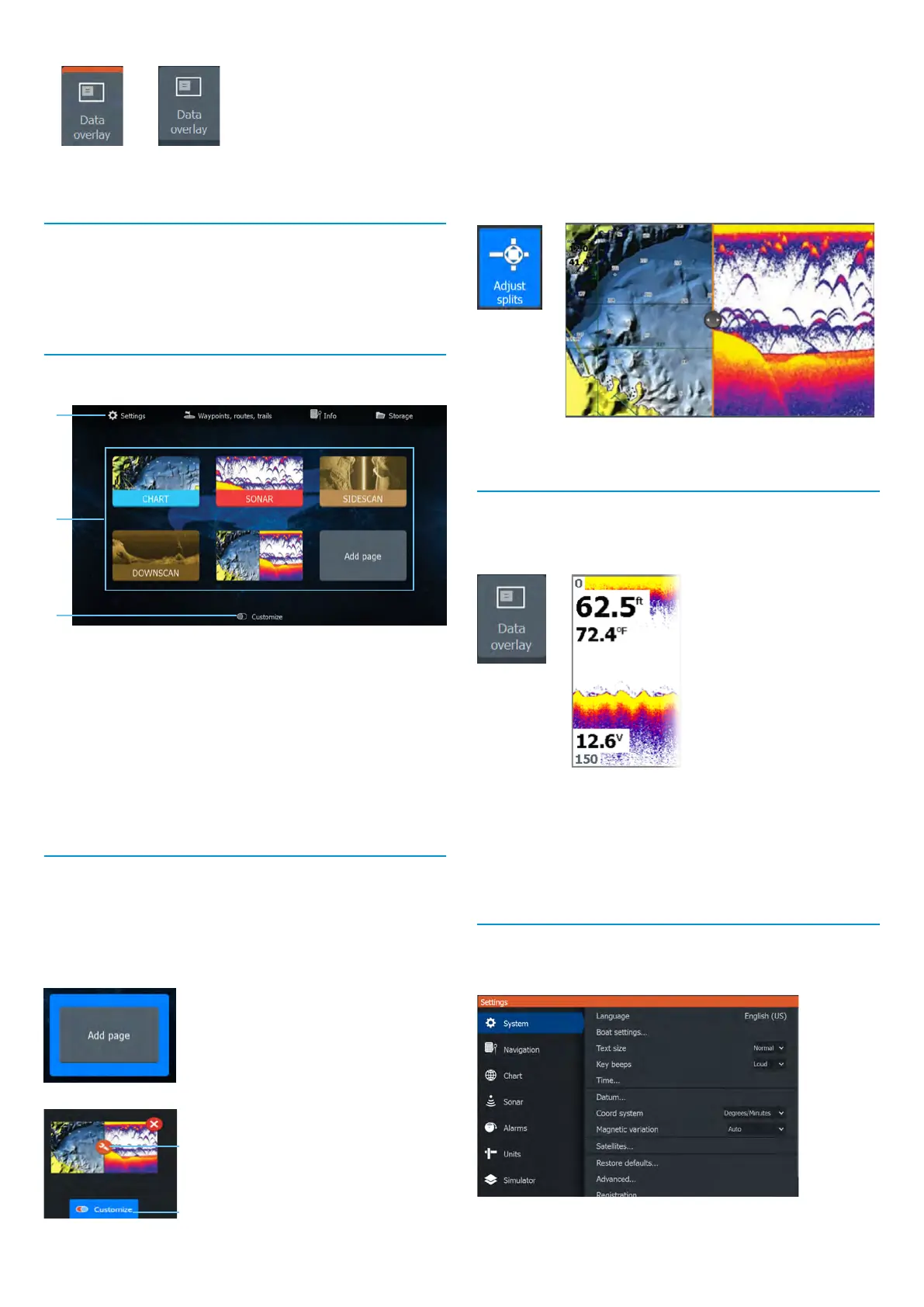
Active options are orange in the System Controls dialog.
Option ON Option OFF
Display illumination
Set brightness and select day/night mode from the System
Controls dialog.
Cycle backlight brightness levels by repeatedly pressing the
power key.
Home screen
Press the pages key to view the home screen.
A Tools — Select to access dialogs used for carrying out a
task or for browsing stored information.
B Application icons — Select to display an application.
C Customize — Activate customize mode to modify or
delete custom pages.
¼ Note: Application icons on the home screen vary with
MFD features.
Pages
You can display an application page by selecting its icon on
the home screen.
Custom pages
The system is delivered with one predened custom page,
and you can also create your own.
Select the Add Page icon to
create a custom page.
1 Switch ON Customize to edit
existing custom pages.
2 Select the custom page to edit.
2
Multi-panel pages
• The active panel is indicated by an orange border.
• Press the arrow keys to change active panels.
• Press the enter key to maximize the active panel. Press
the exit key to return to the multi-panel page.
• Select the Adjust splits option in the System Controls
dialog, and use the arrow keys to change the panel size.
Conrm the layout by pressing the menu or enter key.
¼ Note: The panel menu is available on maximized panels.
Data overlay
You can display information as a data overlay on chart and
sonar pages. The information is set individually for each
default and custom page.
Turn Data overlay ON or OFF from the System Controls dialog.
To change the data overlay position or information:
1 Select the Edit overlay option in the System Controls
dialog to activate edit mode.
2 Press the menu key to display edit options.
3 Press the exit key to save your changes.
Settings
There are two ways to view the Settings screen:
• Select Settings on the System Controls dialog, or
• Select Settings on the home screen.




 To Next Page