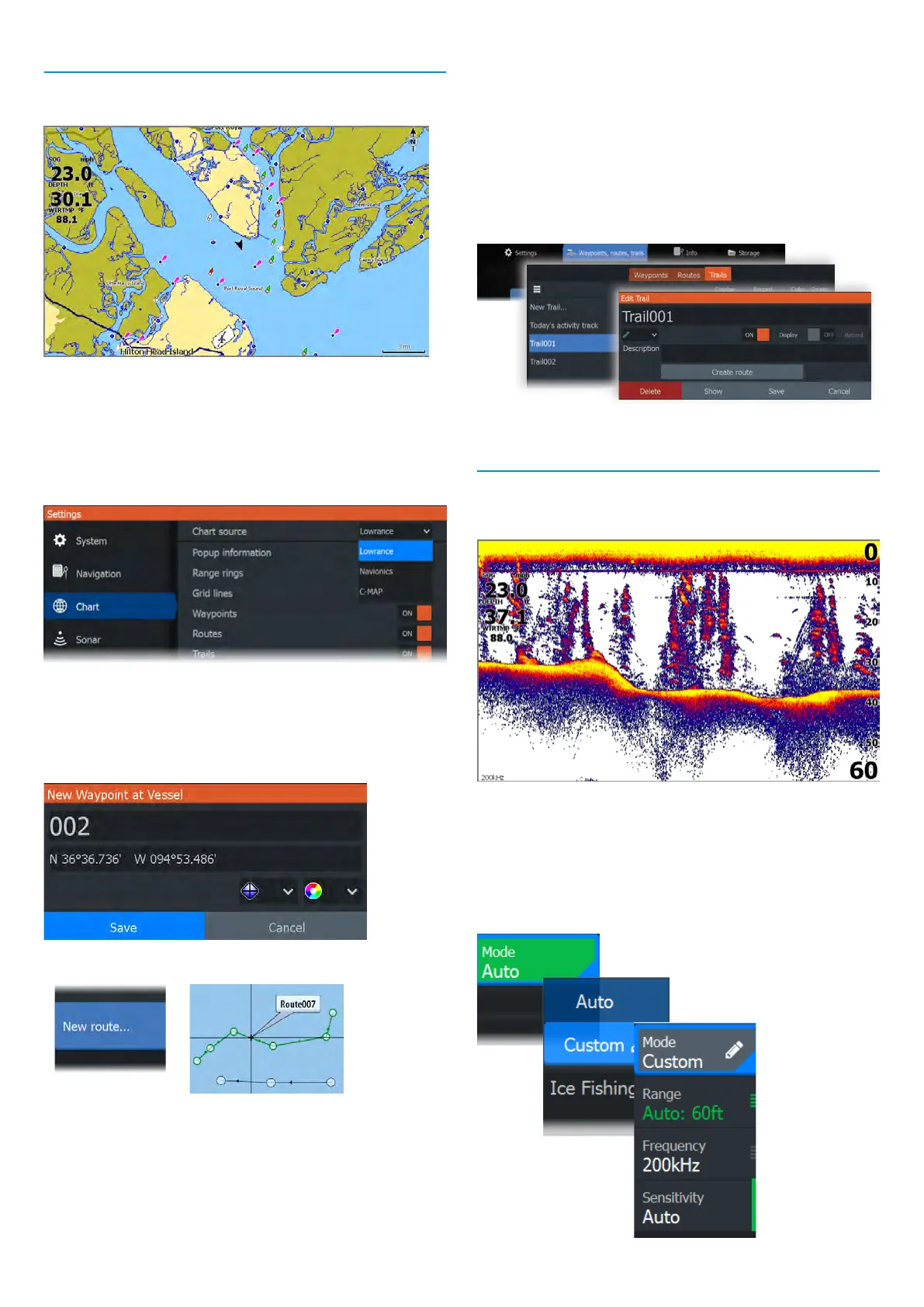
Chart
Use the chart page to navigate to a waypoint, create a route,
or track your current course.
• Use the zoom and arrow keys to adjust the chart scale
and location.
• Position the cursor and press the enter key to select a
chart item and activate the detailed information dialog.
Chart source
Change the chart source if a chart card is inserted.
Waypoints
Press the waypoint key to save a waypoint. By default,
the waypoint is placed at the vessel’s position. With an
active cursor, the waypoint is placed at the selected cursor
position.
Routes
To create a route:
1 Activate a full screen chart panel.
2 Press the menu key to activate the panel menu, then
select the New route option in the menu.
3 Use the arrow keys to position the rst route point, then
press the enter key to conrm the position.
4 Repeat the previous step to place additional route points.
5 Press the exit key to save the route.
Trails
Your unit automatically tracks and draws the vessel’s
movement on the chart panel. Trails are managed from the
Trails dialog.
To display the Trails dialog:
1 Select Waypoints, Routes, Trails from the home screen.
2 Select the Trails tab in the dialog.
3 Select the trail you want to edit.
Sonar
The sonar application displays an image of the water and
sea floor beneath your vessel, allowing you to detect sh
and examine the structure of the seafloor.
• Use the zoom keys to zoom view different parts of the
water column.
• Use the arrow keys to position the cursor and pan the image.
By default, your unit is set to Auto mode, and all settings
are automated. Select Auto in the panel menu and change
to Custom or Ice Fishing mode to customize the sonar
settings.




 To Next Page