EasyManua.ls Logo

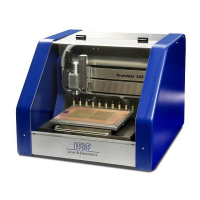
LPKF ProtoMat S103 - User Manual

Default Icon
105 pages
Print Icon
To Next Page IconTo Next Page
Loading...
LPKF ProtoMat S
Manual
Order Code: 1000447

Table of Contents

Questions and Answers

  • W
    William RossAug 8, 2025
    Why LPKF Plotter has no connection?
    • P
      Paul AvilaAug 8, 2025
      The LPKF Plotter might not be connecting due to several reasons: * There may be no power supply. Ensure the mains cable is correctly connected and plugged into the socket. * The main switch of the circuit board plotter might be in the OFF position. Set the switch to ON. * There could be a data transmission problem. Inspect the USB cable between the plotter and PC, ensuring it is properly connected or replace it. * The USB settings of the operating system might need to be checked.
  • A
    Aaron Neal Jr.Aug 19, 2025
    What to do if LPKF Plotter has no dust extraction?
    • Z
      Zachary BanksAug 19, 2025
      If the LPKF Plotter's dust extraction isn't working, consider the following: * Verify the power supply by checking the mains cable and plugging it into the socket if needed. * Ensure the main switch of the dust extraction is set to either ON or AUTOMATIK. * Check if a fuse has triggered, and if so, press the Reset Button on the dust extraction. * Examine the USB cable between the circuit board plotter and dust extraction, ensuring it's properly connected or replace it.
  • A
    Ashley ChoiAug 29, 2025
    How to fix an uptight tool in LPKF Plotter?
    • M
      miranda82Aug 29, 2025
      If a tool is uptight in your LPKF Plotter, it might be due to: * An incorrect tool holder position. You should import the tool holder position again. * Improper tool insertion. Make sure to insert the tool with its top down into the tool holder until it stops. * A soiled tool holder. Clean the tool holder. * A soiled collet chuck. Clean the collet chuck.

Summary

Product Description

Product Characteristics

Key features, performance, automation, housing, and software of the ProtoMat S.

Safety Notes

Device Safety Warnings

Critical safety warnings regarding electrical shock, health hazards, and physical injury from machine operation.

General Safety Notes and Precautions

General guidelines for safe operation, maintenance, and workplace practices.

Functional Description

Function and Permitted Materials

Describes the ProtoMat S capabilities, machining processes, and permitted materials.

Technical Data for ProtoMat S Series

Detailed technical specifications for ProtoMat S43, S63, and S103 models.

Installation and Commissioning

Installation Steps

Detailed steps for installing the circuit board plotter, including connecting cables and removing transport locks.

System Commissioning

Procedures for system start-up, connecting components, and removing the dummy tool.

Operation

Starting the System

Step-by-step guide for starting the ProtoMat S system and the CircuitPro software.

Manual Machining Operations

Guides for performing manual drilling and milling, including depth setting and producing tracks.

System Shutdown Procedure

Steps for saving data, exiting software, and powering down the plotter, PC, and dust extraction.

Troubleshooting

Troubleshooting Common Faults

Identifies common faults like connection issues, dust extraction problems, and tool tightness, with suggested remedies.

Maintenance and Servicing

LPKF ProtoMat S103 Specifications

General IconGeneral
Minimum Track Width0.1 mm
Tool changeAutomatic
Spindle speedup to 60, 000 rpm
Tool changer capacityup to 6 tools
InterfaceUSB
TypePCB Plotter
Max Material Thickness5 mm
SoftwareLPKF CircuitPro
Supported materialsFR4, aluminum, copper
Power requirements230 V, 50/60 Hz
Dimensions800 x 700 x 500 mm

Related product manuals