6
02 Plug the other end of the power cord (
C
) into a working outlet.
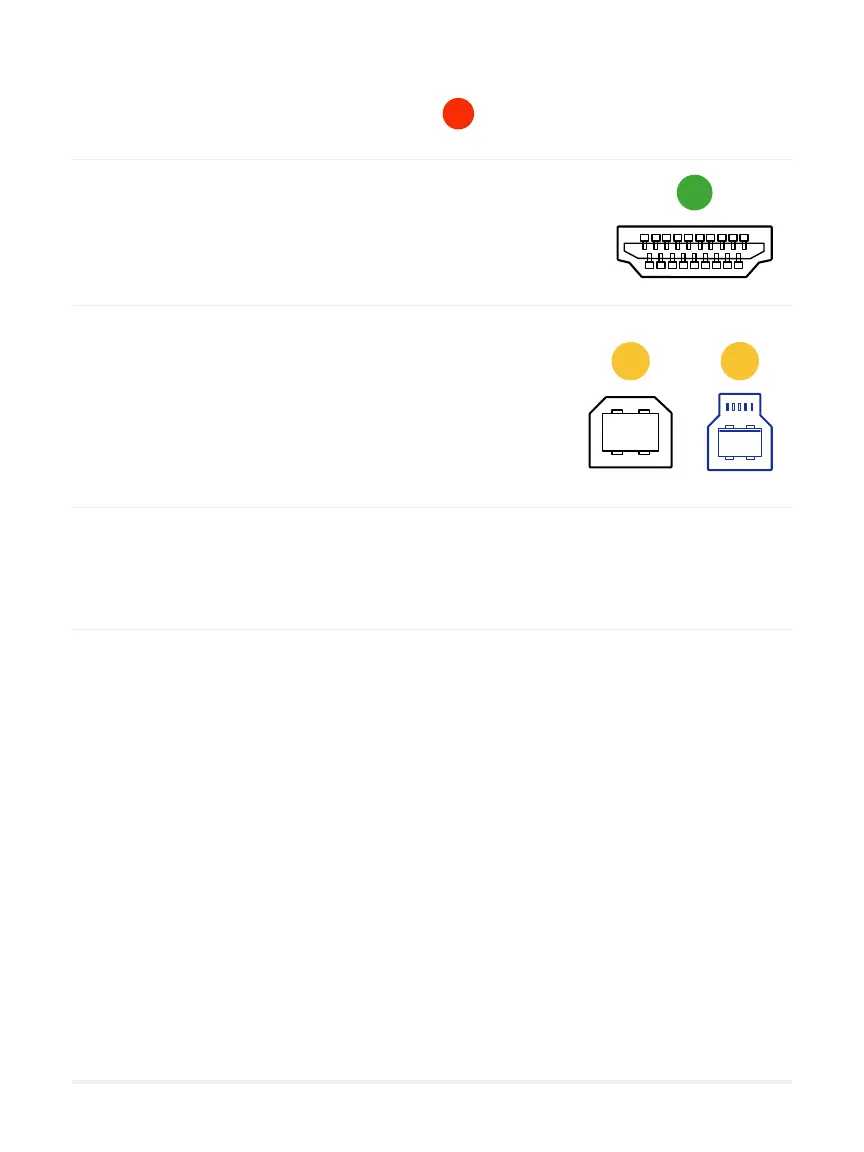
03 Plug the HDMI cable into an available HDMI port on
the back of your interactive whiteboard.
04 Plug the USB 2.0 or 3.0 into the Touch
port on your interactive whiteboard.
Attention! You must plug this cord into the Touch
port next to the HDMI port you are using for the Lü
05 Make sure that all of the cords are securely connected before moving
to the next step.
06 If you haven’t already done so, turn on your interactive whiteboard and select
the source that corresponds to the HDMI jack you plugged your system into.
Wait around ten seconds for the system to start up and bring up the
applications.
A
B1 B2


 To Next Page