6.0 EOS MINI WIFI - iPhone / iPad Pairing
To control the lights using an iPhone or iPad the device first has to be configured to link with the EOS Mini WiFi. This setup
only needs to be carried out once per device. The following guide shows how to pair the controller with an iPhone device.
(The same procedure applies for an iPad.)
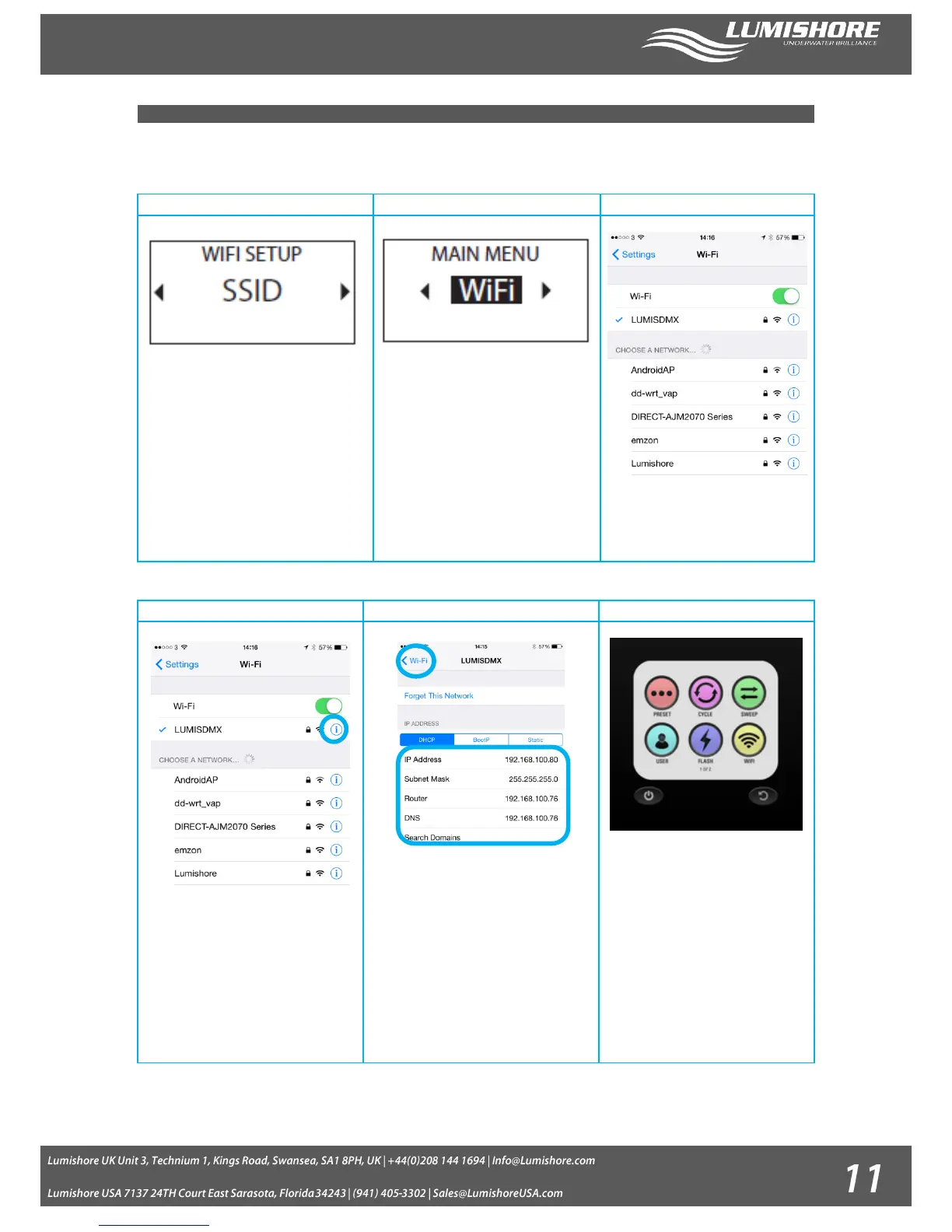
Make a note of the SSID name and
password KEY in the WIFI setup Mode in
setup. The default settings are:
SSID: LUMISDMX
Network Key: 12345678
Note: The SSID is the network name that
will appear on the WiFi list on your
phone. We recommend that you change
the SSID and Network key to improve
the security of the system.
Once the information has been
recorded return to home page and
select WIFI mode.
The internal wifi will be activated.
Note: exiting this mode will turn the
Wifi off again and the controller will
not be found by the iPhone.
Next, using your iPhone search for
local wifi networks. Select the SSID
name for the controller and enter
the password.
Tap the blue “I” symbol to show more
settings
Tap on ‘DHCP’ IP address. The IP
address, subnet mask and router
settings should be as shown above.
Ensure that the DNS setting is the same
as the Router setting.
Once complete tap the wifi icon at the
top left of the screen.
Note: This procedure is for iOS 8 and
above
Launch the Lumishore App on your
phone to wirelessly control your
lights
Note: The iPhone can take up to 60
seconds to connect with the EOS
controller at which time the Wi-Fi
signal strength icon will be shown in
the top left hand corner of the
display.
iPhone Pairing is now complete!


 To Next Page